Work with Project Templates
Uinta includes templates to help you create new projects more efficiently. You can use a sample project template and adjust it to match your project needs, or you can create your own project template. For additional sample templates, contact uintasoftware@junipersys.com. Working with project templates is most commonly done in the office using a Windows computer.
Open the Templates Screen
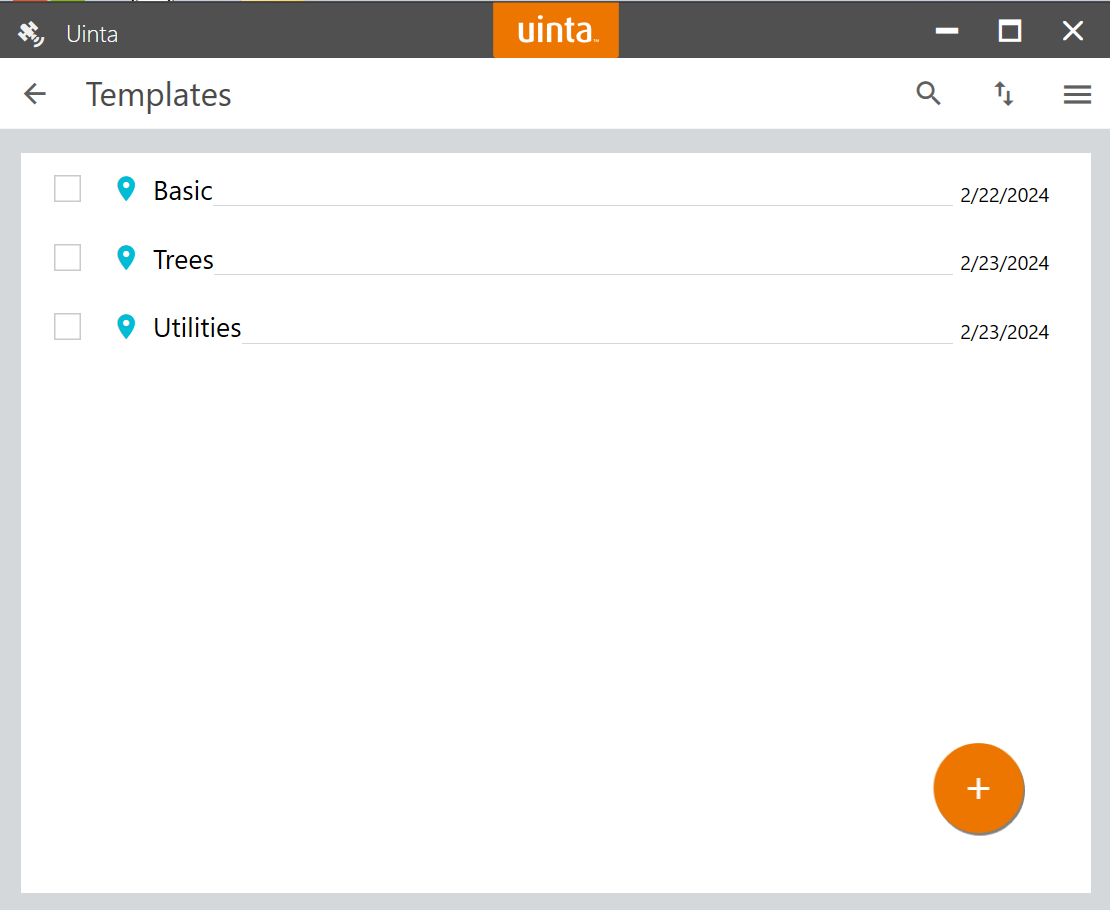
From the Templates screen, you can create new templates and edit/delete existing templates. Once you have added templates, they will be listed here.
To open the Templates screen:
- From the Projects screen, open the menu
 and select Templates.
Create a Template
To create a template:
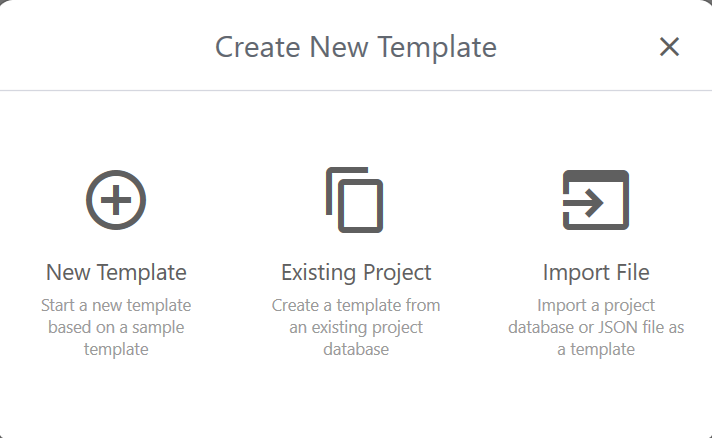
- From the Templates screen, tap
 .
. - Select your preferred option.
|
Create Template |
||
|---|---|---|
| Icon | Description | Steps |
 |
Create a new template based on a sample Note: The sample templates are available for selection after you tap New Template. Currently available templates:
|
|
 |
Use an existing project database to create a template. The template created will contain the same record types as the project, including:
|
|
 |
Import a Uinta project database (.db) or a Uinta template (.json) to use as a template. |
|
Edit a Template
You can edit a template to fit your project's needs. Customize the template in the same manner that you customize a project. For information on adding, editing, and deleting record types and fields, see Customize a Project.
Edit Template Description
To edit the template details:
- From the Templates screen, tap the name of the template (or a record within a template).
- Tap
 in the top right corner of the screen.
 - Edit the name, description, color, and icon.
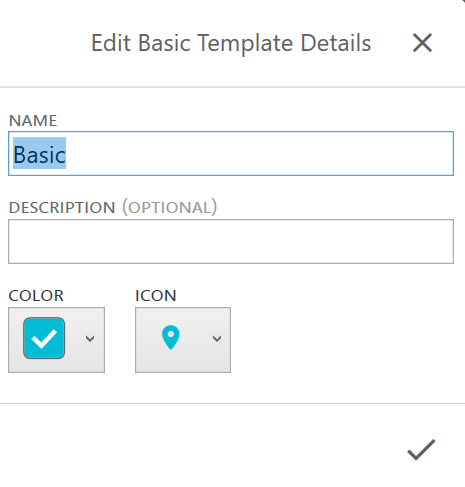
- Tap
 .
.
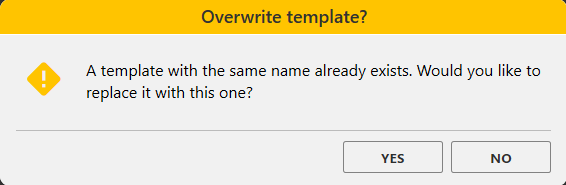
If you are saving the template with the same name, Uinta asks whether you want to overwrite the existing template.
- Tap Yes to overwrite the template.
- Tap No to go back and change the template name.
- To close the template, tap
 .
. - If prompted, tap Save.
Delete a Template
To delete a template:
- From the Templates screen, select the checkbox next to the template that you want to delete.
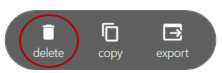
- Tap Delete in the pop-up menu.
Uinta confirms that you want to delete the template.
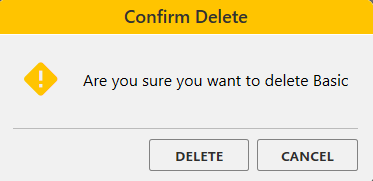
- Tap Delete.
Copy a Template
To copy a template:
- From the Templates screen, select the checkbox next to the template that you want to copy.
- Tap Copy in the Templates pop-up menu.
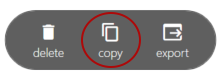
Uinta adds the new template to the Templates screen and adds a numeric value to the template name to differentiate the copy from the original. For example, if you copy the template named "Basic," the new template is named "Basic (1)."
Export a Template
To export a template:
- From the Templates screen, select checkbox for the template that you want to export.
- Tap Export in the Templates pop-up menu.
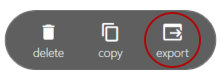
The file is exported as a JSON file with the same name as the template. The file manager displays the location of the exported template.
- Close the file manager.
Note: You can change the file name later by locating the template file in the file manager.
Import a Uinta Template
You can import a Uinta template (JSON file) to the Templates screen and make it available as a custom template for new projects.
Note: Uinta version 2.0.0 or later accepts only JSON files created in Uinta version 2.0.0 or later.
To import a template file:
- From the Templates screen, tap .
- Select Import File.
- Locate the JSON template file that you would like to import and tap Open.
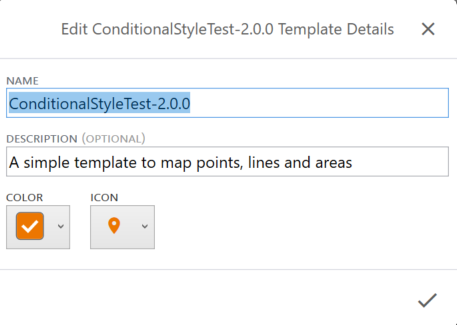
- Modify the name, description, and identifying color and icon.
- Tap .