Import Data
You can import data created in Uinta or other applications, and then choose whether to use the data in a new or existing Uinta project. Uinta accepts KML, SHP (zipped), DXF, CSV, GeoJSON, and GPKG file formats. Importing data is most commonly done in the office using a Windows computer.
Import Data into an Existing Project
You can import data into Uinta and add it to an existing Uinta project. You have the option to add the data as new record types or to map it to existing record types already defined in a project template. During the import process, you select which data to import.
Import and Create New Record Types
To import a file into an existing Uinta project and create new record types:
- Open the Uinta project into which you want to import the data.
- Tap
 .
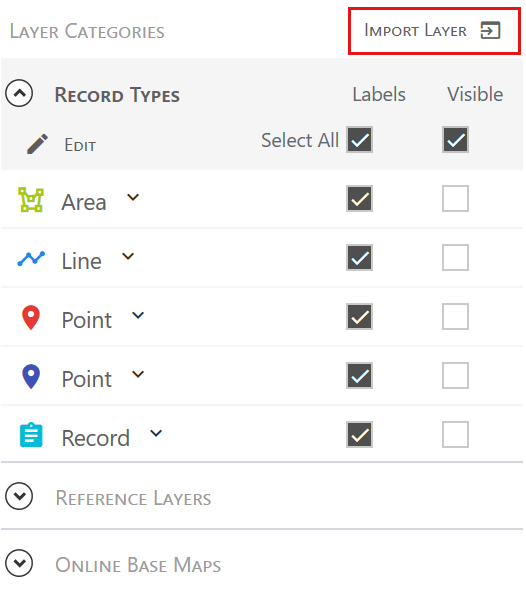
. - Tap Import layer.
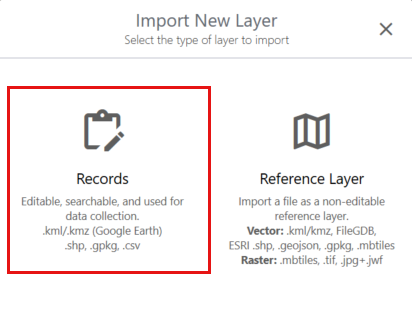
- Tap Records.
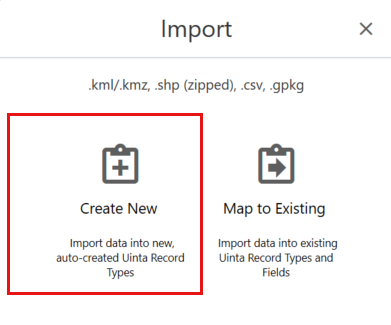
- Tap Create New.
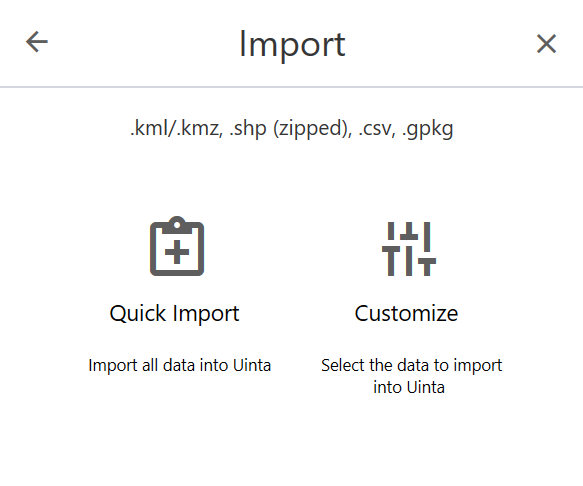
- Select an import option:
- Quick Import—Import all records in the file and creates new record types.
- Customize—Allows you to select the records to import.
- Locate the file, and tap Open.
- If you selected Customize, the record type(s) in the file appear in the left column. Tap a record type to preview its fields and how they will be added in Uinta. Select the checkbox next to each record type you want to import, and tap
 .
.
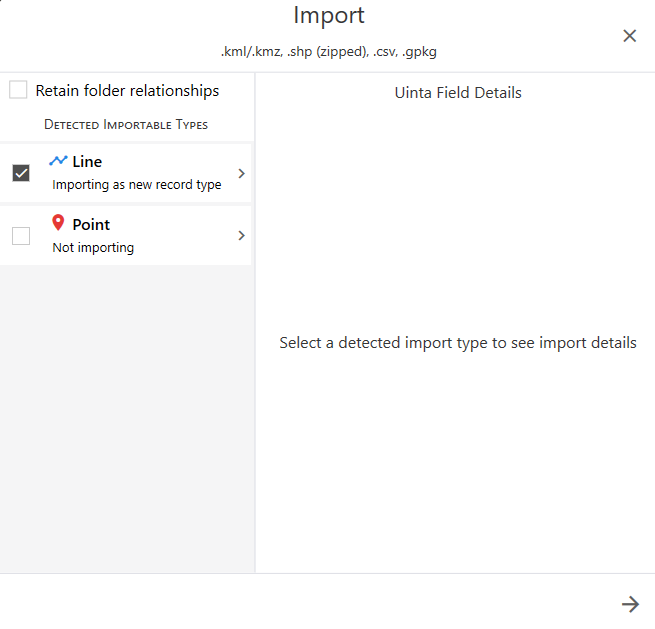
- If you selected Customize, the record type(s) in the file appear in the left column. Tap a record type to preview its fields and how they will be added in Uinta. Select the checkbox next to each record type you want to import, and tap
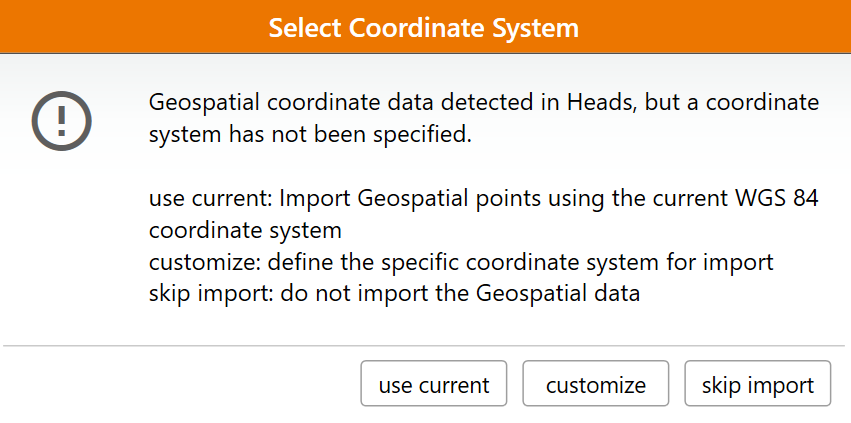
- If Uinta cannot identify the file's coordinate system, select one of the following import methods:
- Use current— Imports the geospatial data using the coordinate system specified in Location Settings. The default is WGS84.
- Customize—Allows you to select the coordinate system for the geospatial data.
- Skip import— Imports only the nonspatial record data.
Map to Existing Record Types
To import a file into an existing project and map the fields to fields in an existing record type:
- Open the Uinta project into which you want to import data.
- Tap .
- Tap Import layer.
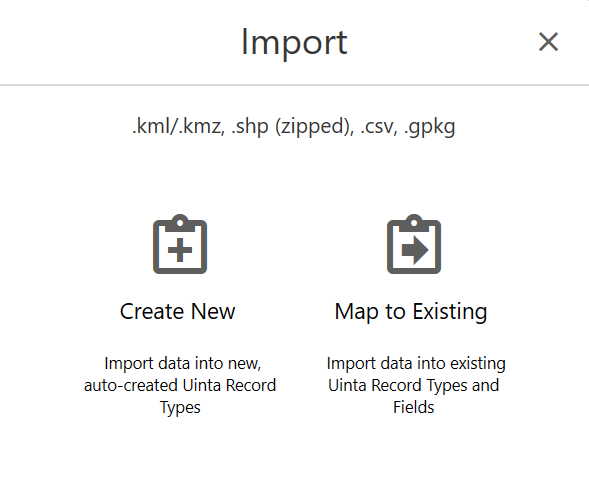
- Tap Map to Existing.
- Locate the file you want to import and tap Open.
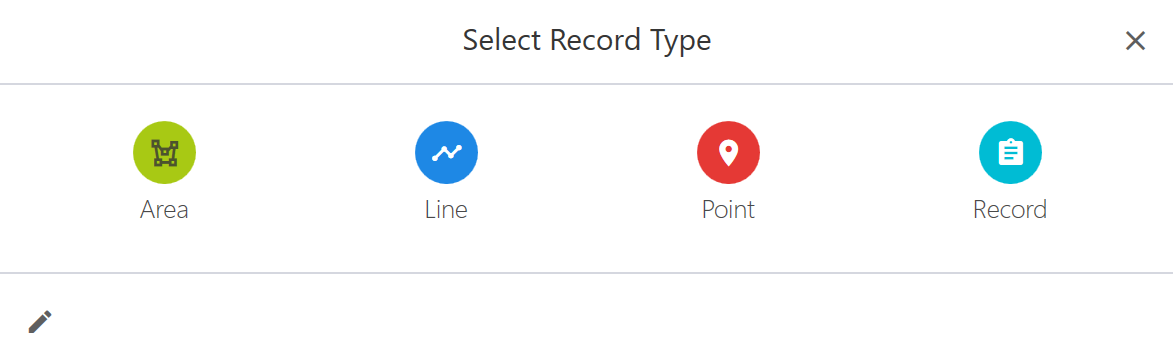
- Select the record type into which you want to import the data.
The left panel displays the imported file. The right panel displays the fields into which you are importing the data and the source coordinate system.
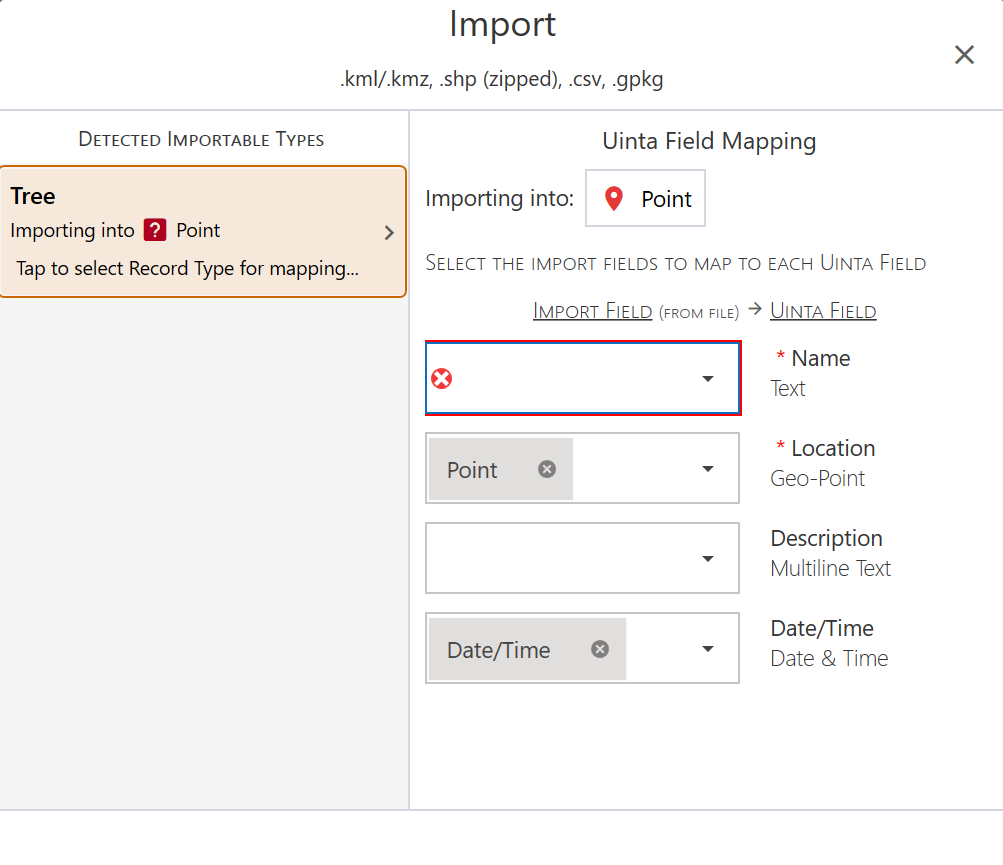
- For each field, ensure the imported field is matched to an existing field in the Uinta project.
- Uinta automatically recognizes fields with the same name.
- Use the drop-down list to select the field that aligns with an existing project field.
- After you identified all fields, tap .
Uinta imports the data fields into the project and opens the project in Map view.
Import Data as New Project
You can import a Uinta database (.db) or data from a SHP (zipped), KML, CSV, DXF, GeoJSON, or GPKG file and save the imported data as a new project in Uinta.
Note: Importing a file as a new project doesn't allow you select a template with project creation.
To import data as a new project in Uinta:
- Open the Projects screen.
- Tap
 .
.
- Tap Import.
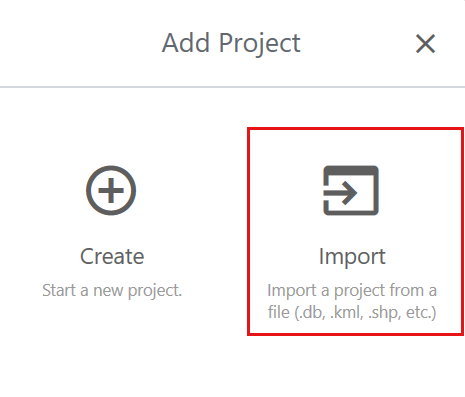
- Locate the file you want to import, and tap Open.
Note: If you import a Uinta database (.db) file, the project is imported automatically and opens in Map view.
- In the Project Setup dialog, change the project name if desired and enter information about the project.
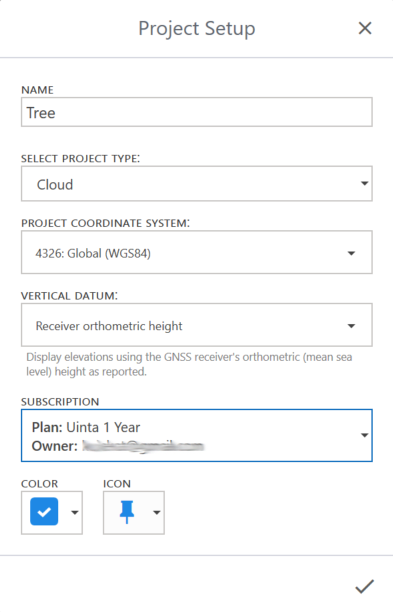
Field
Description
Select Project Type
Select one of the following:
- Cloud—Saves the project to the cloud. An internet connection is required to create the project.
- Local—Saves the project to the device. No internet connection is required.
Project Coordinate System
Select the coordinate reference system (CRS) from the list. Tap Select other to search by SRID or name. The default CRS is WGS84.
For help selecting the appropriate CRS for your project, see Guidelines for Selecting a Project CRS.
 CAUTION: You cannot change the coordinate reference system after you create the project.
 Vertical Datum
Select the vertical datum from the following:
- Receiver orthometric height (default)—Elevation is the orthometric height reported by the GNSS receiver, referenced to mean sea level using the receiver's geoid model.
- Ellipsoidal height—Elevation is the height above the reference ellipsoid.
- Geoid model—Elevation is the orthometric height calculated using the selected geoid model.
Subscription
Displays only if you have multiple accounts. Color
Select a color.
Icon
Select an icon from the list.
- Tap
 .
.
Transformation of Coordinate Reference Systems
Files imported into Uinta are transformed into the project CRS. You selected the CRS when the project was created.
|
File Type |
Description |
|---|---|
|
SHP |
The imported CRS is auto-detected in the shapefile and appropriately transformed. |
|
CSV |
The user is prompted to select the CRS or use the same one used by project. |
|
KML/KMZ |
The imported CRS is transformed into the project coordinate system. The imported data is assumed to be in WGS84. |
|
GPKG |
The imported CRS is auto-detected in the GPKG file and appropriately transformed into the project coordinate system. |
|
GeoJSON |
The imported CRS is transformed into the project coordinate system. The imported data is assumed to be in WGS84. |
|
DXF |
If the file contains embedded georeference information (for example, define the CRS in CAD prior to exporting to DXF), Uinta will auto-detect the CRS. If no georeference information is detected, you will be prompted to select the CRS. |
|
Reference layers |
If georeferenced, the reference layer is transformed to the project CRS. |