Edit Data in a Record
The data you collect as part of a project is stored as records. Records with geospatial data appear in Map view and List view. Records without geospatial data appear only in List view. Use the tabs at the tops of the screen to switch between views.
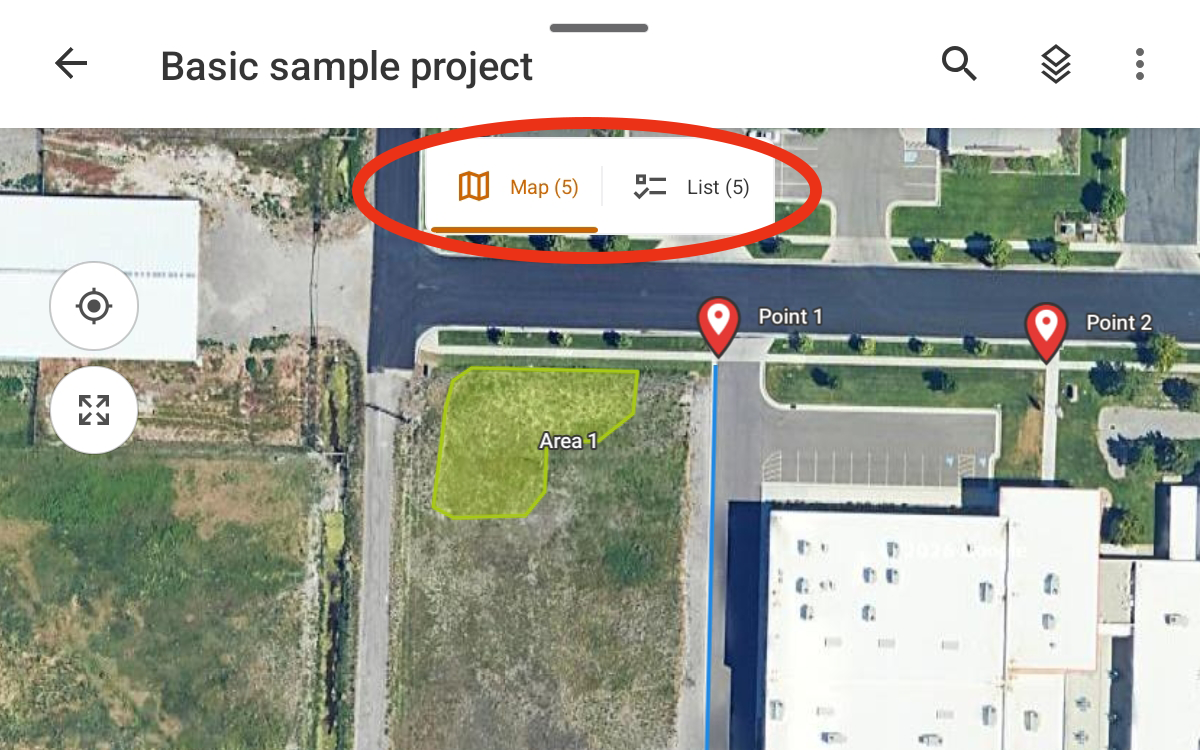
Edit Data in a Record
To edit the data in a record:
- Open the project.
- In Map view, tap the record that you want to modify. Tap Edit.
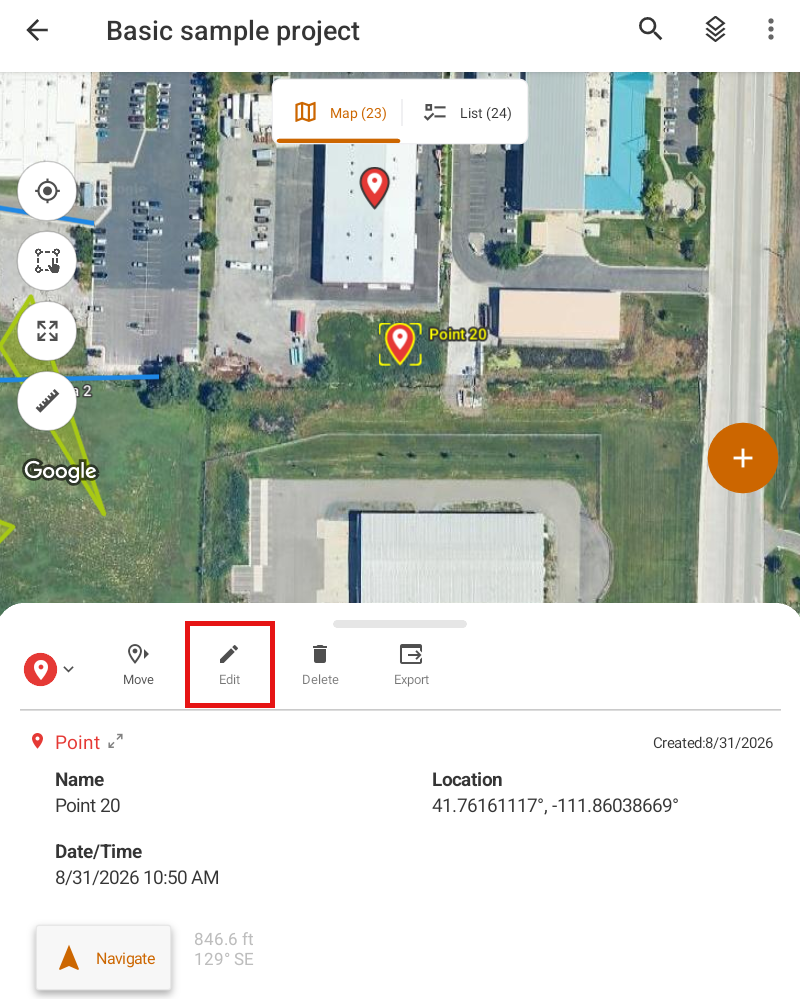
Or, open the project in List view. Select the record that you want to edit and tap Edit  .
.
- Edit the record.
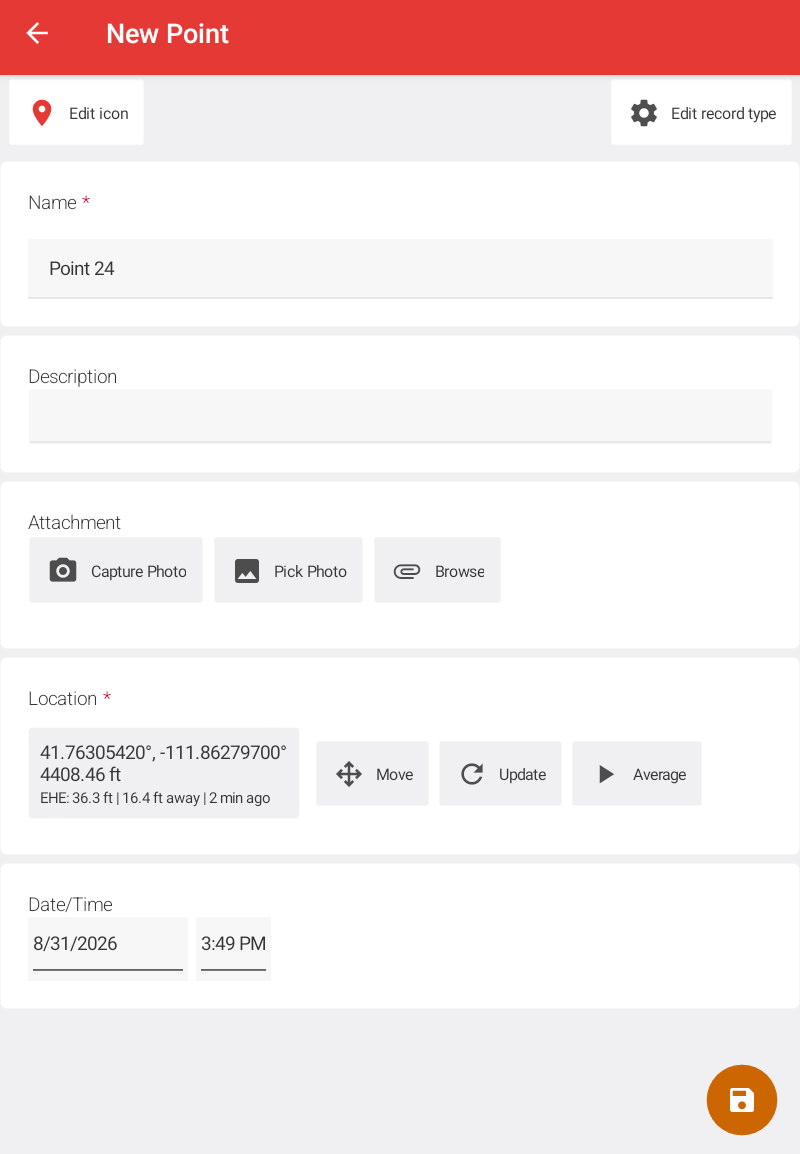
Note: To update the geographic location, see Adjust the Geographic Location.
- Tap Save.
Delete a Record from a Project
To delete a record:
- Open the project.
- From Map view, tap the record that you want to delete. In the Record dialog, tap Delete.
Or, from List view, select the record(s) that you want to delete. Tap .
.

- Tap Delete to confirm the deletion.
Use the Select Tools to Delete Multiple Records
Use the Select tools to quickly select and delete multiple records from Map view.
Note: The Select tools are turned off by default. To enable the tools, go to Settings.
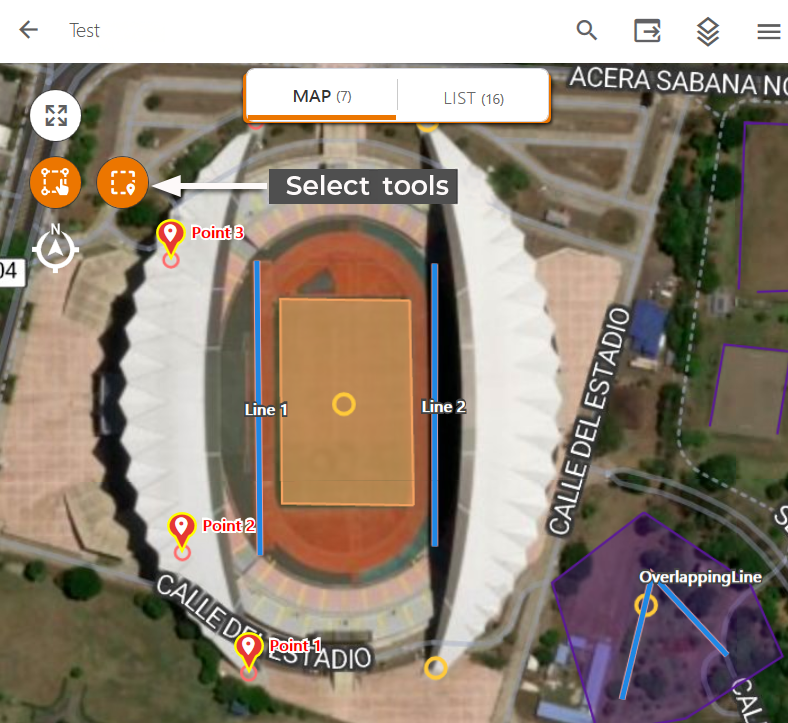
|
Tool |
Purpose |
Steps |
|---|---|---|
|
Multi Select tool |
Select multiple records |
|
|
Area Select tool |
Select all the records in an area |
|
 .
. .
.Move the Record Label on the Map
This feature is available in Uinta for Windows only.
To move a record label:
- Select the record in Map view.
Uinta displays information about the record, such as the name, location, and date/time.
- Tap Move Label. Uinta opens Label Edit Mode.
- With the label selected, drag it to the desired location.
If desired, select and drag other labels to new locations.
- Tap Save to close Label Edit Mode.
Move the Geographic Location
To move the geographic location of a record:
- Select the record in Map view.
Or, select the record in List view and tap .
Uinta displays information about the record, such as the name, location, and date/time.
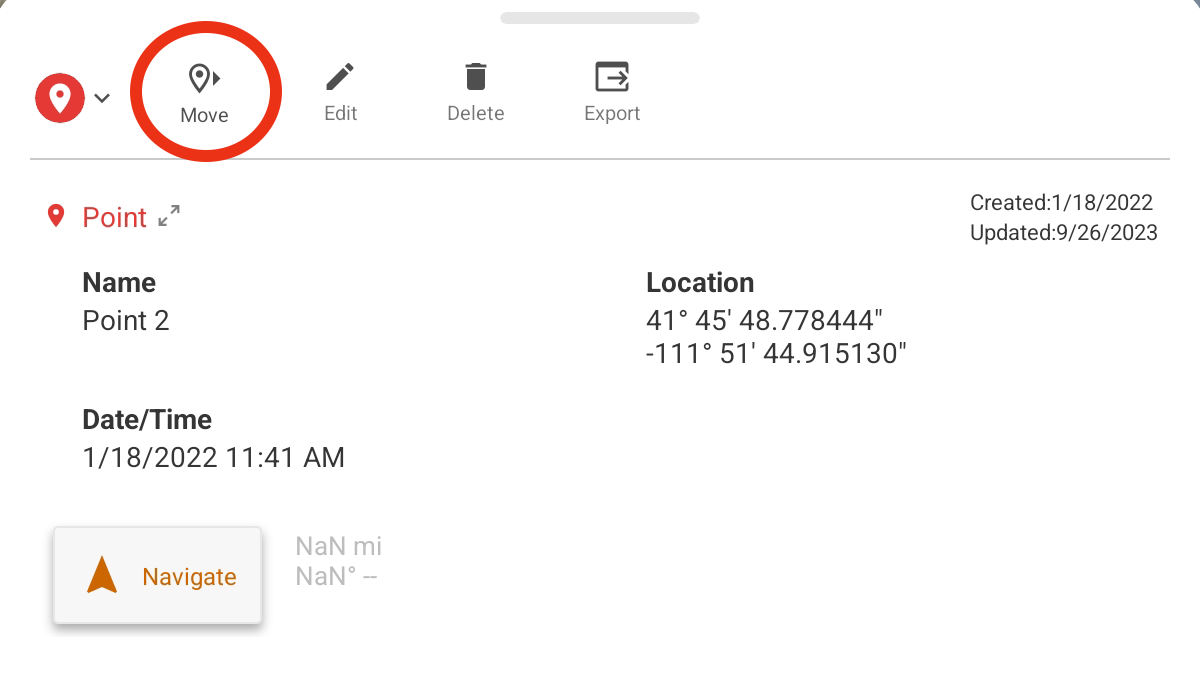
- Tap Move.
- Select one of the following options.
|
To |
Requires GPS? |
Steps |
|---|---|---|
|
Capture multiple GPS data points and then find the average |
Yes |
Uinta averages all the GPS points to get a precise GPS location. |
|
Capture a single GPS data point |
Yes |
|
|
Manually move the geographic location |
No |
|
|
Move the geographic location by entering latitude and longitude coordinates |
No |
|
 or Cross Hair Placement
  . Once selected, the icon turns orange.
 .
.