Collect Data with Uinta
Uinta uses four types of records for capturing project data.
|
Type |
Description |
|---|---|
|
Area |
A geo-area with a defined boundary, such as a water feature or field. Must include at least three points. |
|
Line |
A geo-line with a beginning and an ending point, such as an electrical line or water line. |
|
Point |
A geo-point with a stable location, such as a water meter, tree, or utility pole. |
|
Record |
Informational record used for custom forms that have no geospatial mapping requirement. |
When you set up a project, you determine the name, symbol, and color assigned to each record type.
Add a Point to a Map
You can add a point to the map from the field or office.
Learn how to add a point to a map:
Add a Point with Fast Map
With a GPS connection, you can use Fast Map to quickly map a point record with one tap, modifying the record details at a later time. Record types that use Fast Map are marked with the green Fast Map icon  .
.
To add a point with Fast Map:
- Open the project in Map view.
- Tap
 and select the point record type.
Tip: Tap the Fast Map button to narrow the list of record types to those that use Fast Map.
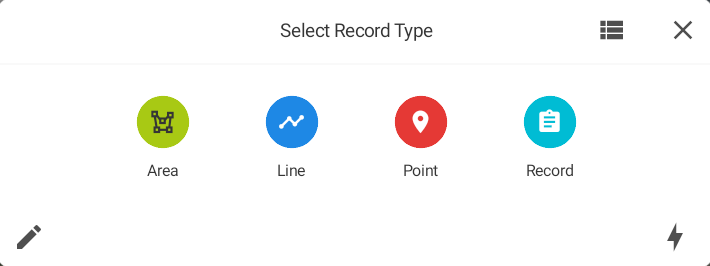
Note: Record type names vary depending on how your organization set up the project.- Or, if the point record type is in the shortcut menu, tap it.
Note: The shortcut menu is only available after you add a record to a project.
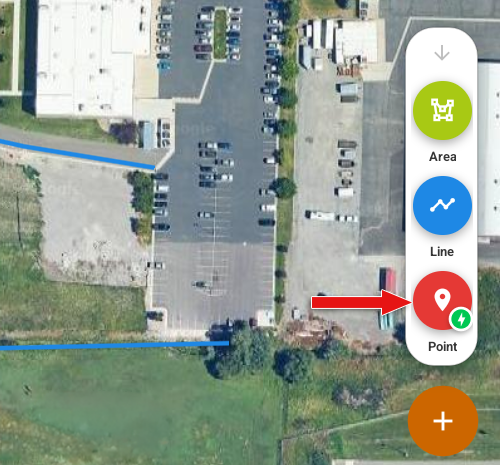
- Or, if the point record type is in the shortcut menu, tap it.
Uinta adds a point record at your current GPS location.
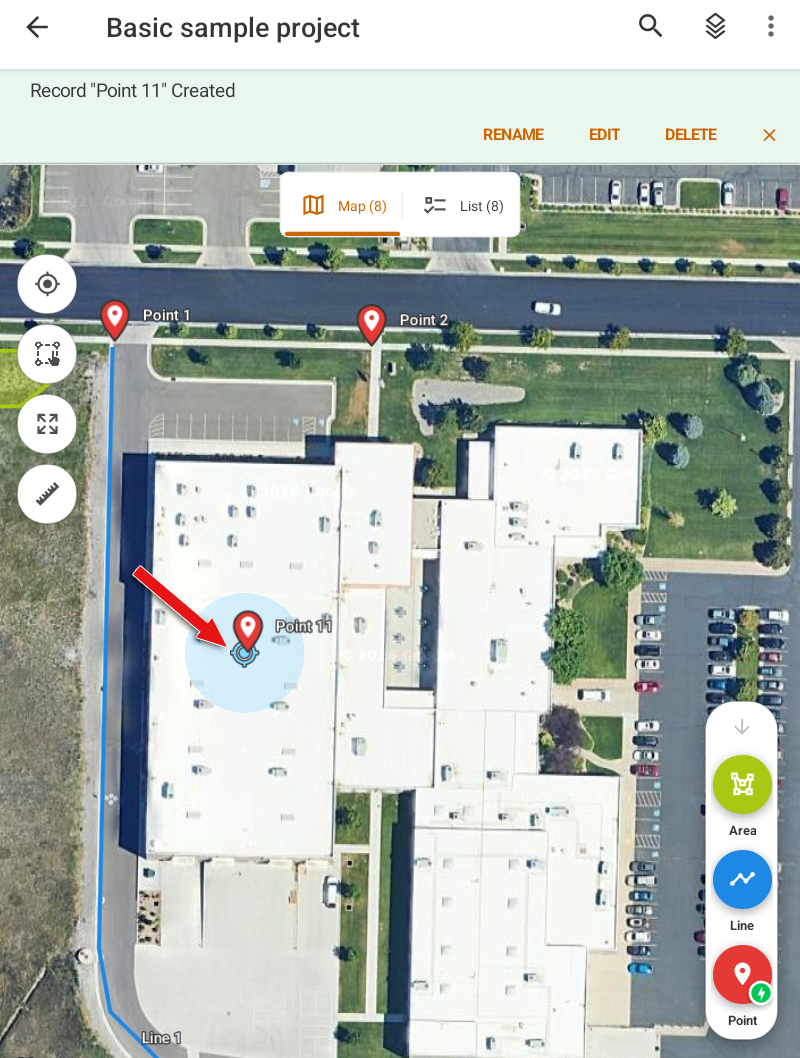
- To edit the record now, select Rename, Edit or Delete (as desired) from the banner at the top of the screen. The banner closes automatically after a few seconds.
- To add another point, move to the desired location and tap the point record type in the shortcut menu.
- Repeat this process for each point that you want to add.
Note: For information on editing records, see Edit Data in a Record.
Turn Off Fast Map
Fast Map is enabled by default. To turn off Fast Map:
- In the shortcut menu, tap and hold a record type with the green Fast Map icon .
- Turn off Fast Map.
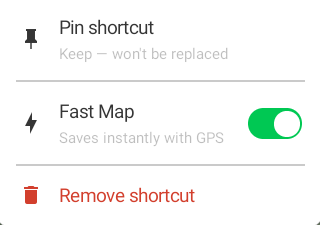
To turn on Fast Map again, tap and hold a point record type in the shortcut menu and turn on Fast Map.
Add a Point without Fast Map
To add a point to a map without Fast Map:
- Open the project in Map view.
- Tap and select the point record type.
Note: Record type names vary depending on how your organization set up the project.- Or, if the point record type is in the shortcut menu, tap it.
Note: The shortcut menu is only available after you add a record to a project.
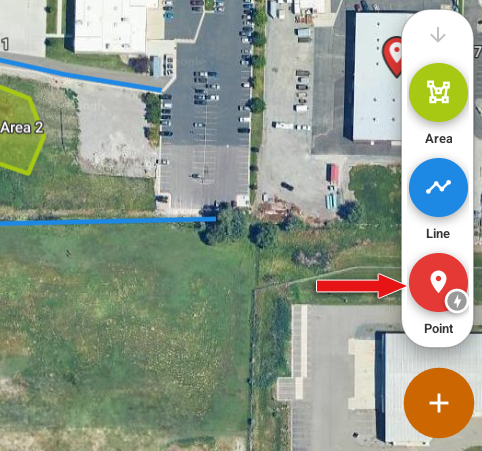
- Or, if the point record type is in the shortcut menu, tap it.
- Enter details about the point.
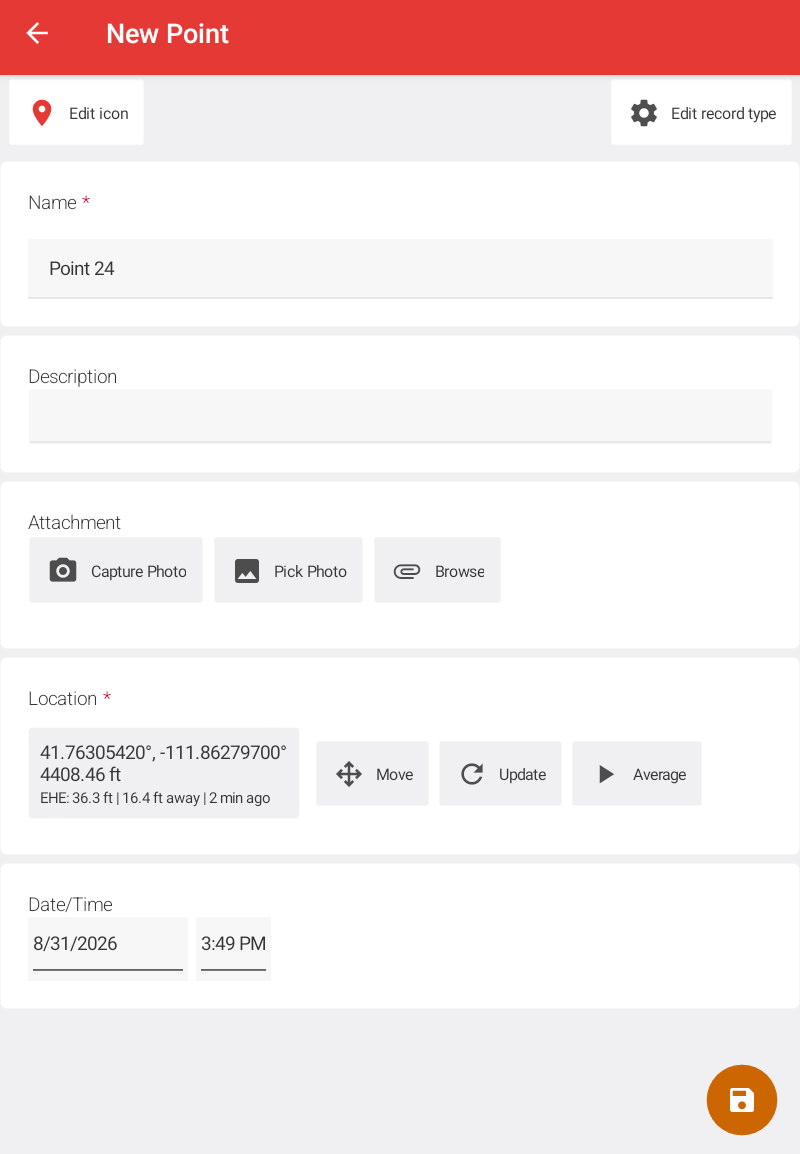
- If needed, adjust the geographic location.
- Tap Save.
Add a Point without GPS Receiver
You can add a point to a map without a connection to a GPS receiver.
- Open the project in Map view.
- Tap and select the point record type.
Note: Record type names vary depending on how your organization set up the project.
- Or, if the point record type is in the shortcut menu, tap it.
Note: The shortcut menu is only available after you add a record to a project.
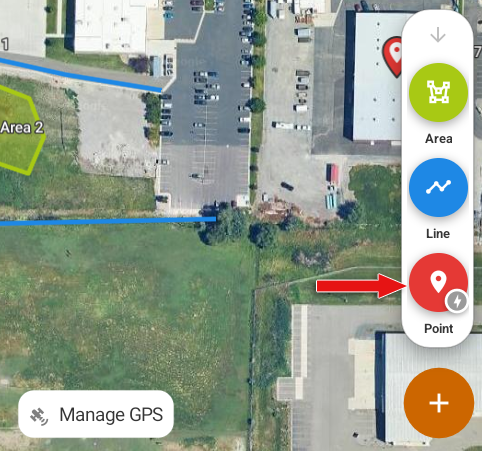
- Or, if the point record type is in the shortcut menu, tap it.
- Tap
 to close the dialog prompting you to connect to a GPS receiver.
 - Drag the cross hair to the desired location.
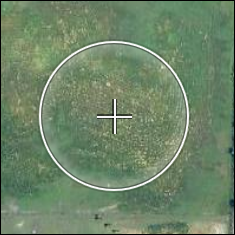
- If you know the latitude and longitude coordinates, tap the coordinates.

- In the Edit Coordinate dialog, enter the exact latitude and longitude coordinates and tap
 .
.
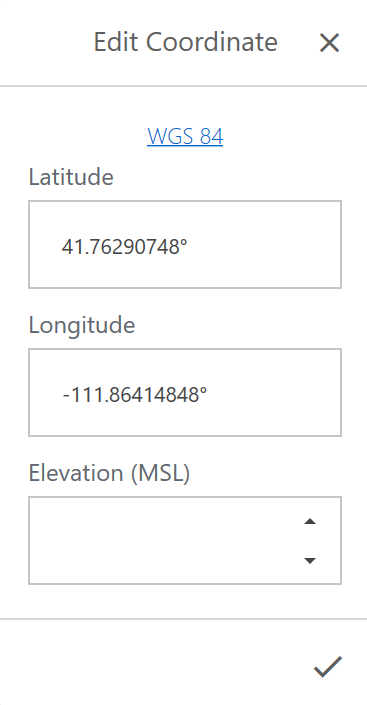
- If you know the latitude and longitude coordinates, tap the coordinates.
- Tap Add Point.
- Tap Finish.
- Enter information about the point.
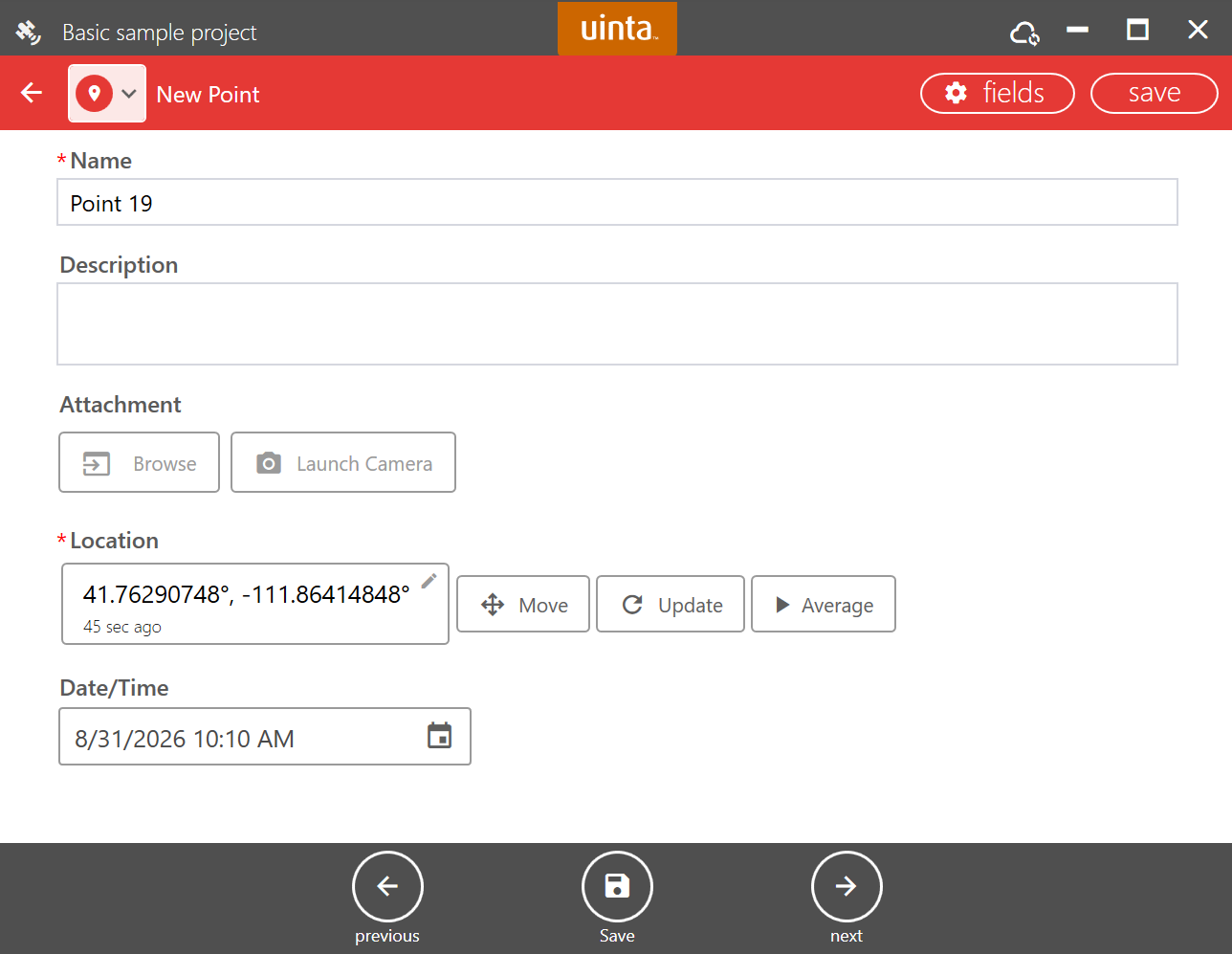
- Tap Save.
Move the Record Location
Move the location of a point while adding the point record using the Move, Update, and Average buttons or by entering new latitude and longitude coordinates.
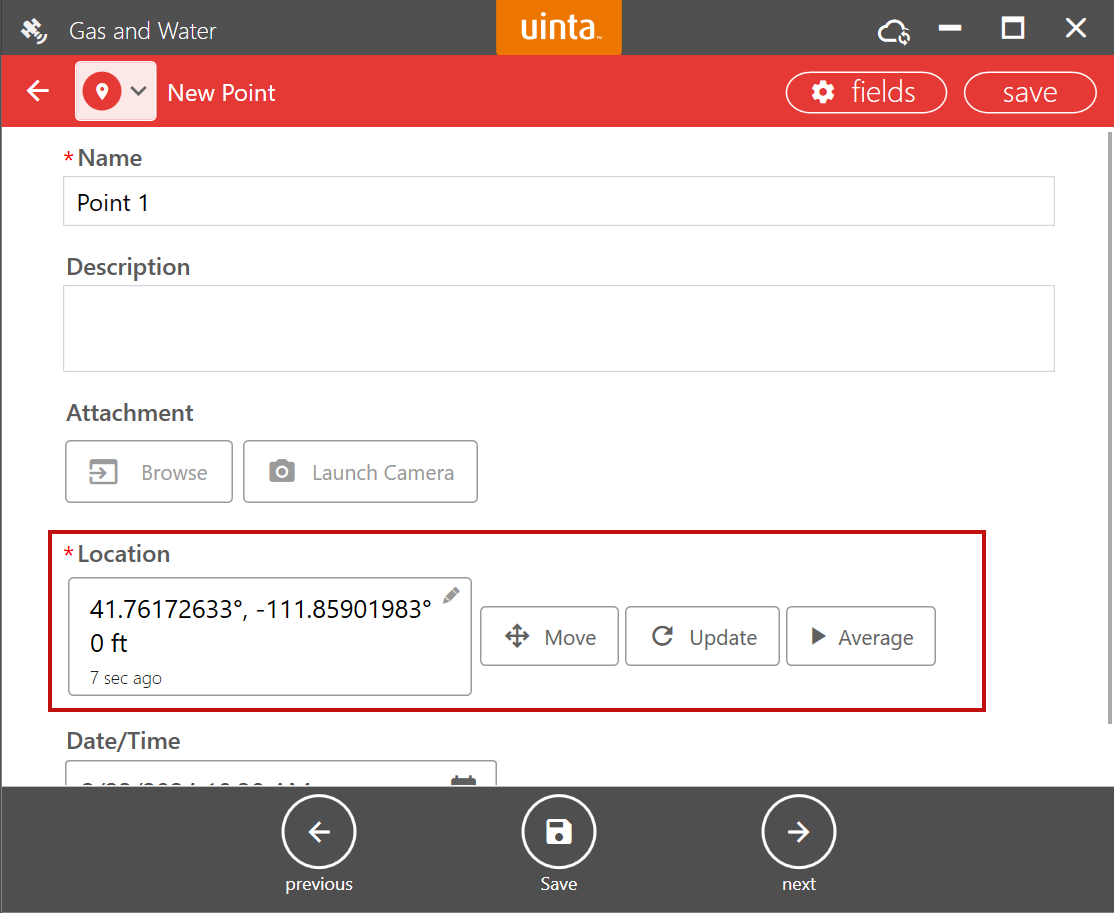
After you finish editing the record, tap Save.
|
Tap |
Description |
|---|---|
|
Latitude and longitude coordinates |
Enter new latitude and longitude coordinates, and tap |
|
Move |
Capture a new location either manually or using GPS. Manual Placement To manually move the point:
Or, tap Place by Tap
GPS Placement To use GPS to get an updated location, select one of the following from the menu at the bottom of the screen:
|
|
Update |
Update the point to your current location. Requires a connection to a GPS receiver with fix. |
|
Average GPS |
Capture your location repeatedly for a specified period to improve accuracy. When the desired time has elapsed, tap the button again to stop collecting points. Uinta then averages the collected GPS data points to determine a more precise location. Note: Accuracy depends on your GPS receiver and environmental conditions. |
 and drag the cross hair to the desired location.
Use the Shortcut Menu
The shortcut menu, located in the lower-right corner of the screen, displays links to the last three record types used. The shortcut menu is available after you add a record to the project.
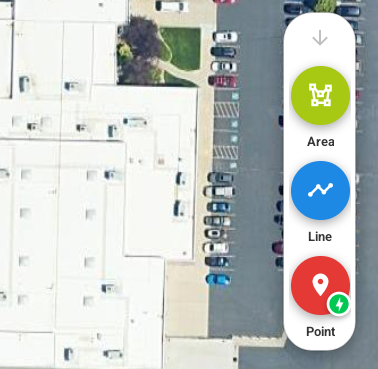
Pin Record Type to the Shortcut Menu
You can pin a record type to keep it on the shortcut menu.
- On the shortcut menu, tap and hold the record type that you want to pin.
- Select Pin shortcut.
To unpin the record type, tap and hold the record type, and then select Unpin shortcut.
Remove a Record Type from the Shortcut Menu
You can remove a record type from the shortcut menu. However, the next time you use the record type, it appears in the shortcut menu again.
- On the shortcut menu, tap and hold the record type that you want to remove.
- Select Remove shortcut.
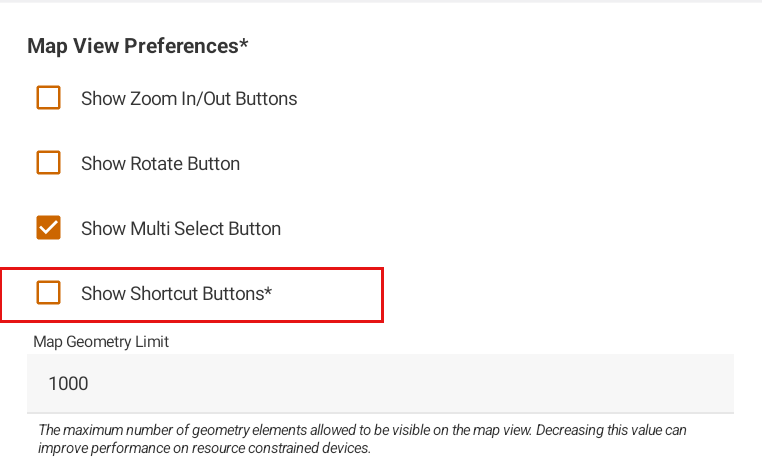
Turn Off the Shortcut Menu
The shortcut menu is enabled by default. To turn it off:
- Open the Projects screen.
- From the menu, select Settings > Preferences.
- In Map View Preferences, clear Show Shortcut Buttons.
Add a Line to a Map
There are two methods for adding a line to map. Select the method that fits your situation and preferences:
- Manual—You choose when to add points along the line. This method works best for straight lines. For example, when mapping a straight pipe, add a point at each end and wherever the pipe changes direction.
- Auto—Uinta automatically adds points at a specified time or distance interval based on your GPS location. This method works well for curved lines or tracking movement. GPS receiver error and movement during data capture may affect the mapped line.
Learn how to add a line to a map:
Use Manual to Add a Line
To use manual to add a line to a map:
- Open the project in Map view.
- Tap and select the line record type.
Note: Record type names vary depending on how your organization set up the project.
- Or, if the line record type is in the shortcut menu, tap it.
Note: The shortcut menu is only available after you add a record to a project.
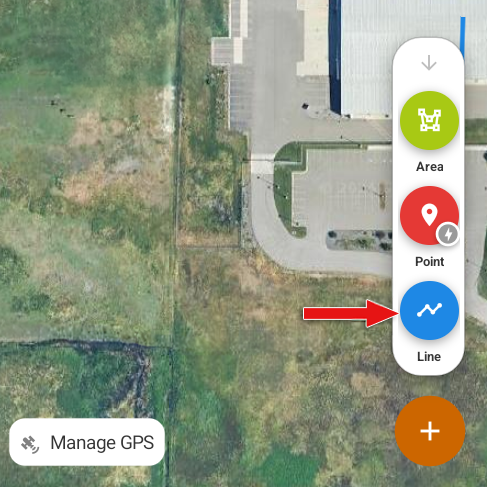
- Or, if the line record type is in the shortcut menu, tap it.
- Select Manual.
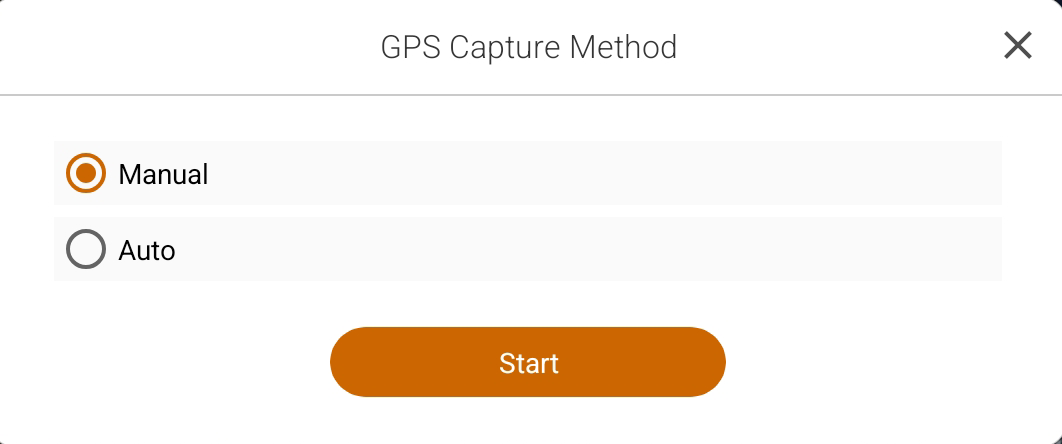
- Tap Start.
- Use one of the following methods to add the line.
|
To |
Work Location |
Requires GPS? |
Steps |
|---|---|---|---|
|
Add a line with GPS accuracy |
Field |
Yes |
|
|
Add a line using Place by Tap function |
Office |
No |
|
|
Add a line using the Cross Hair function |
Field or Office |
No |
|
Note: To add a point or record while adding the line, tap and add the record. Then, continue mapping the line.
- At the end of the line, tap Finish.
- Enter information about the line, such as name and description.
- Tap Save.
Use Auto to Add a Line
To use Auto to create a line on a map:
- Open the project in Map view.
- Verify the GPS connection.
- Zoom to your position by tapping Center on GPS
 on the left side of the screen.
 - Tap and select the line record type.
Note: Record type names vary depending on how your organization set up the project.
- Or, if the line record type is in the shortcut menu, tap it.
Note: The shortcut menu is only available after you add a record to a project.
- Or, if the line record type is in the shortcut menu, tap it.
- Select Auto.

- Select Time or Distance and enter the interval at which you want to mark points along the line.
- Tap Start. Uinta marks your path as you move.
Note: To add a point or record while adding the line, tap Pause. Then, tap and add the record. When you finish, tap Resume.
- At the end of the line, tap Finish.
- Enter information about the line, such as name and description.
- Tap Save.
Add an Area
You can map an area (or polygon) with at least three points in Uinta using the Manual or Auto feature:
- Manual—You choose when to add points around the area boundary. This methods works well for mapping areas with straight sides, such as a triangle, square, or rectangle-shaped area. For example, when mapping a square area, add a point at each corner of the square.
- Auto—Uinta automatically adds points to the area boundary at a specified time or distance interval based on your GPS location, similar to a track log. This method works well for mapping areas that have curves or an irregular boundary. GPS receiver error and user movement may affect the mapped area.
Learn how to add an area to the map:
Use Manual to Add an Area
To manually add an area:
- Open the project in Map view.
- Tap and select the area record type.
Note: Record type names vary depending on how your organization set up the project.
- Or, if the area record type is in the shortcut menu, tap it.
Note: The shortcut menu is only available after you add a record to a project.
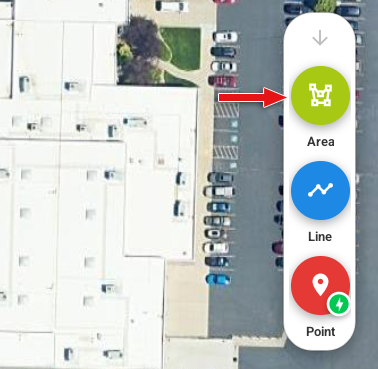
- Or, if the area record type is in the shortcut menu, tap it.
- Select Manual.
- Tap Start.
- Use one of the following methods to add an area to the map.
Note: To add a point or record while adding the area, tapTo
Work Location
Requires GPS?
Steps
Add an area with GPS accuracy
Field
Yes
- To add the first point in the area, tap Add.
- Move along the perimeter. Tap Add each time you want to place a point.
- After you map the area, tap Finish.
Note: To add a point while mapping an area, tap
and add the point record. Then, continue mapping the area.Add an area using a mouse/finger to place the points
Office
No
- On the left side of the screen, select Place by Tap
 .
. - Tap to position a point on the perimeter of the area.
- Tap each time you want to add a point to the area. An area requires at least three points.
- After you map the area, tap Finish.
Add an area using the target function
Field or Office
No
- On the left side of the screen, select Cross Hair Placement
 .
. - Position the target over a point on the perimeter of the area. Tap Add.
- Move the target and tap Add each time you want to add to the area. An area requires at least three points.
- After you map the area, tap Finish.
and add the record. Then, continue mapping the area.
- Enter additional information about the area, such as name and description.
- Tap Save.
Use Auto to Add an Area
To add an area with Auto:
- Open the project in the Map view.
- Tap and select the area record type.
Note: Record type names vary depending on how your organization set up the project.
- Or, if the area record type is in the shortcut menu, tap it.
Note: The shortcut menu is only available after you add a record to a project.
- Or, if the area record type is in the shortcut menu, tap it.
- Select Auto.
- Select Time or Distance and specify the interval at which Uinta should add GPS points in the area.
- Tap Start.
- Move along the boundary of the area.
Note: To add a point or record while mapping the area, tap Pause. Then, tap and add the record. When you finish, tap Resume.
- After you map the area, tap Finish.
- Enter additional information about the area, such as the name and description.
- Tap Save.
Measure Distance and Area
Use the Measuring tool to measure the distance between points, the length of a freehand path, the area and perimeter of a polygon, or the radius of a circle. Measurements are visible on the map only while the Measuring tool is active.
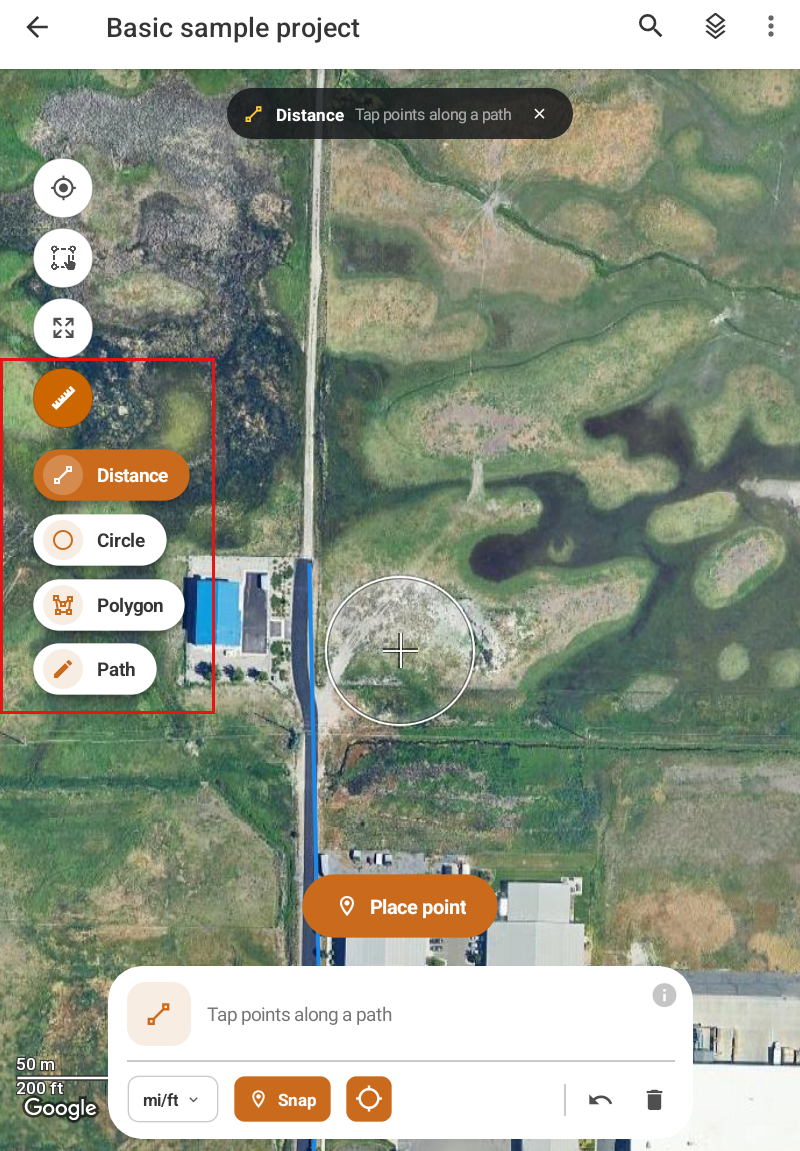
Measurements are horizontal and do not account for elevation.
- In a projected coordinate system, measurements are computed on your project's grid and correspond to the project's CRS.
- In a geographic system the measurements are computed on the Earth's curved surface.
Use Tool Features
After you select the Measuring tool, the info bar appears at the bottom of the screen and contains tools and information for using the tool.
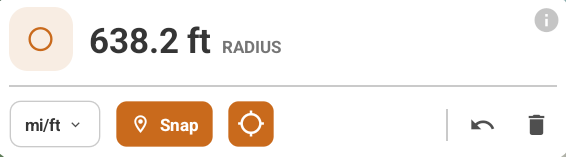
The following table describes the buttons.
|
Button |
Description |
|---|---|
 |
Tap to view a description of the selected tool. |
 |
Select the units of measure for length, area, and bearing. |
 |
Turn on Snap to automatically snap the pointer to the nearest mapped vertex. |
 |
Turn on cross hair to place a point. |
 |
Undo the the last point placement. |
 |
Delete the measurement. |
Measure Distance between Points
Use the Distance tool to measure between point records or any locations on the map.
- Turn on the Measuring tool.
- Select Distance.
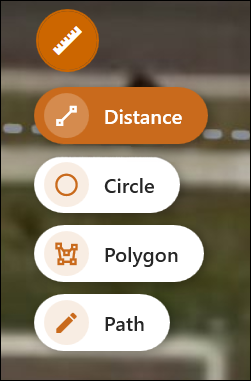
- Position the cross hair where you want to start measuring and tap
 .
.
Or, tap if the cross hair is near a vertex and Snap is turned on.
 - Move to the cross hair to the next point and tap or .
- Continue until you have finished measuring.
Note: If the cross hair is turned off, tap to add the first point in the measured line. Then, tap the map at the next point. Continue until you have finished measuring the line.
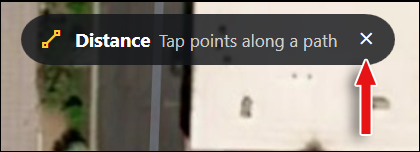
- Tap in the tool description to close the Distance tool.
Measure Radius of a Circle
Use the Circle tool to measure of radius of a circle.
- Turn on the Measuring tool.
- Select Circle.
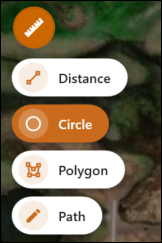
- Place the cross hair at the center of the circle and tap .
Or, tap if the cross hair is near a mapped record and Snap is turned on. - Drag the cross hair until the circle or radius is the desired size. Tap or .
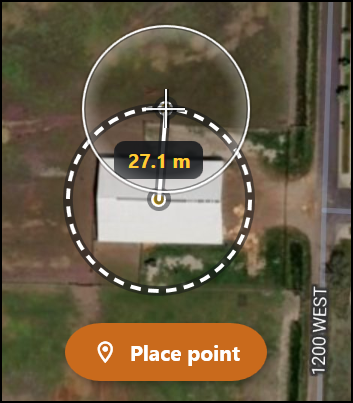
Note: If Cross Hair Placement is turned off, tap to mark the center of the circle. Drag the circle the desired size and tap to place the point.

- View the radius.
- Tap in the tool description to close the Circle tool.
Measure a Polygon
Use the Polygon tool to measure an area.
- Turn on the Measuring tool.
- Select Polygon.
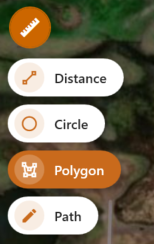
- Place the cross hair at a vertex of the polygon and tap .
Or, tap if the cross hair is near a mapped record and Snap is turned on. - Drag the cross hair to the next vertex. Tap or .
- Continue until you have mapped the area. An area must have at least three points.
- Tap in the tool description to close the Polygon tool.

Measure the Length of a Path
Measure the length of a freehand path.
- Turn on the Measuring tool.
- Select Path.
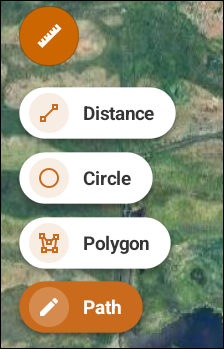
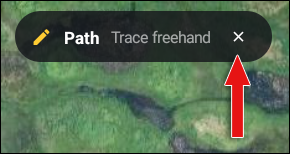
- Trace the path you want to measure on the map.
- Tap in the tool description to close the Path tool.
Navigate to a Record
With a GPS connection, Uinta can help you navigate to a record with a mapped location.
Learn how to navigate to a mapped record:
To navigate to a mapped record:
- Open the project in Map or List view.
- Tap the point, line, or area to which you want to navigate.
Uinta displays information about the object.
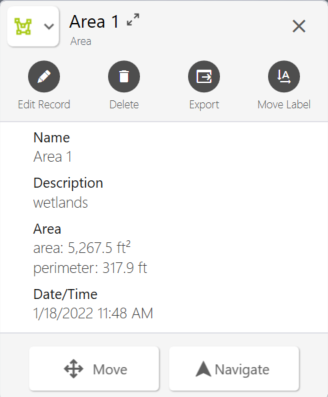
- Tap Navigate.
The Navigation toolbar is divided into three sections:
- Horizontal Distance—The distance to the selected point. The margin of error shown below the distance is based on your GPS receiver's accuracy.
- Move—The direction to move. As you move, Uinta uses GPS data to display a directional arrow. When you stop moving, the arrow changes to a text description.
- Direction—The cardinal direction to the selected point.
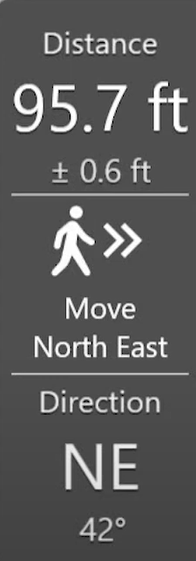
Some additional icons are available while in navigation mode.
- Windows—Select Center on GPS to track your GPS position on the map. When selected, the icon is orange
 . (Zooming or panning the map deselects the center to GPS icon.) Tap the compass icon
  to toggle between Course Up and North Up navigation methods.
 - Android and iOS—Tap
 on the left side of the screen to toggle between Course Up and North Up navigation methods. Tap in the upper-right corner to switch to your device's default navigation app.
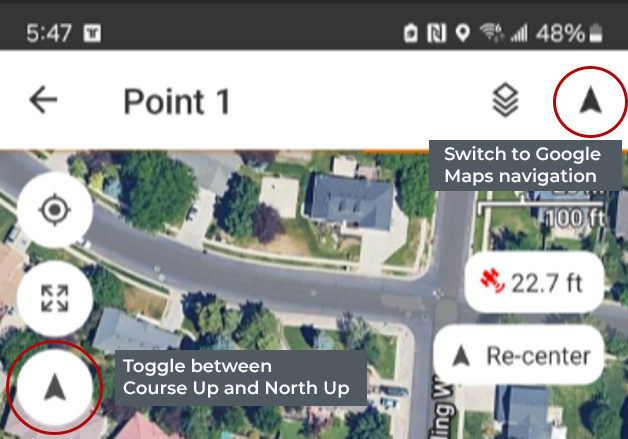
- Use the Navigation toolbar to help you navigate to the destination.
Move slowly as you get close to your destination. With a high-accuracy GPS receiver, you can easily pass by your target.
Note: The update rate for your GPS receiver affects the Uinta GPS position and map during navigation. For example, a 1 Hz update rate works well for navigating at walking speeds. However, if you are moving at a higher speed, such as in a vehicle, then a GPS receiver with a faster update rate (for example, 10 Hz) may result in a better navigation experience. Contact Juniper Systems technical support with questions.
- When you reach your destination, the Navigation toolbar turns green and displays "Arrived."
Windows—The navigation switches to a leveling bubble to allow for more precise navigation with a high-accuracy GPS receiver. A green circle marks the target point. The diameter of the circle is determined by the Estimated Horizontal Error (EHE) value in Location Settings. (The default value is .5 m.) A blue circle marks the GPS position. The radius of the circle is the GPS estimated EHE.
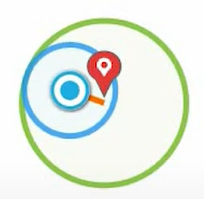
- Move the GPS receiver to find the most accurate position.
- To exit Navigation mode, tap End Navigation.