License Manager for Juniper RTK
Use the Juniper Systems License Manager to manage your Juniper RTK subscription. When you purchased Juniper RTK, you specified the number of licenses your organization will need. With each license, you can assign Juniper RTK to one device. The options available in License Manager depend on your access level.
There are two levels of access:
Licensed User
- Manage the device assigned to your license
Administrator
- Manage your Juniper RTK subscription
- Assign and revoke licenses for users
- Add and remove other subscription administrators
Open License Manager
To open License Manager:
- In your web browser, go to https://licensing.junipersys.com and sign in to your Juniper Systems account.
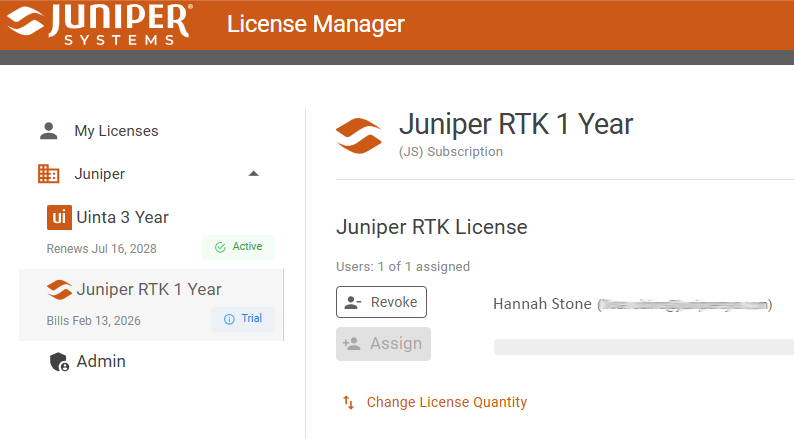
- Under My Licenses, expand your organization to view and manage licenses and administrative settings.
Manage Assigned Device
When you sign in to Juniper RTK, the RTK license is automatically assigned to the device you are using. If you attempt to sign in to Juniper RTK on a different device, Juniper Connect alerts you. To use your license on a new device, first remove the existing device in License Manager.
To remove a device assigned to your license:
- Open License Manager, and select Juniper RTK in the left pane.
- Tap the device icon
 next to your license.

- Next to the device information, tap
 .
.
Add or Remove Licenses
In License Manager, you add Juniper RTK licenses or schedule the removal of licenses with the next billing cycle.
- Open License Manager, and select Juniper RTK in the left pane.
- Tap Change license quantity.
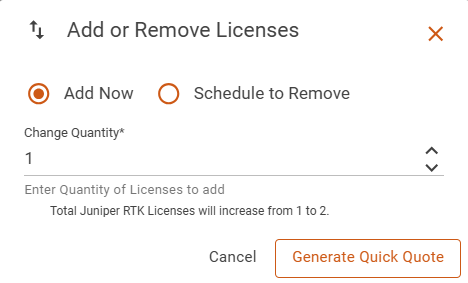
From the Add or Remove Licenses dialog, you can add or schedule the removal of Juniper RTK licenses.
Add Licenses
To increase your license quantity:
- Select Add now.
- In Change quantity, enter the number of licenses.
- Tap Generate quick quote.
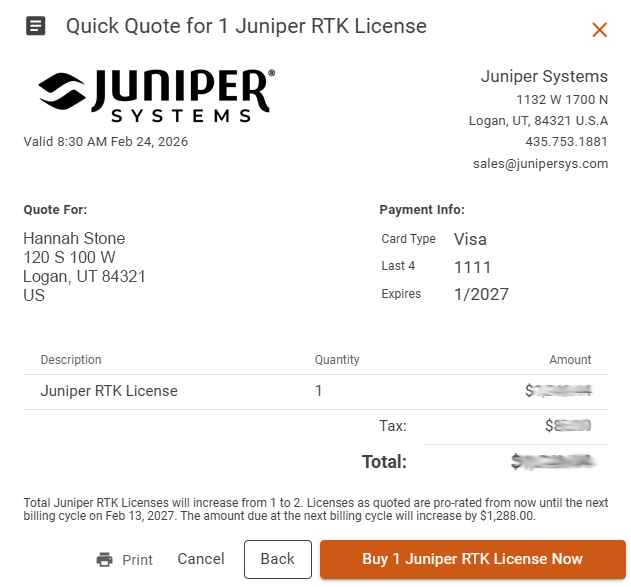
- To buy the additional licenses, tap Buy Juniper RTK license now in the bottom right corner of the quick quote.
Remove Licenses
To schedule the removal of licenses on the next billing cycle:
- Select Schedule to remove.
- In Change quantity, enter the number of licenses you want to remove.
- Tap Schedule for removal.
Manage Licenses
An administrator can assign and revoke licenses. When you first open License Manager, one Juniper RTK license has been assigned to the person who purchased or redeemed Juniper RTK, but you can change that assignment as needed.
Assign a License to a User
To assign a license to a user:
- Open License Manager, and select Juniper RTK in the left pane.
- Tap
 .
. - Enter the email address of the person to whom you want to assign a license, and then tap Assign License.
- If there is no Juniper Systems account for the email address, enter the person's name. Then, tap Reserve and invite.
The person receives an email with instructions on how to create a Juniper Systems account and claim the reserved license.
Remove a License from a User
To remove a license from a user:
- Open License Manager, and select Juniper RTK in the left pane.
- Tap Revoke next to the user you want to remove.
- To confirm, tap Yes, revoke license.
- Assign the license to another user.
Set Up Administrators
An administrator manages licenses and device assignments. Administrative privileges can be given to multiple users, but only one user can be designated as the primary administrator. The primary administrator is the only person who receives subscription-renewal email notifications.
Note: An administrator does not need a Juniper RTK license to perform administrative tasks.
To add an administrator:
- Open License Manager, and select Admin in the left pane.
- Tap
 .
. - Enter the email address for the user.
Note: The person must have a Juniper Systems account first before you can add the person as an administrator.
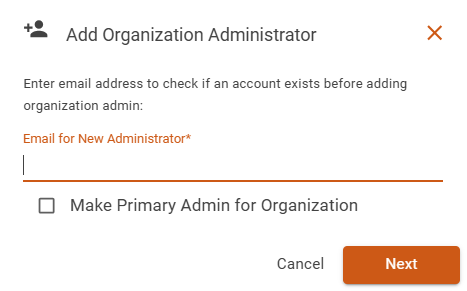
- To make the user the primary administrator for your organization, select Make primary admin for organization.
- Tap Next.
- Verify the account information, and then tap Add user as admin.
Promote an Administrator to Primary
To designate an existing administrator as the primary administrator:
- Open License Manager, and select Admin in the left pane.
- Next to the user that you want to promote to primary administrator, tap
 and select Promote to primary.
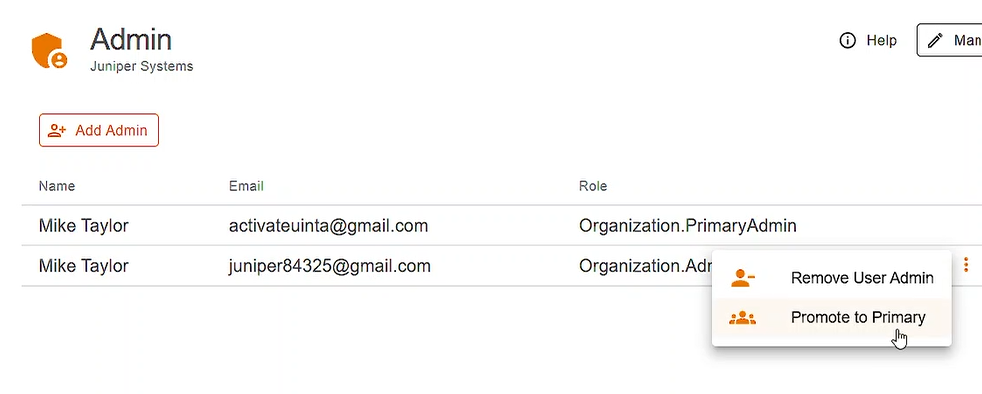
- To confirm the promotion, tap Yes, promote to primary.
The current primary administrator becomes an additional administrator.
Remove Administrative Privileges from a User
To remove administrative privileges from a user:
- Open License Manager, and select Admin in the left pane.
- Next to the user from whom you want to remove privileges, tap and select Remove user admin.
- To confirm the removal, tap Yes, remove admin.
Manage Juniper RTK Subscription
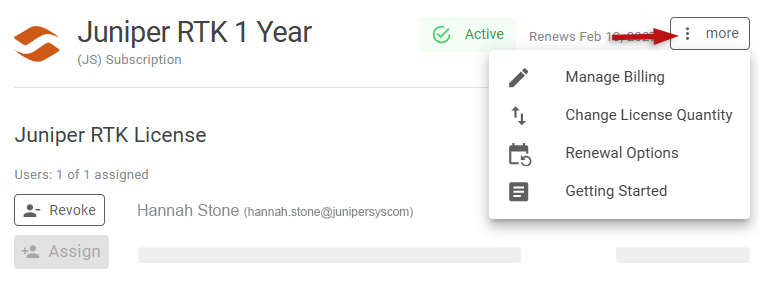
Through License Manager, an administrator can purchase additional licenses, manage billing information, and set up subscription renewal. Access these options through the More menu next your Juniper RTK subscription information.