Juniper RTK
Juniper RTK is a Network RTK correction source offered by Juniper Systems that enhances GNSS accuracy from several meters to centimeter-level accuracy. Juniper RTK works with all Juniper Systems GNSS receivers and can deliver GNSS data to Uinta or your own mapping app.
You can purchase Juniper RTK through a certified Juniper partner or online through the Juniper RTK web page. Manage your Juniper RTK subscription and license through Juniper Systems License Manager. (See License Manager for Juniper RTK.)
Complete Your Order
To complete your Juniper RTK order:
- Tap Start trial on the Juniper RTK web page.
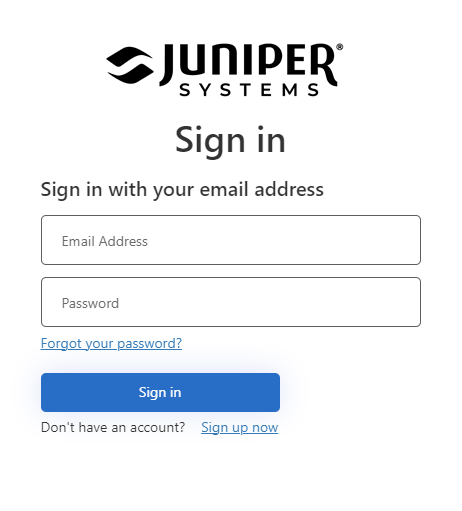
Or, after you purchase Juniper RTK, redeem the coupon code sent by email. - Sign in to your Juniper Systems account. If you haven't created an account, tap Sign up now.
- Review the order summary.
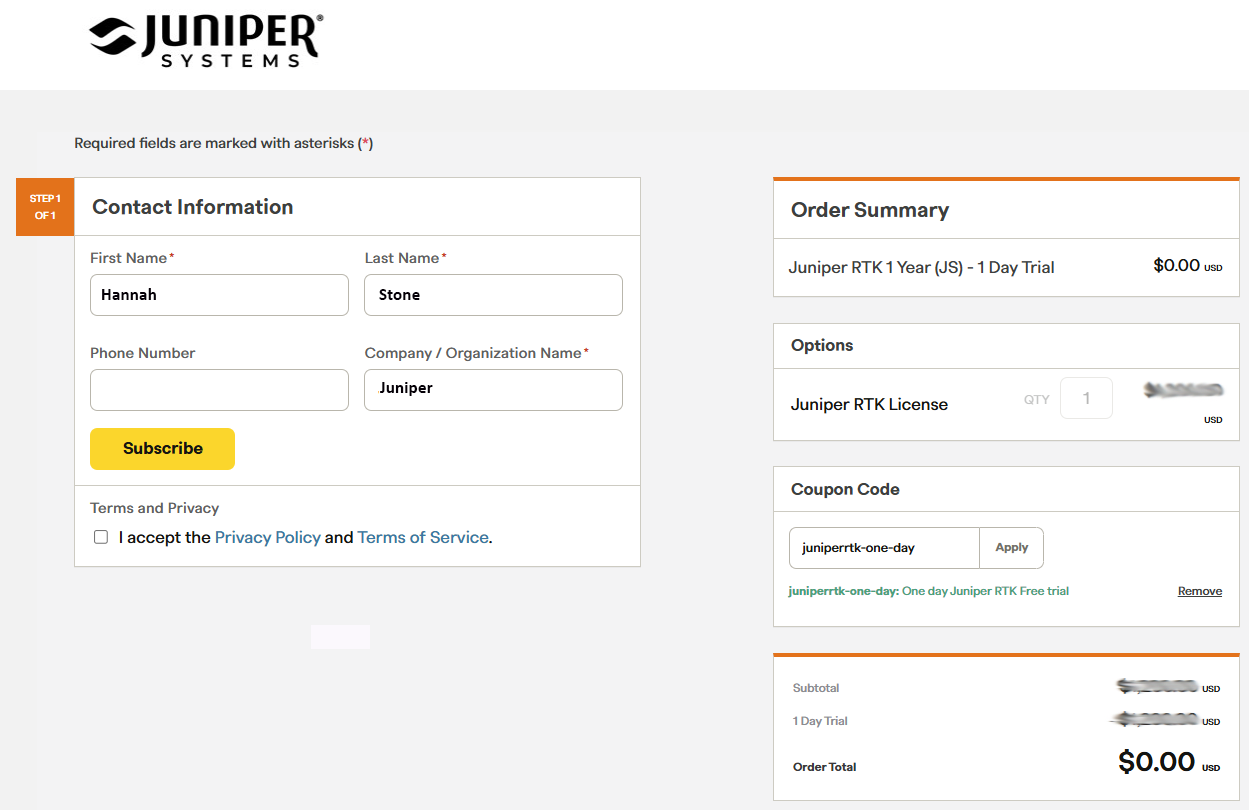
- Enter your contact information, and accept the Privacy Policy and Terms of Service.
- Tap Subscribe.
- View the summary of the subscription, and then tap Return to Juniper Systems.
Sign In to Your Juniper RTK Account
To sign in to your Juniper RTK account on a handheld device:
- Open Juniper Connect
 .
. - Connect to the GNSS receiver.
- Select Settings
 > Account.
 - Sign in using the email assigned to your Juniper RTK account.
If you haven't created an account, tap Sign up now.
View Juniper RTK License
To view your Juniper RTK license and account credentials, select Settings > Account.
To delete your Juniper RTK account, tap Delete account in the upper-right corner of the screen.
Connect to Juniper RTK
To connect to Juniper RTK:
- Go outdoors to an open area.
- On your handheld device, open Juniper Connect .
The receiver will begin acquiring satellite signals. - At the top of the Home or Skyplot screen, select Juniper RTK as the RTK provider.
- Tap
 .
.
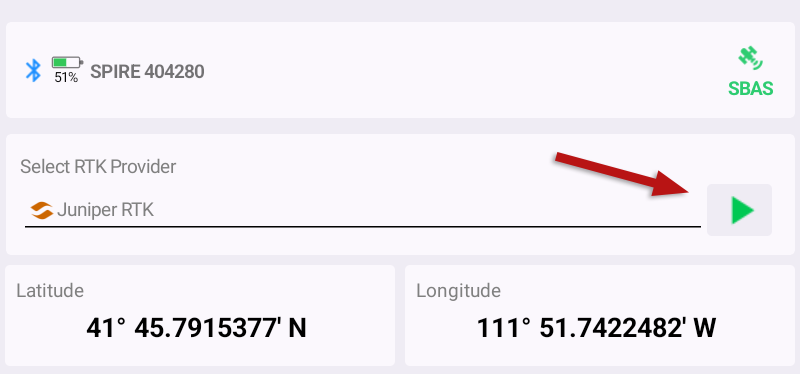
When Juniper RTK is running, the button changes to  . Tap it to disconnect from the service.
Log Out of Your Juniper RTK Account
To log out of your Juniper RTK account:
- Open Juniper Connect .
- Connect to the GNSS receiver.
- Select Settings > Account.
- Tap Logout.
Configure Juniper RTK
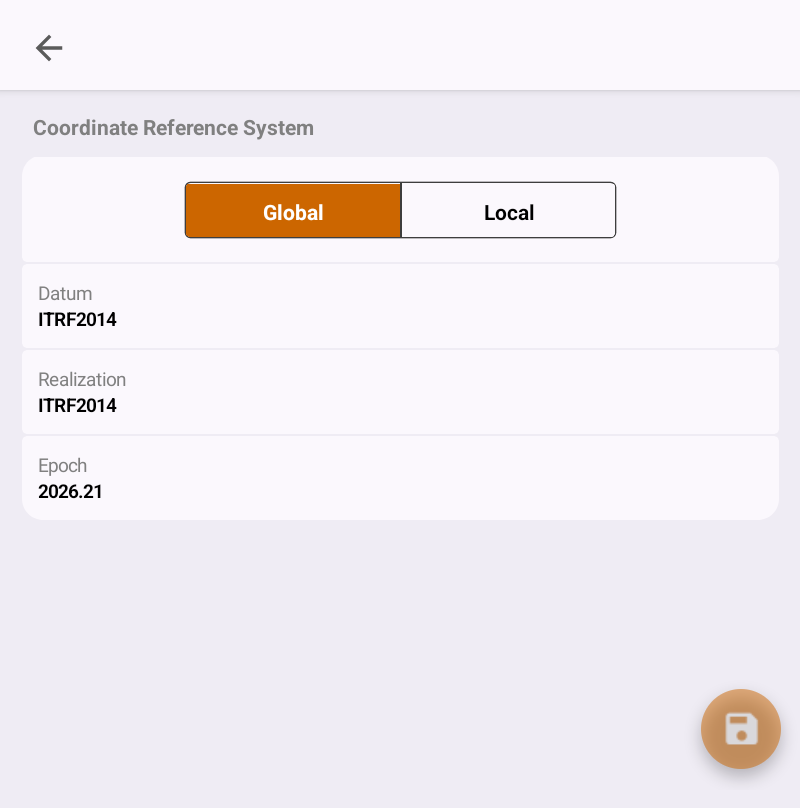
For accurate positioning, the coordinate reference system (CRS) used by Juniper RTK must match the CRS configured in your mapping app. When connected to Juniper RTK, the CRS appears on the Home screen. Additional details―such as the datum, realization, and epoch―are available on the Configure Juniper RTK screen.
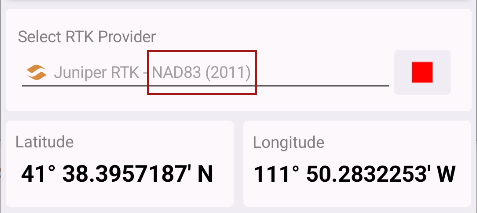
You can configure Juniper RTK to use either a global or local coordinate system.
- Global―Standard worldwide coordinate system (default).
- Local―Region-specific coordinate system, such as NAD83 for North America.
To view the coordinate reference system and switch between a global or local coordinate system:
- Open Juniper Connect and connect to Juniper RTK.
- Select Settings > Configure Juniper RTK.
- Select Global or Local.
- Review the datum, realization, and epoch.
- If you changed the coordinate system, tap
 .
.