Manage Uinta Subscription and Licenses
Use the License Manager web app to manage your Uinta subscription. When you purchased Uinta, you specified the number of licenses your organization will need. With each license, you can use Uinta on two devices.
The options available in License Manager depend on your access level.
Licensed User
- Manage the device(s) associated with your license
Administrator
- Manage your Uinta subscription
- Assign and revoke licenses for users
- Add and remove other administrators
When you first open License Manager, the person who purchased or redeemed Uinta has been setup as the system administrator and assigned one license. You can reassign licenses and administrative roles as needed. An administrator does not need a Uinta license to perform administrative tasks.

Learn more about License Manager:
Open License Manager
To open License Manager from Uinta:
- From the Projects screen, tap
 .
.
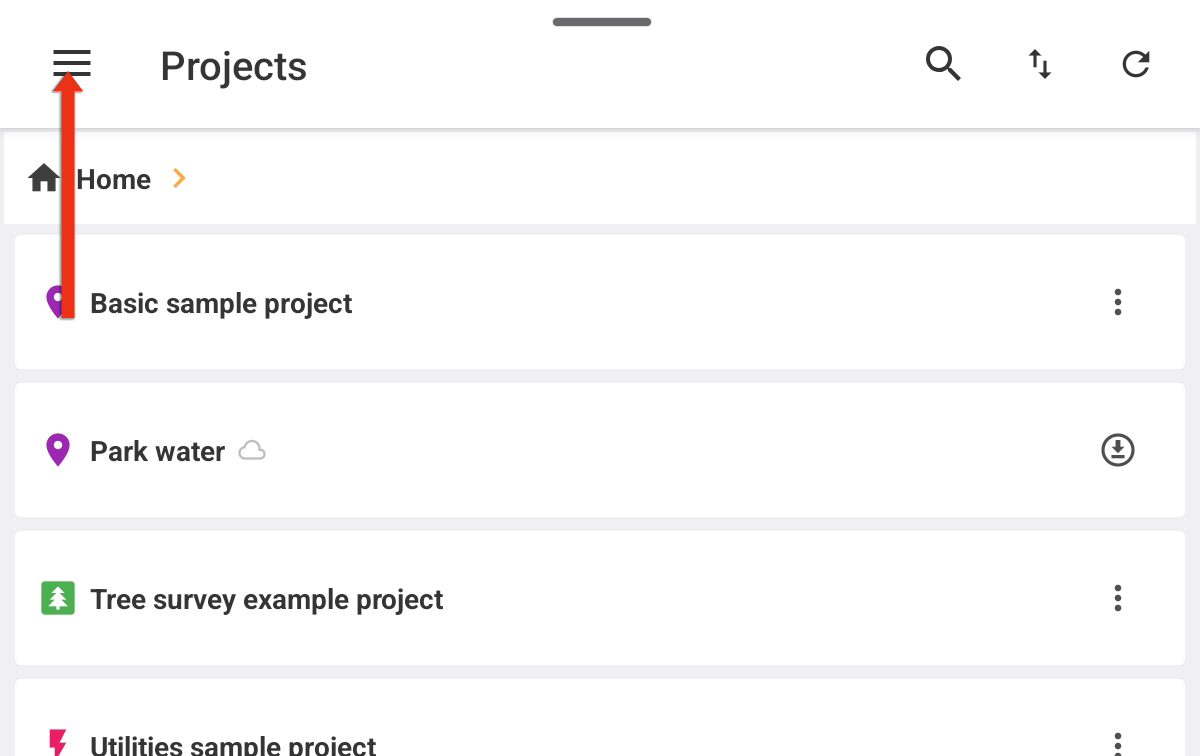
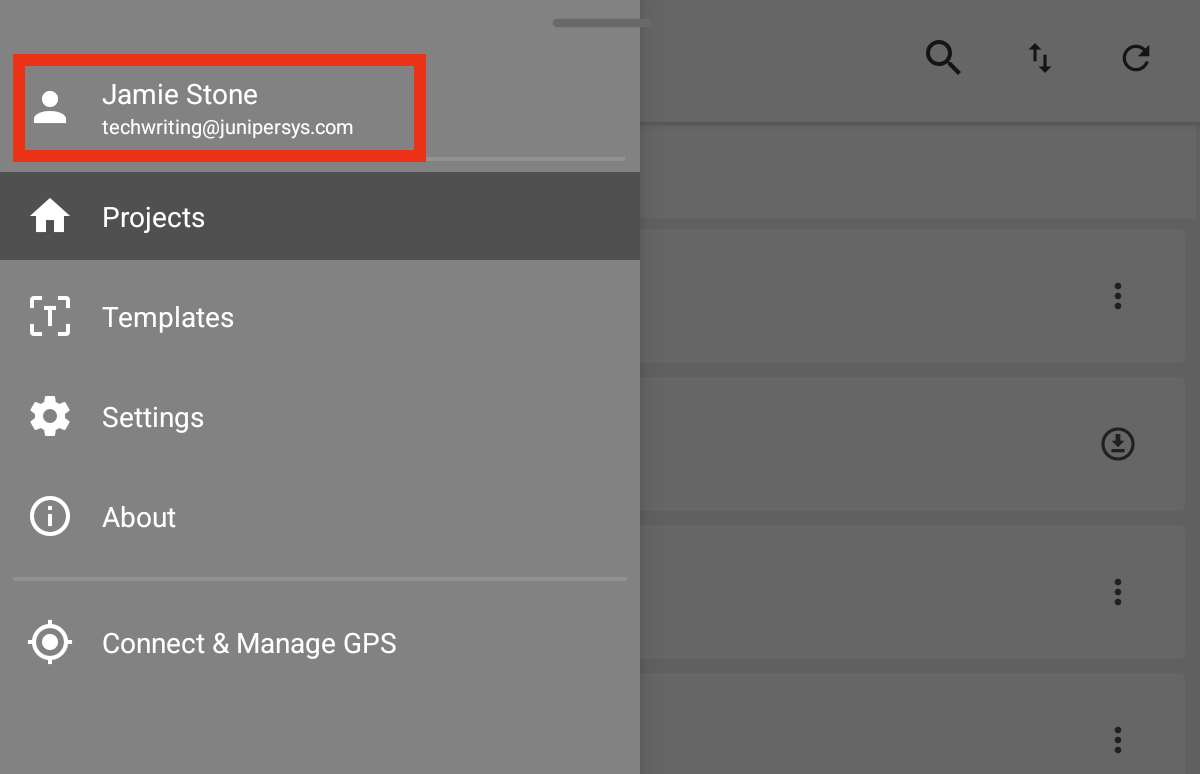
- Tap your account.
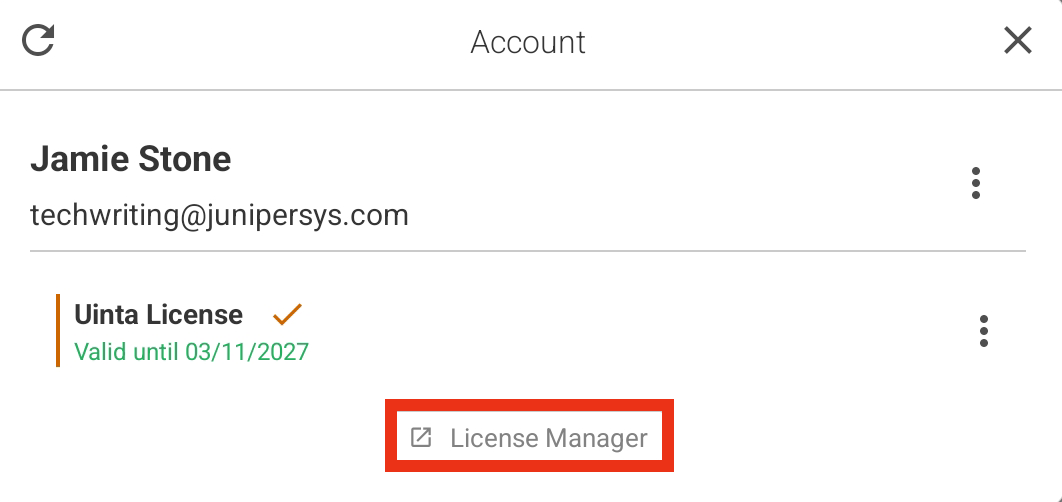
- Tap License Manager.
To open License Manager from the web:
- In your web browser, go to https://licensing.junipersys.com.
License Manager prompts you to sign in.
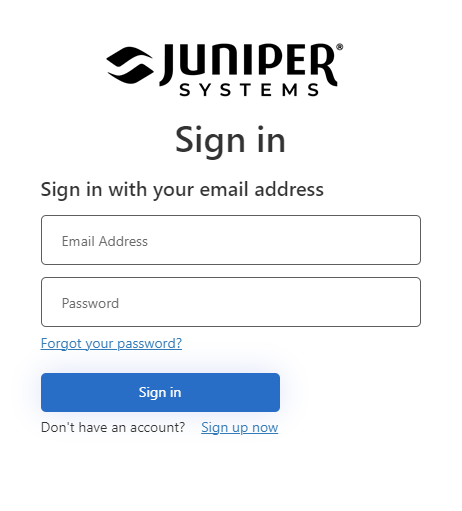
If you don't have an account, tap Sign up now.
- Enter your email address. Use the email address that the administrator assigned to your license.
- Enter your password.
- Tap Sign in.
Manage Assigned Devices
When you sign in to Uinta, the device you are using is automatically added to your license. The number of devices available to you is determined by your system administrator. If you have already signed in to the maximum number of devices, Uinta prompts you to deactivate a license on another device.
Remove a Device from License Manager
To remove a device assigned to your license:
- In the left pane, select Organization name > Uinta.
- Tap the device icon
 next to your license.

- Tap
 to remove a device.
Manage Uinta Licenses
An administrator can assign and revoke licenses, add administrators, and manage the Uinta subscription. The following sections describe how to complete each of these tasks.
Assign a License to a User
To assign a license to a user:
- In the left pane, select Organization name > Uinta.
- Under Uinta License, select Assign.

- Enter the email address of the person to whom you want to assign a license.
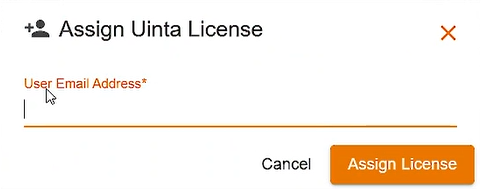
- Click Assign License.
- If there is no Juniper Systems account for the email address, enter the person's name. Then, click Reserve and invite.
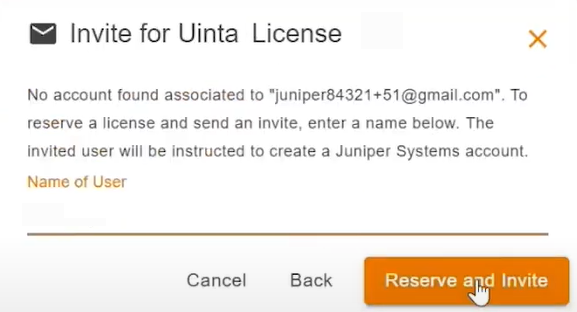
The person receives an email with instructions on how to create a Juniper Systems account, install Uinta, and claim the reserved license.
- If there is no Juniper Systems account for the email address, enter the person's name. Then, click Reserve and invite.
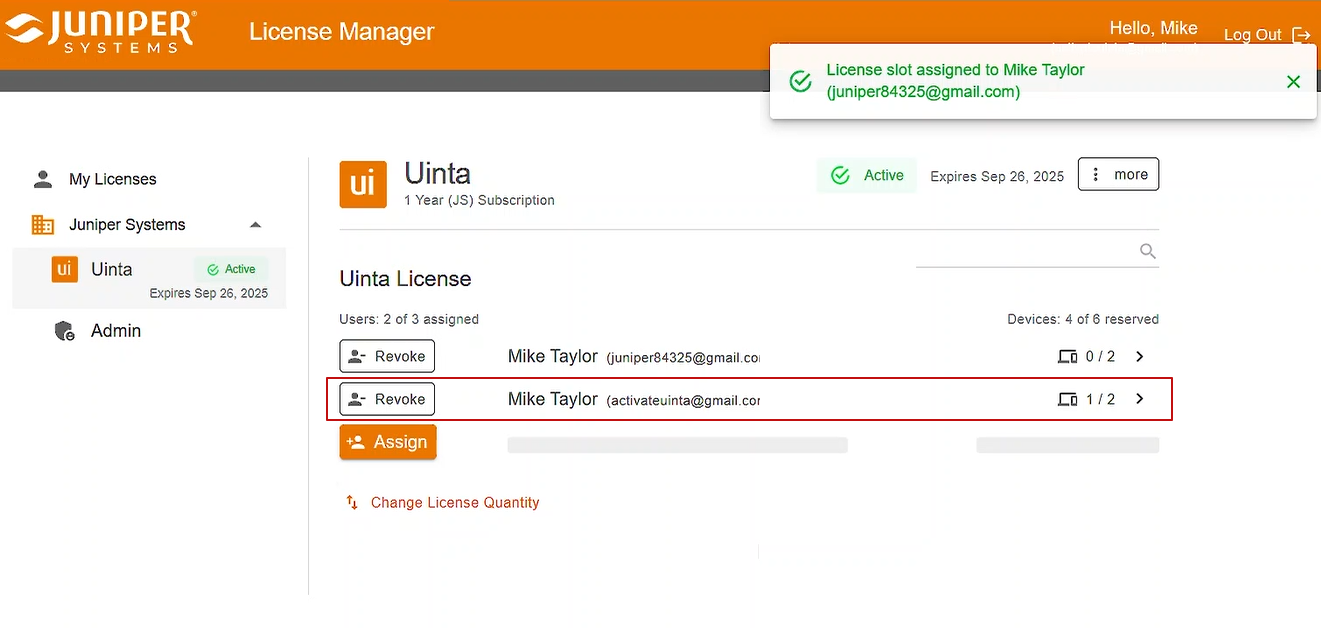
License Manager shows the license as assigned.
Remove a License from a User
To remove a license from a user:
- In the left pane, select Organization name > Uinta to display the list of licenses.
- Under Uinta License, tap Revoke.
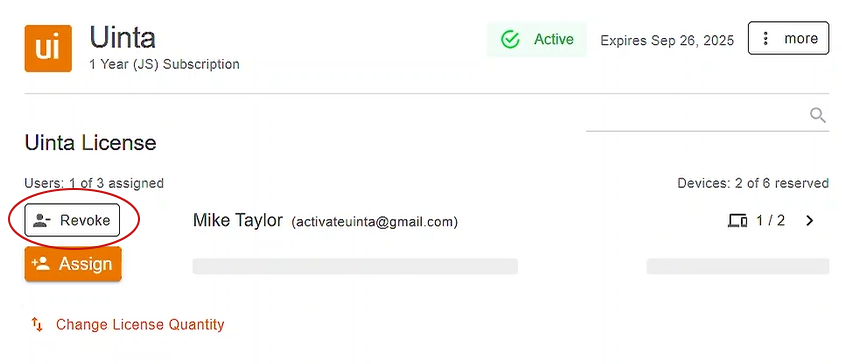
- To confirm, tap Yes, revoke license.
- Assign the license and the devices associated with it to another user.
Manage Device Assignments
With each Uinta license you purchase, you can install Uinta on two devices. For example, the following image shows three Uinta licenses with six devices available for reservation.
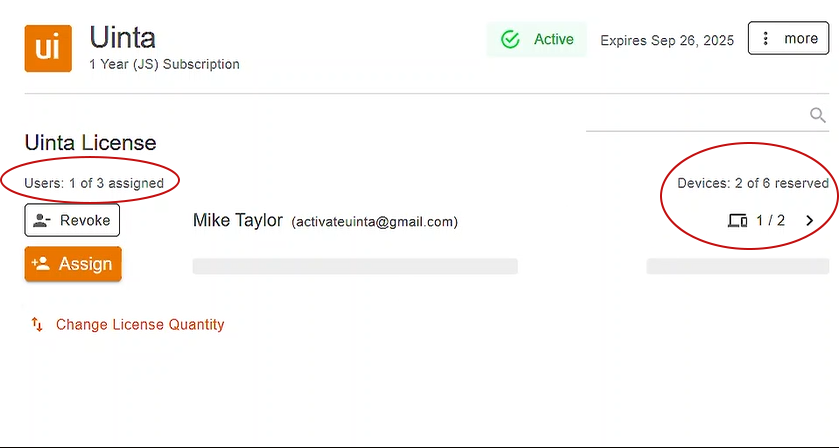
By default, two devices are reserved for each Uinta user. However, with multiple licenses, you can adjust how many devices are reserved for each license. For example, with two licenses, you could assign one device to User 1 and three devices to User 2, for a total of four devices across both licenses.
Change Devices Reserved for a License
To change the number of devices reserved for a license:
- In the left pane, select Organization name > Uinta to display the list of licenses.
- Tap the device icon next to the user.
- Tap the Up button to add a device.
- Tap the Down button to remove a device from that license.

Manage Uinta Subscription
Through License Manager, an administrator can purchase additional licenses, manage billing information, and set up your subscription renewal. Access these options through the More menu next your Uinta subscription information.
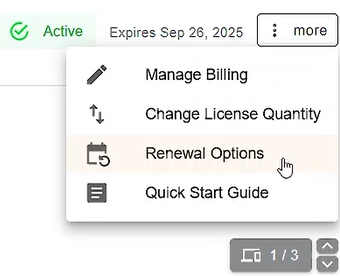
Note: If you purchased Uinta through an authorized partner, purchase additional licenses and renew your subscription through that partner.
Set Up Uinta Administrators
An administrator manages licenses and device assignments. Administrative privileges can be assigned to multiple users, but only one user can be designated as the primary administrator. The primary administrator is the only user who receives email notifications about your subscription renewal.
Note: An administrator does not need a Uinta license to perform administrative tasks.
To add an administrator:
- Select Admin in the left pane.
- Tap Add Admin.
- Enter the email address for the user.
Note: The person must have a Juniper Systems account first before you can add the person as an administrator.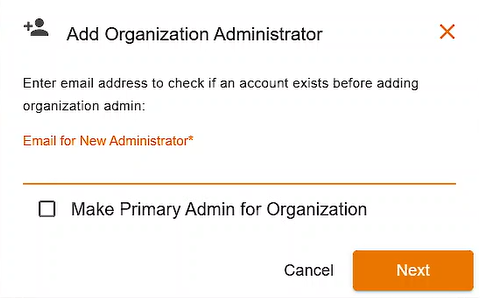
- To make the user the primary administrator for your organization, select Make primary admin for organization.
- Tap Next.
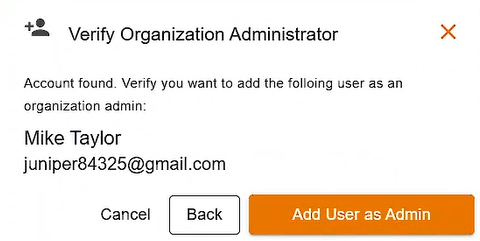
- To confirm this change, tap Add user as admin.
Promote an Administrator to Primary
To make an existing administrator as the primary administrator:
- Select Admin in the left pane.
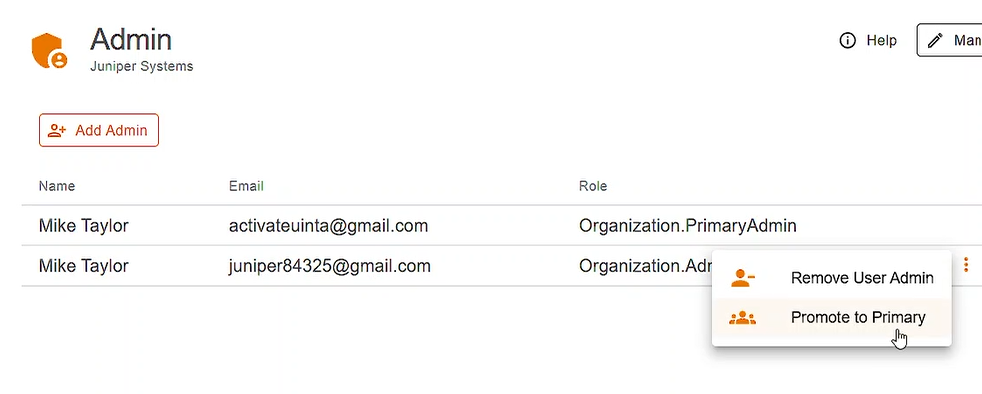
- Next to the user that you want to promote to primary administrator, tap the menu icon
 and select Promote to primary.
- To confirm the promotion, tap Yes, promote to primary.
The current primary administrator becomes an additional administrator.
Remove Administrative Privileges from a User
To remove administrative privileges from a user:
- Select Admin in the left pane.
- Next to the user from whom you want to remove privileges, tap the menu icon and select Remove User Admin.
- To confirm the removal, tap Yes, remove admin.
Check License in Uinta
To see the details of what is included in your license from Uinta:
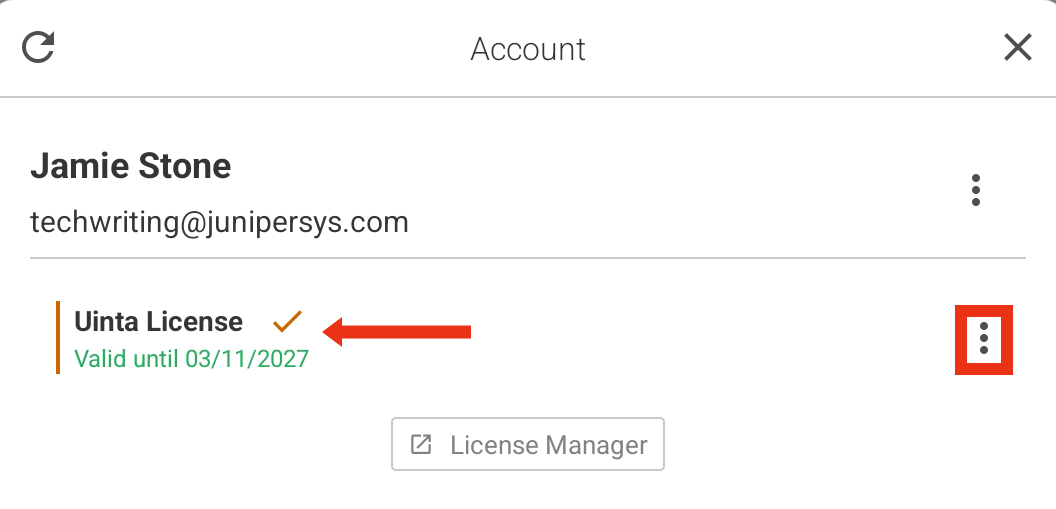
- From the Projects screen, tap .
- Tap your account.
Uinta will show your license. Additional license details, including plan, status, subscription owner, and deactivation, are available from  .
.
Juniper RTK License
If you purchase Juniper RTK, your subscription and user accounts are managed through License Manager just like Uinta. The one exception is that a Juniper RTK account can be used on only one device.