Manage GPS Settings
You can fine-tune the many location-related details to get the accurate, precise data you need. Access the location settings from the menu.
- Android or iOS―Select Connect & Manage GPS > Location Settings.
- Windows―Select Settings > Location Settings.
Tap  when you make any changes to the location settings. Unsaved changes are marked with *.
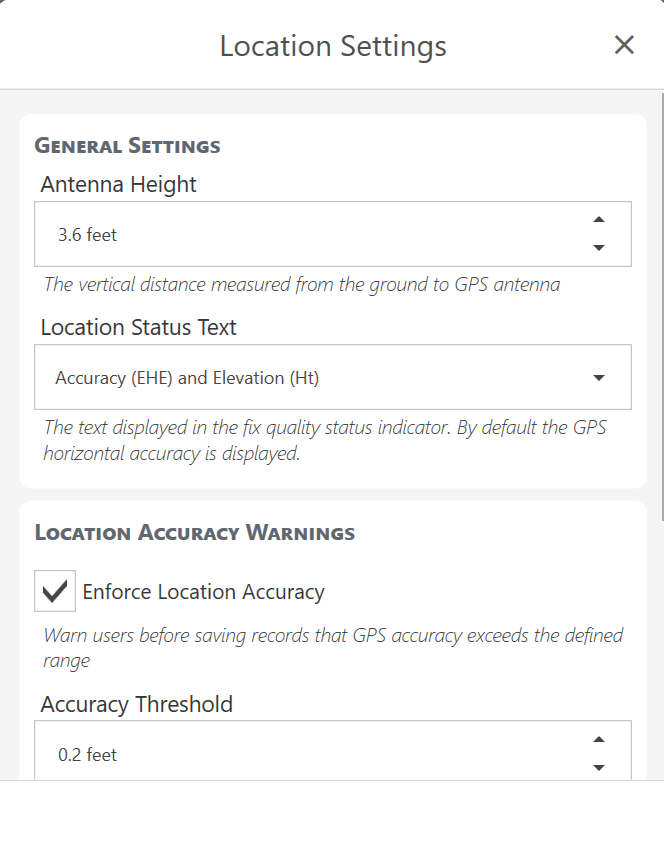
The following sections describe how to customize the location settings.
Set General Settings
Enter Antenna Height
You will most likely be collecting your data in Uinta with a receiver that is above ground level. Enter the receiver's height above ground level to collect more precise data. The default value of Antenna Height is 0 feet.
Customize Location Status Text
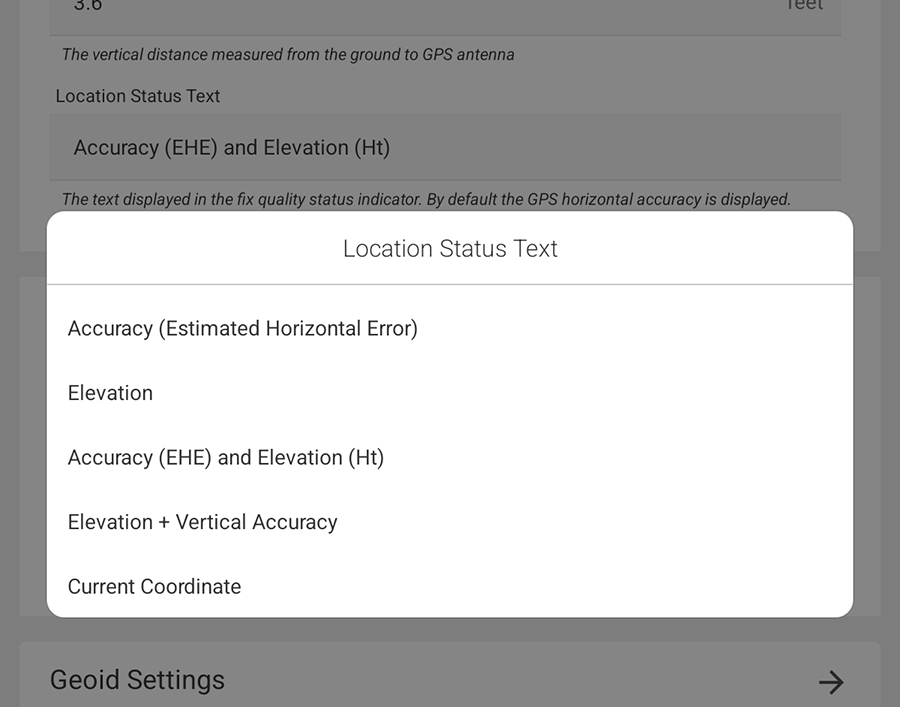
Customize the text displayed in the fix quality status indicator. Select one of the following:
- Accuracy (estimated horizontal error)—default
- Elevation
- Accuracy (EHE) and Elevation (Ht)
- Elevation + Vertical Accuracy
- Current Coordinate
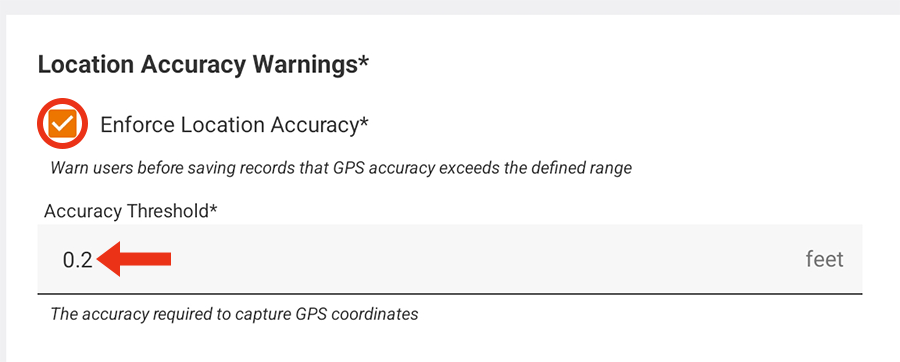
Activate Location Accuracy Warnings
Enable Enforce location accuracy to be warned if the GPS accuracy exceeds the defined accuracy threshold. After the warning appears, you can choose whether to save the location that exceeds the accuracy threshold.
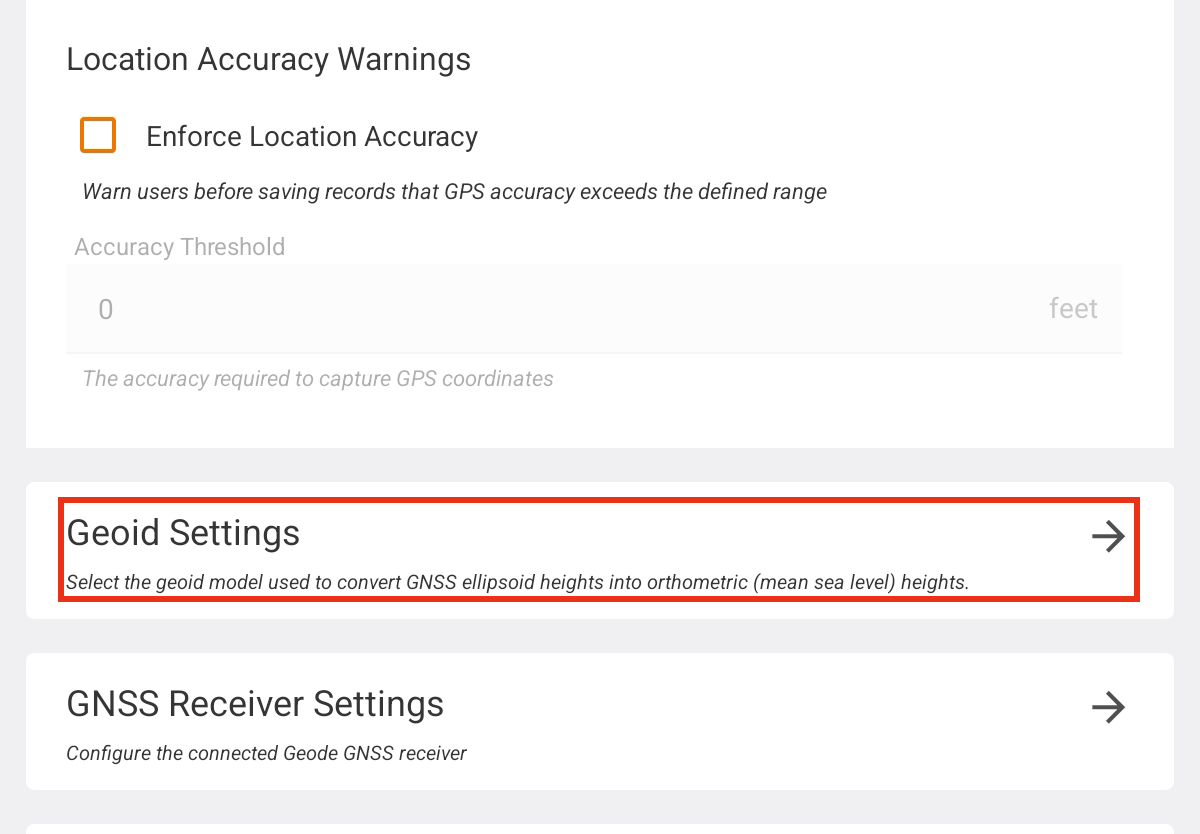
Manage Geoid Settings*
Uinta allows you to download a full, specific geoid to use on your device as you collect data. A downloaded geoid will give more accurate orthometric heights, such as the elevation above sea level. To specify the geoid, Uinta must be connected to a location source, such as a GPS receiver or the Android internal GPS.
Uinta does not require downloading a geoid because your receiver will have a simplified geoid model built in. If your data will benefit from more accurate orthometric heights, we recommend you download a geoid.
Note: This setting is not available when connected to Location Services on iOS and Windows devices.
Download a Geoid
To download a geoid, you will need to be connected to a receiver and have an active internet connection. From Location Settings:
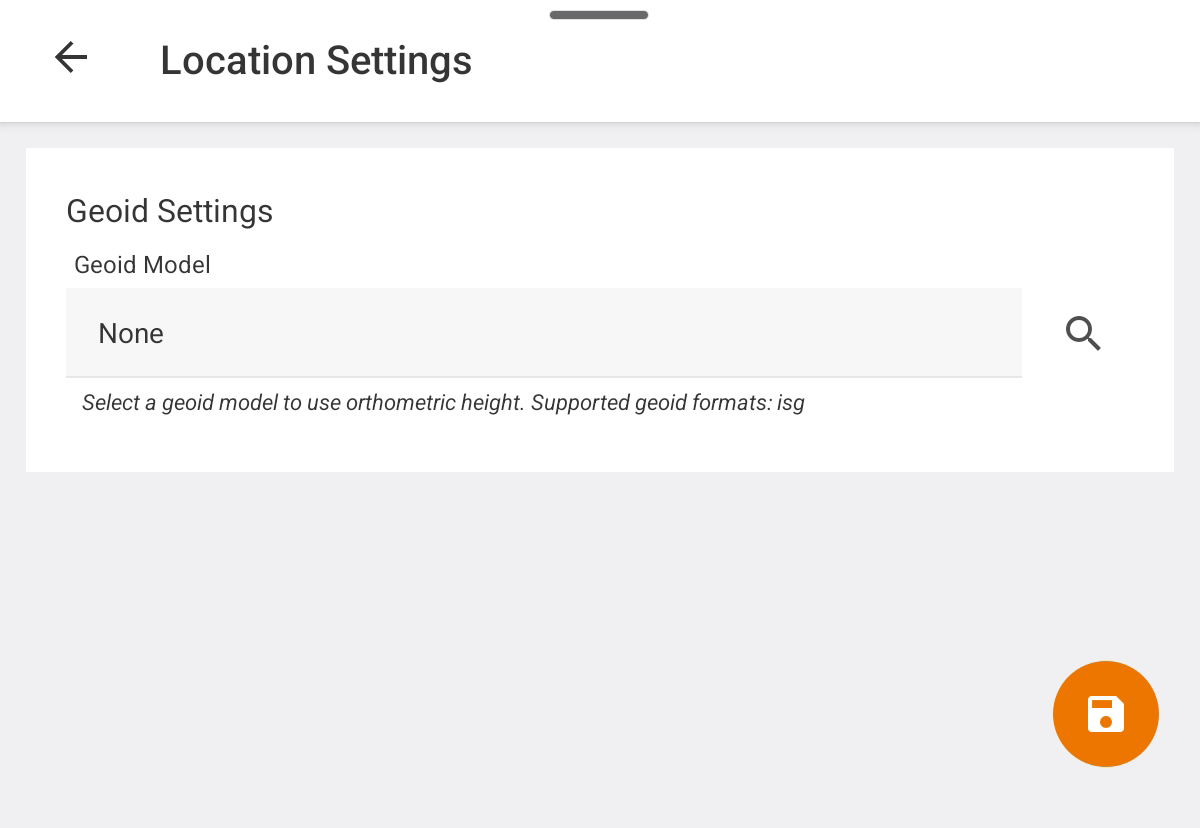
- Tap Geoid Settings.
- Tap
 to search for a geoid.
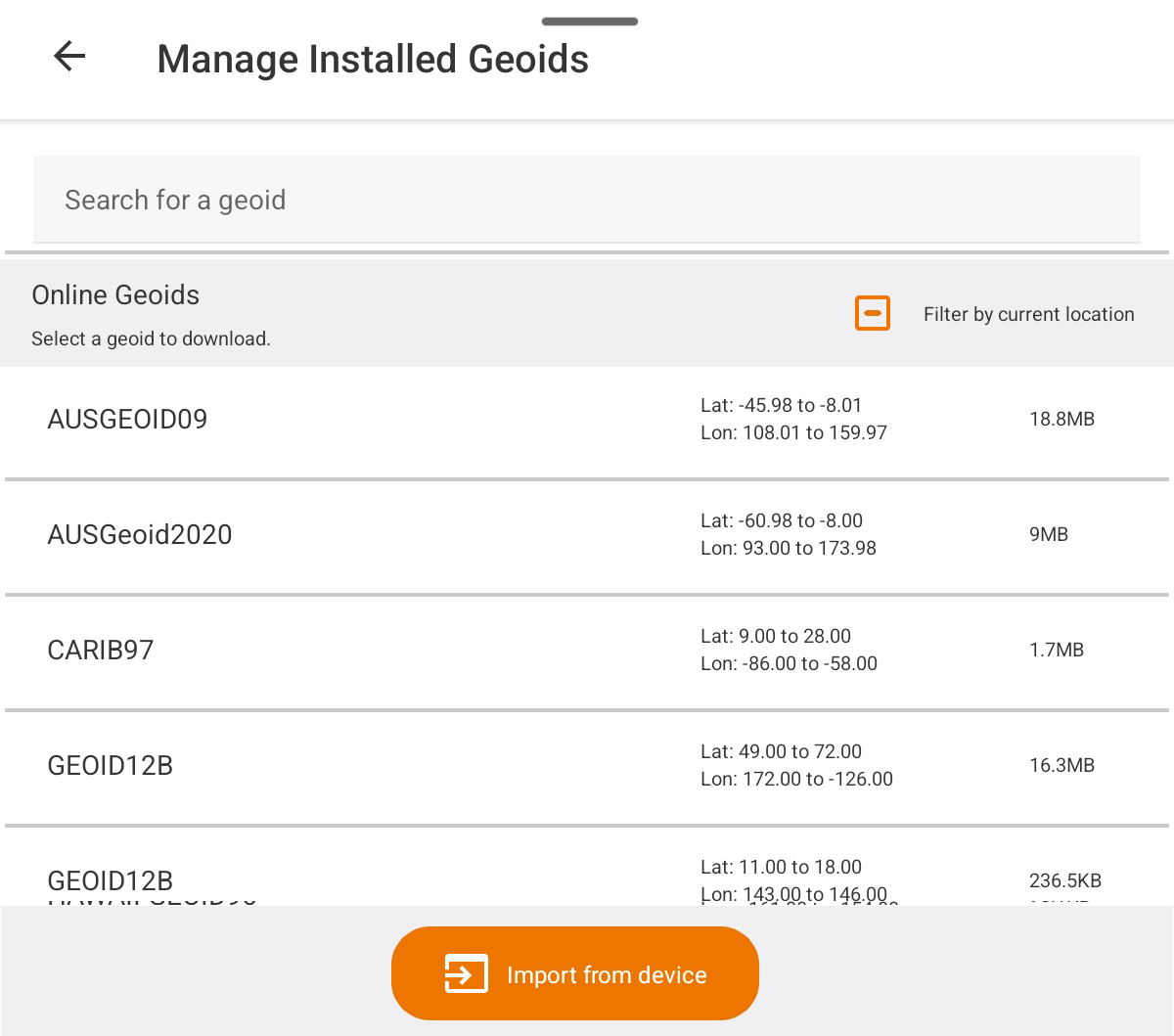
To narrow the list, filter by current location or search for a specific geoid.
- Select the geoid. Tap Download.
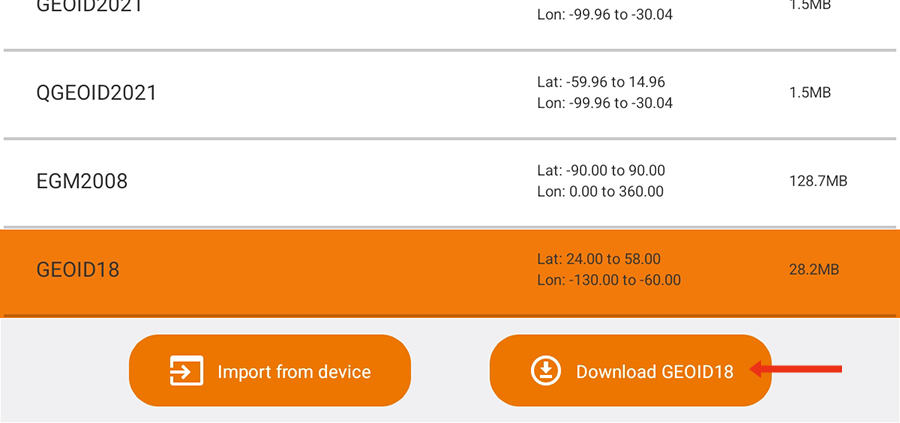
- Tap Download again to confirm.
- Tap
 .
.
The downloaded geoid will show as the Geoid Model.
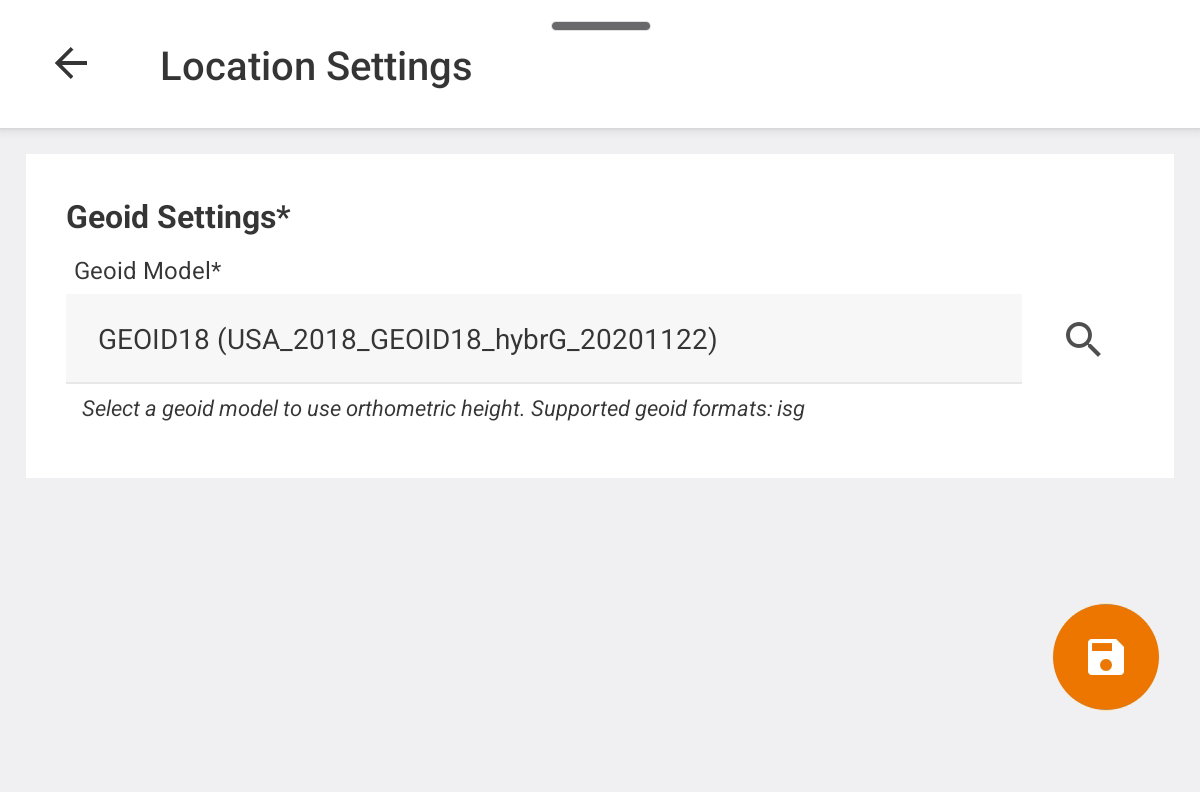
- Tap .
Once a geoid is selected and saved, data collected includes the elevations from the geoid.
Select a Downloaded Geoid
To choose a downloaded Geoid:
- Tap the Geoid Model field.
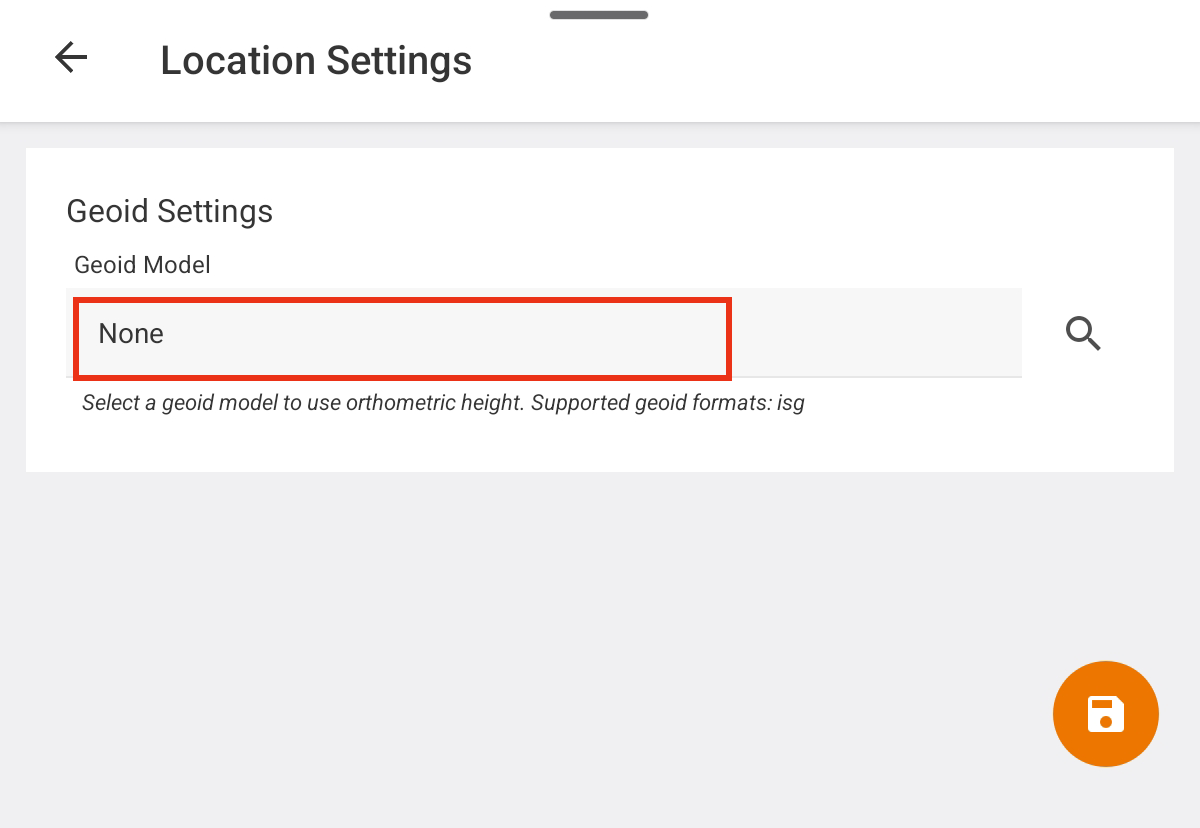
- Select the desired geoid.
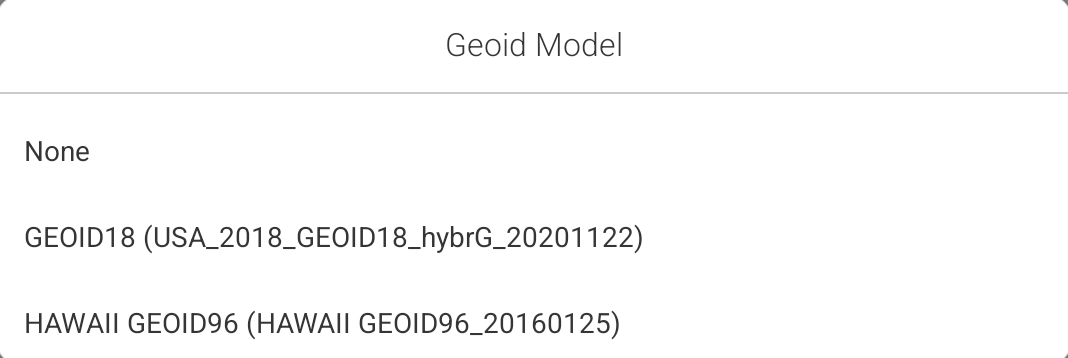
- Tap to save the selected geoid.
Delete a Geoid
To delete a geoid:
- Select it from the list of downloaded geoids. Tap Delete.
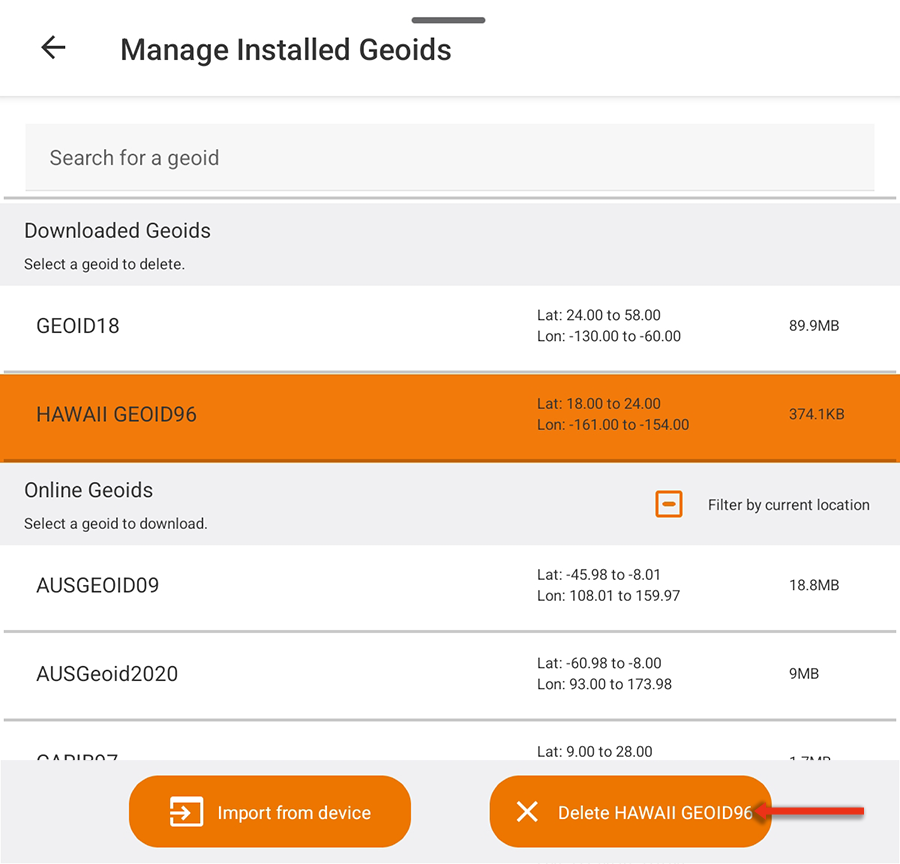
- When asked to verify, tap Delete.
Additional information on spatial reference systems can be found in our knowledge base.
Change GNSS Receiver Settings*
To change the GNSS receiver settings, Uinta must be connected to a Juniper Systems receiver.
- Tap GNSS Receiver Settings.
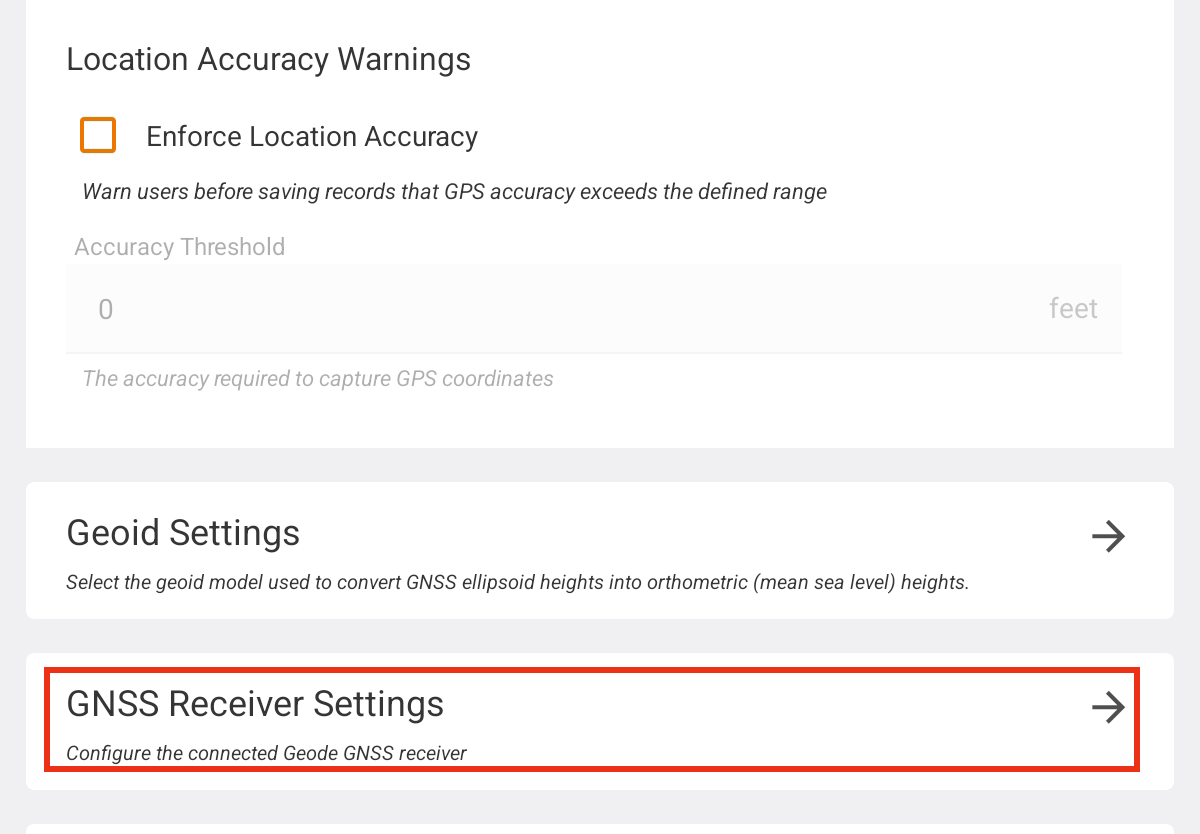
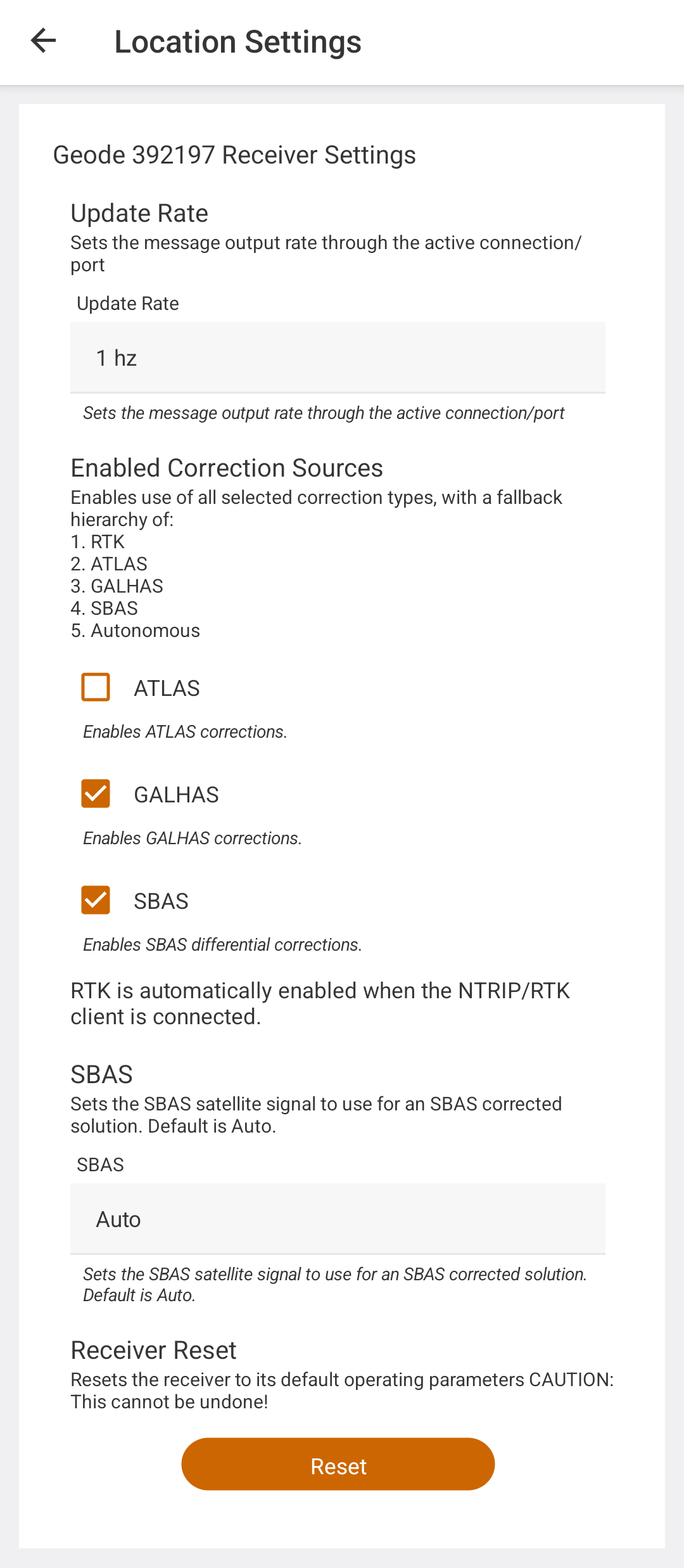
Uinta opens Receiver Settings.
|
Parameter |
Default Value |
Description |
|---|---|---|
|
Update Rate |
1 Hz |
Sets the message output rate through the active connection port. |
|
Enabled Correction Sources |
SBAS
|
Select the correction source(s) to enable. The available correction sources are determined by your GNSS receiver model. Note: When ATLAS is an available selection, it can only be enabled and saved if you have a valid subscription. |
|
SBAS |
Auto |
Sets the SBAS satellite signal to use for an SBAS-corrected solution. Options are
Auto works well in most areas because SBAS services generally cover different regions. However, in areas of the world where the SBAS coverage overlaps, select a specific service to prevent the receiver from switching between services and introducing significant data errors due to differences in reference datums or models. The following map shows the coverage areas for SBAS satellite constellations.
|
|
Receiver Reset |
Resets the receiver to its default operating parameters.
|

 Caution: This cannot be undone!
Change Displayed Coordinate System
When you create a project, you can specify the coordinate reference system (CRS) used to collect, correct, and store data. By default, projects use World Geodetic System 1984 (WGS84) Latitude/Longitude (EPSG:4326). (See Create a Project.)
After creating a project, you cannot change the CRS. However, you can change the coordinate system used to display coordinates.
Note: Changing the displayed coordinate system does not affect how data is collected, corrected, or stored.
To change the displayed coordinate system:
- Open Location Settings, and tap Coordinate Systems.
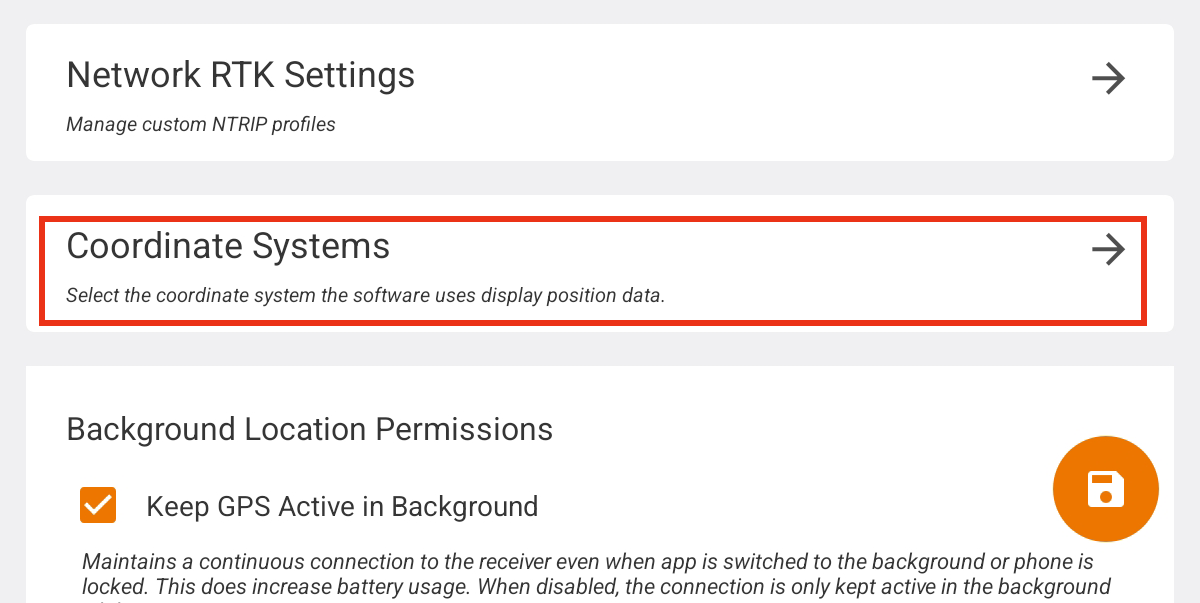
- Tap Displayed Reference Systems field.
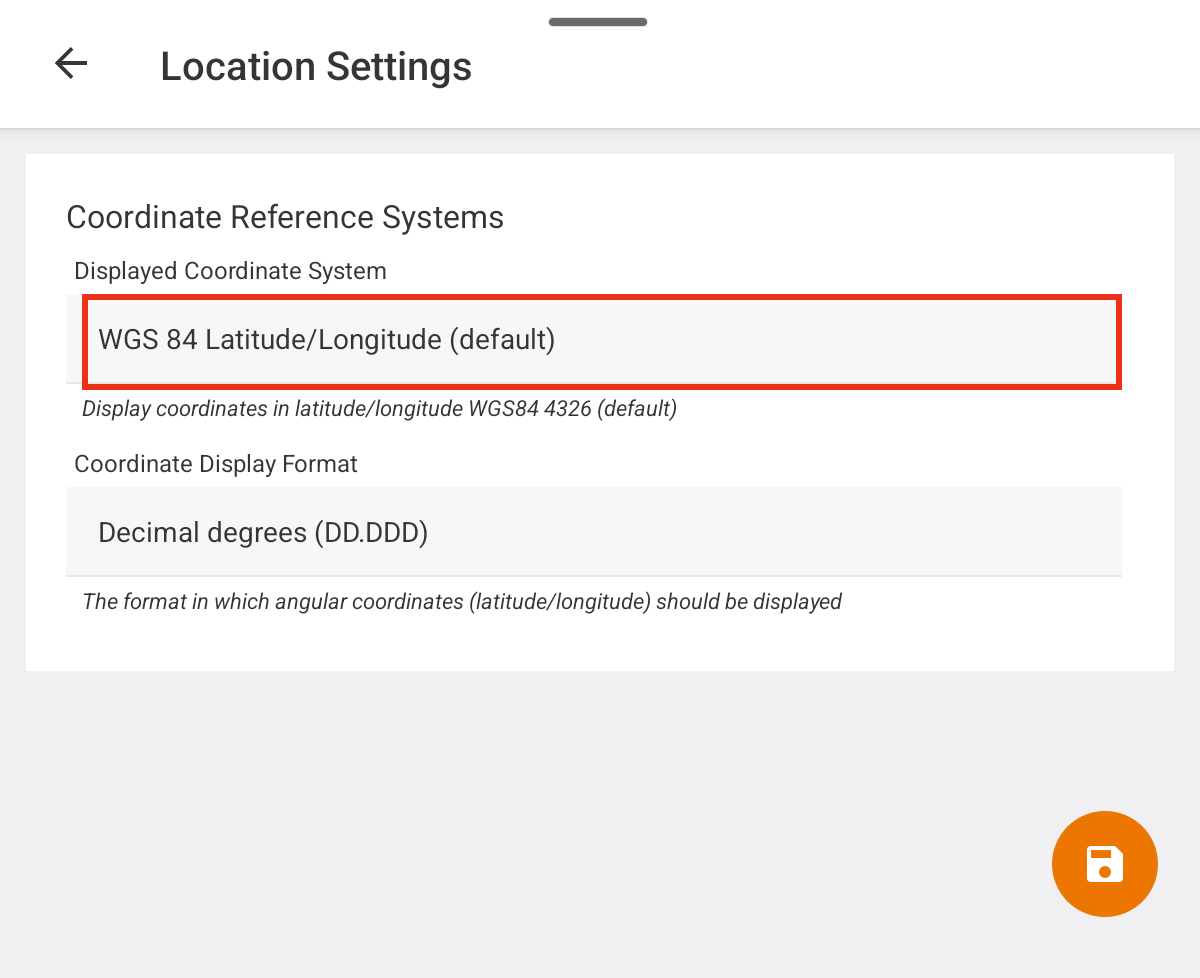
- Select your desired coordinate system.
If the coordinate system you want is not listed, tap Select other.
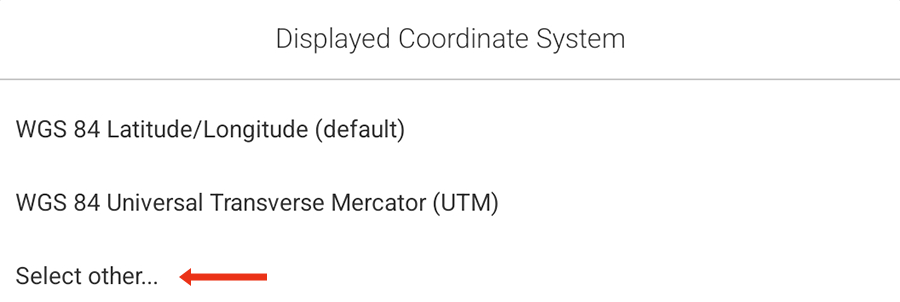
- Locate your desired coordinate system. Options are listed by the Spatial Reference Identifier (SRID) based on European Petroleum Survey Group (EPSG) codes. Narrow the list by applying a filter or searching by SRID or name. Tap to select your desired coordinate system. Tap the orange button at the bottom to apply it.
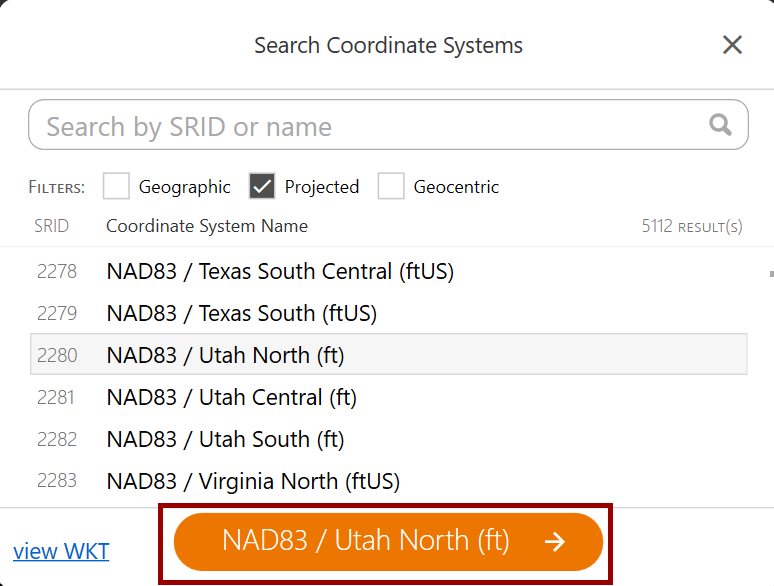
- Locate your desired coordinate system. Options are listed by the Spatial Reference Identifier (SRID) based on European Petroleum Survey Group (EPSG) codes. Narrow the list by applying a filter or searching by SRID or name. Tap to select your desired coordinate system. Tap the orange button at the bottom to apply it.
- Tap to save your chosen coordinate system.
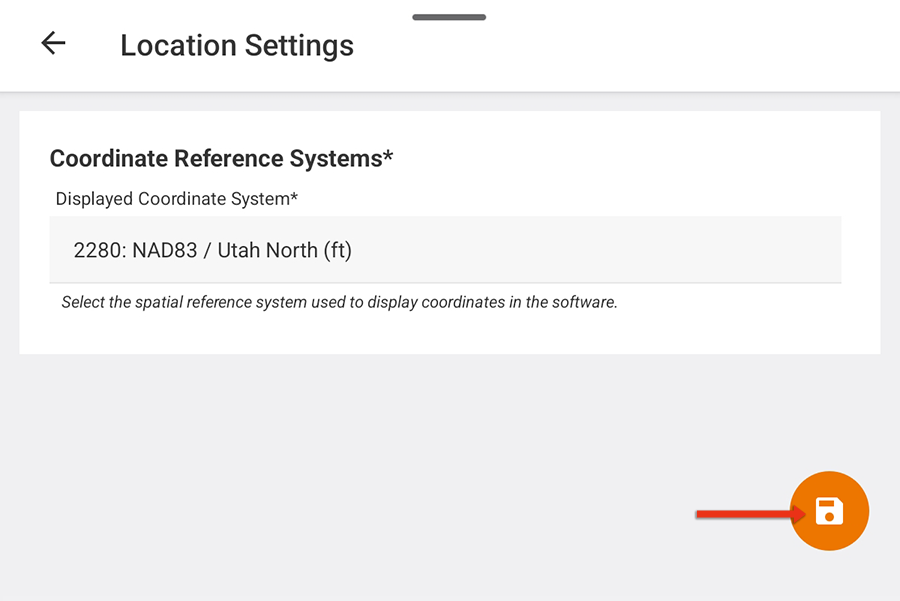
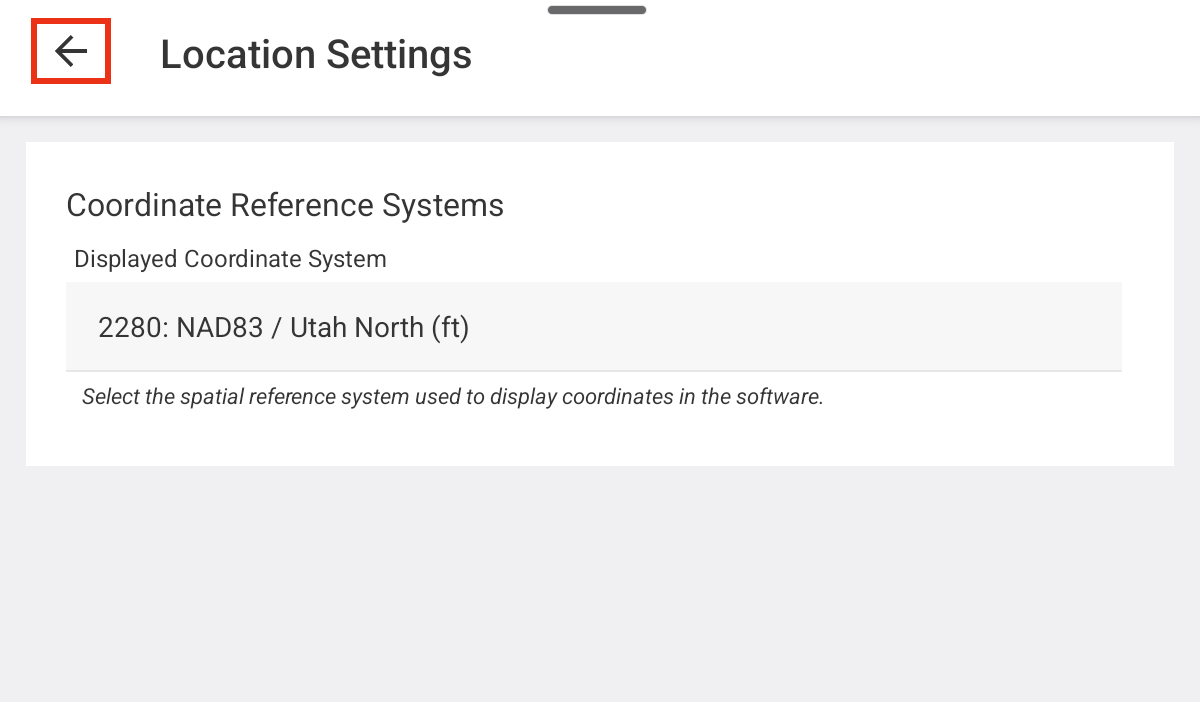
- Tap
 to return to Location Settings.
Change Coordinate Display Format
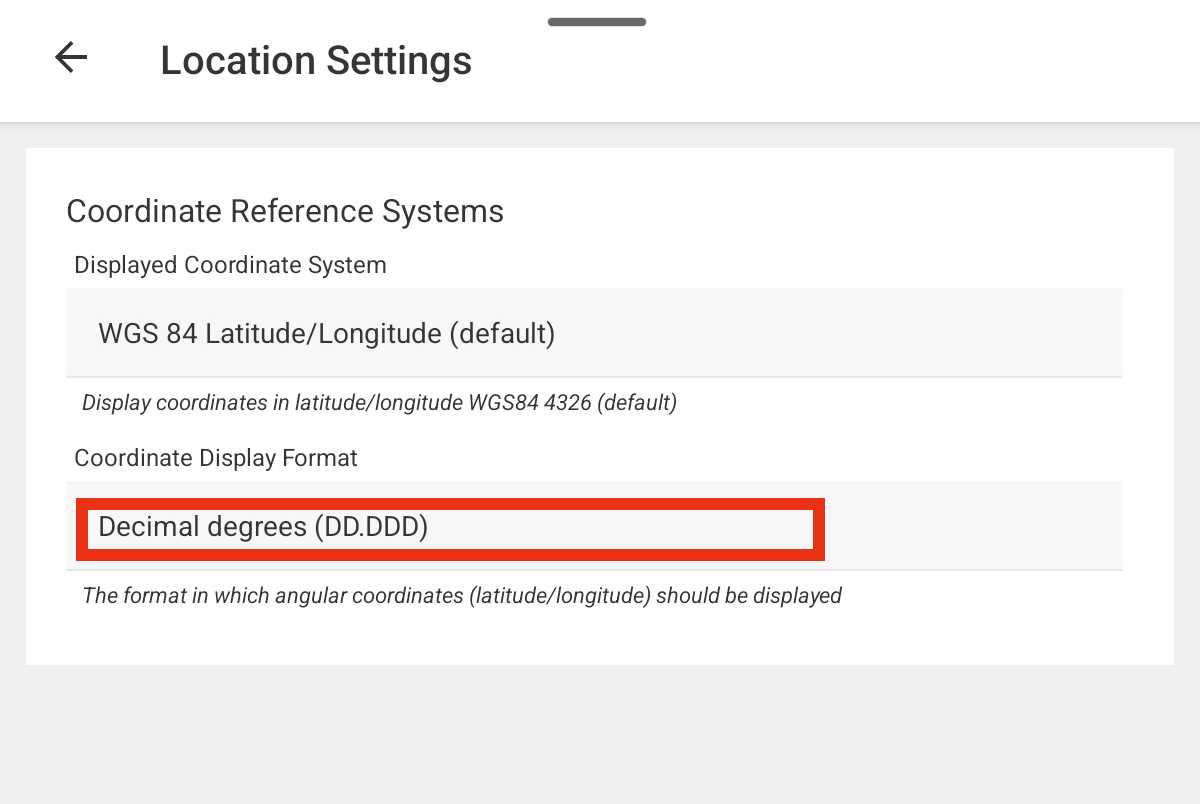
When the displayed coordinate system includes a variety of display options, this field appears. If there are no options available in the chosen coordinate system, this field is hidden. The default format is Decimal degrees (DD.DDD).
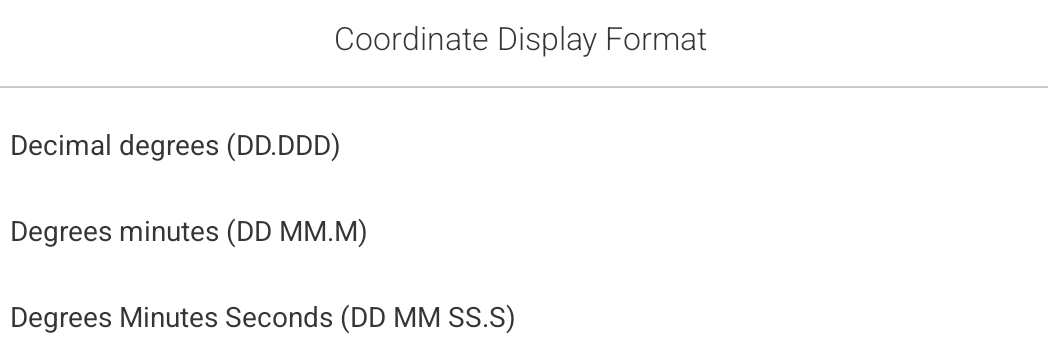
To change the format of the coordinate values displayed in Uinta:
- Tap Coordinate Display Format field.
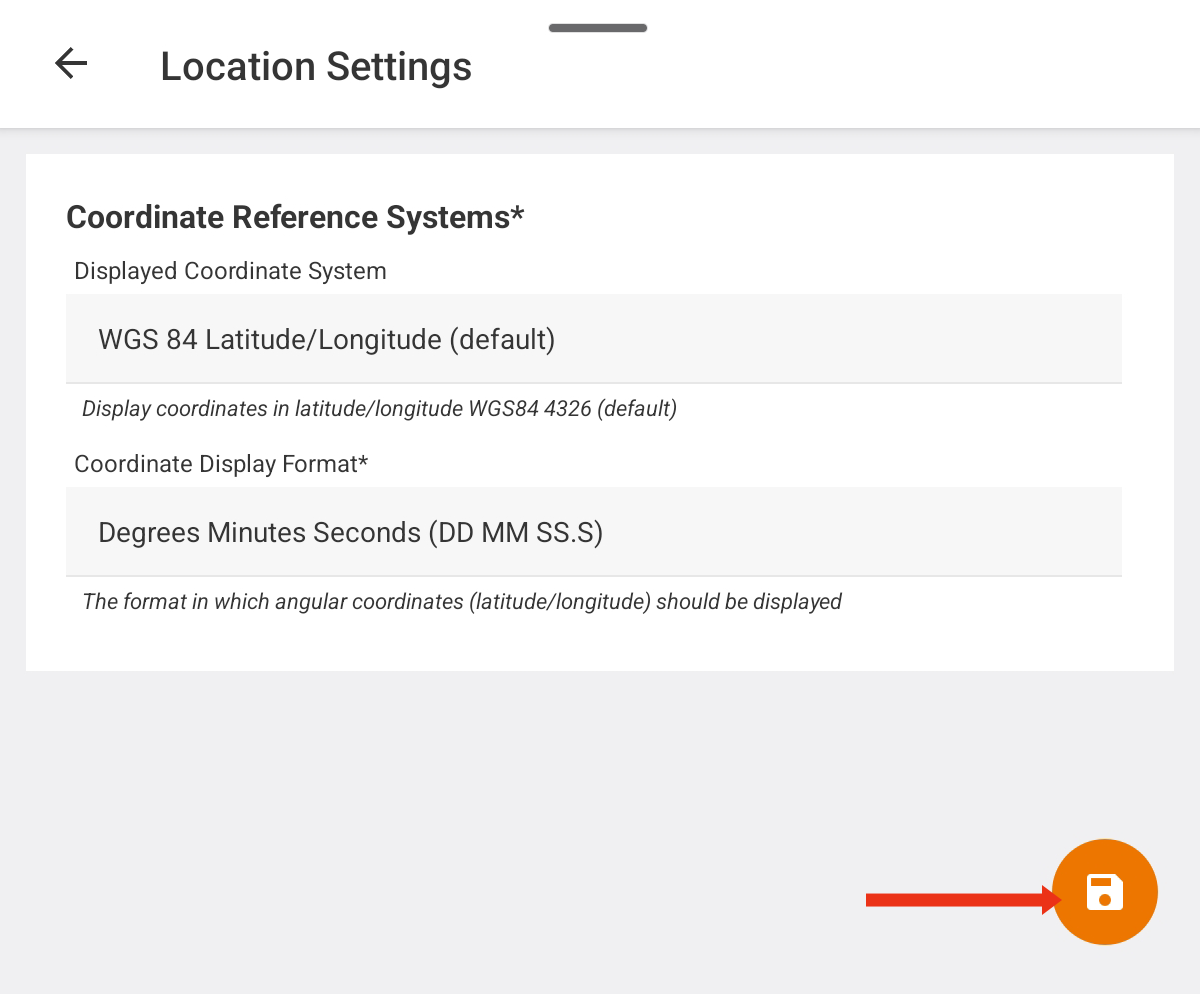
- Tap to save your chosen coordinate system.
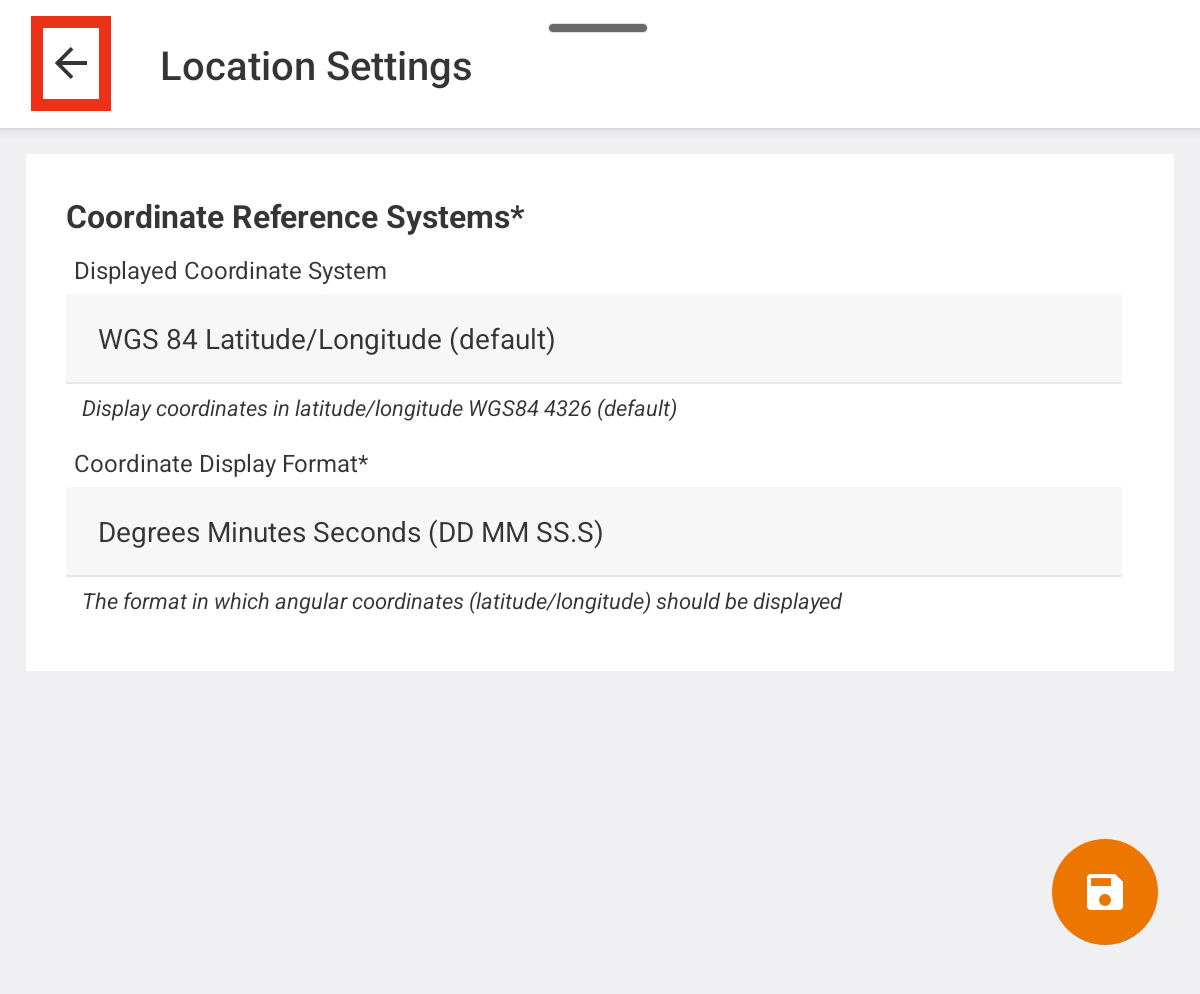
- Tap to return to Location Settings.
Set Background Location Permissions (Android)
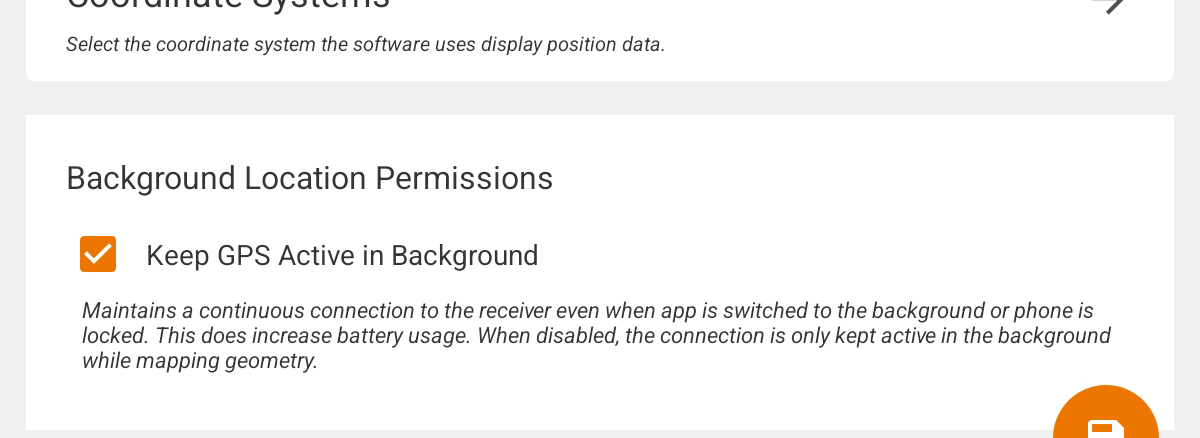
On Android devices, Uinta maintains a continuous connection to the receiver even when the app is switched to the background or the device is locked. Maintaining the continuous connection increases battery usage. To conserve battery life, clear Keep GPS Active in Background, and the connection is kept active in the background only while mapping geometry.
Use Uinta to Auto-Configure Geode
If you are using Uinta and connect to a Geode GNSS receiver, you may be prompted to auto configure the Geode.
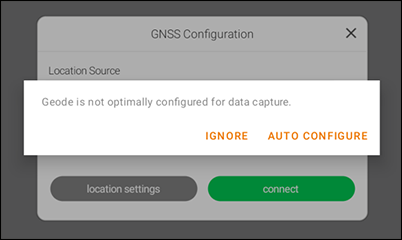
Auto Configure applies the following recommended settings for using the Geode with Uinta.
|
Configure Geode Category |
Auto Configure Settings |
Auto Configure Settings |
Notes |
|---|---|---|---|
|
Active GNSS Constellations |
GPS Multi-GNSS |
GPS Multi-GNSS |
|
|
NMEA |
RD1 GGA GNS GSA GST GSV RMC |
RD1 GGA GNS GSA GST GSV RMC |
|
|
Update Rate |
1 Hz |
1 Hz |
|
|
Advanced Section |
|||
|
NMEA Precision |
8 |
8 |
|
|
Mask Angle |
10 |
10 |
|
|
Correction Source |
Auto |
N/A |
For more information, see Geode is not Seeing Satellites. |
|
SBAS |
Auto |
Auto |
|
|
Receiver Mode |
Mixed Null NMEA |
Mixed Null NMEA |
Turn off Mixed to get the greatest accuracy. See Default and Recommended Settings for Geode for more information. |
|
Battery Status Sentence |
10 seconds |
10 seconds |
|