Connect GPS
Uinta connects to a device's internal GPS receiver, an external GPS receiver (such as Geode or Spire), or Location Services to capture location data. You can adjust the location settings and apply correction services to increase the data's accuracy.
For a list of external GPS receivers supported by Uinta, email Juniper Systems at uintasoftware@junipersys.com.
Connect GPS in Uinta for Windows
The following sections describe how to connect to a GPS receiver with a Windows device.
Connect to the Internal GPS (Windows)
To connect the device's internal GPS receiver:
- Tap the GPS button
 in the upper-left corner of the title bar.
Or, from the menu, select Settings > GPS Connection.
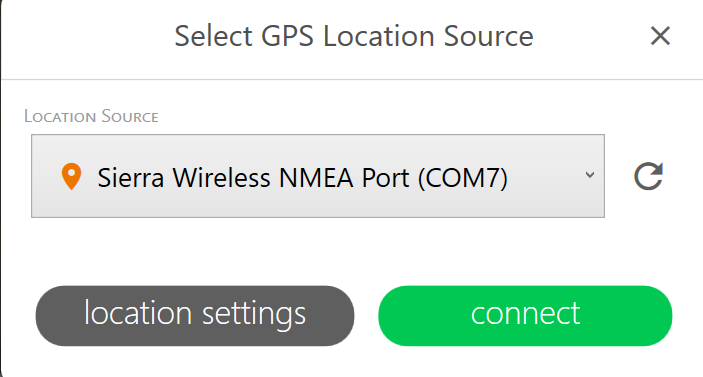
- Select the internal GPS.
 CAUTION: While Windows Location Services is listed as an option, we do not recommend using it as a valid GPS data collection source. Windows Location Services shows the position from network-based approximation and is much less accurate.
- Tap Connect.
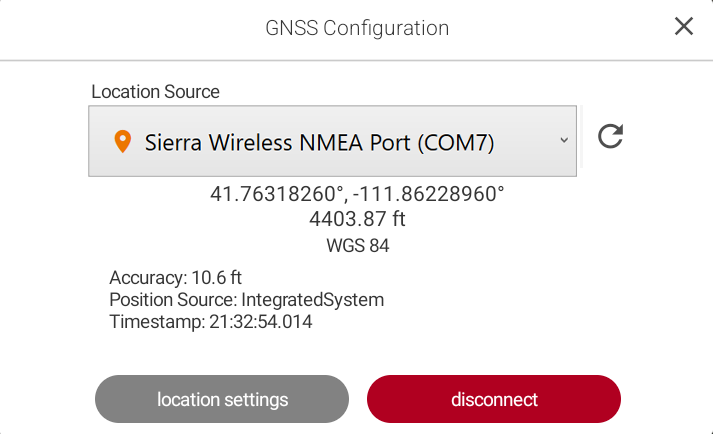
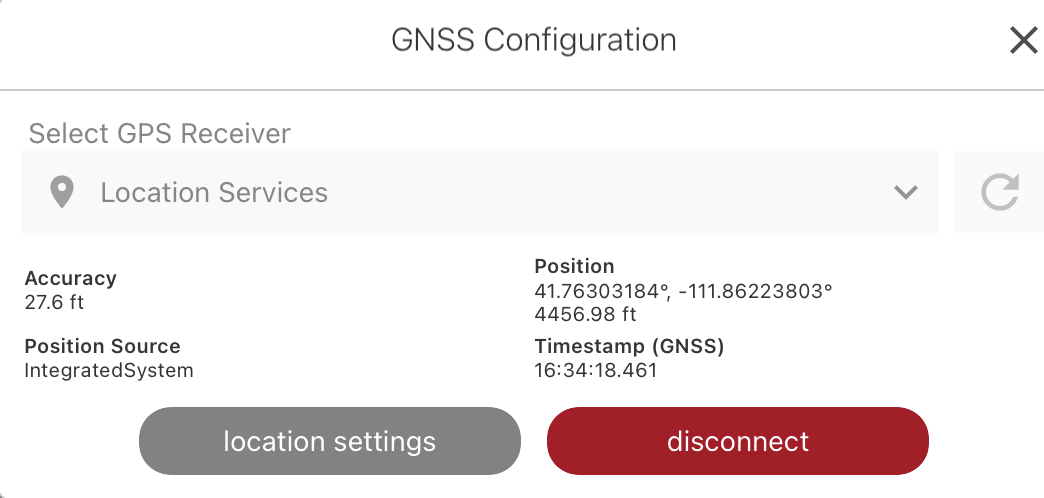
Uinta displays information about the receiver, including the accuracy, location, and position source.
Connect to a GPS Receiver (Windows)
You can connect to a GPS receiver, such as Geode or Spire, through Bluetooth®, USB, or serial port, depending on its capabilities.
Pair to Bluetooth Receiver
To pair to an GPS receiver:
- Power on the receiver.
- Enable Bluetooth on your Windows device.
- Pair the receiver to your Windows device.
- Open Uinta.
- Tap the GPS button in the upper-left corner of the title bar.
Or, from the menu, select Settings > GPS Connection.
- In Location Source, select the receiver. If the receiver isn't listed, tap Refresh
 . The list may take up to 15 seconds to update.
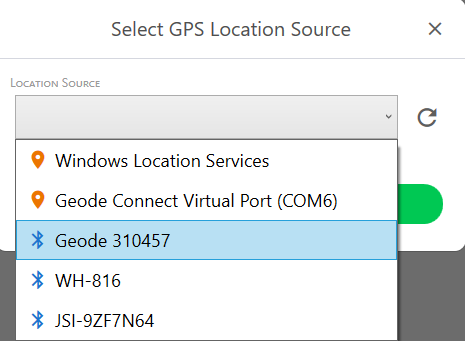
- Tap Connect.
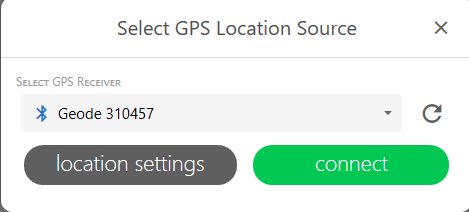
Uinta displays information about the receiver, including the accuracy, correction source, fix quality, and battery charge level.

Connect via USB
You can connect an GPS receiver to a Windows device using a USB cable.
- If the PC or tablet is running Windows 10, turn off tablet mode.
- Power on the receiver.
- Plug the USB cable into your Windows device and the receiver.
- Open Uinta.
- Tap the GPS button in the upper-left corner of the title bar.
Or, from the menu, select Settings > GPS Connection.
- In Location Source, select the USB serial device. If the receiver isn't listed, tap Refresh . The list may take up to 15 seconds to update.
- Tap Connect.
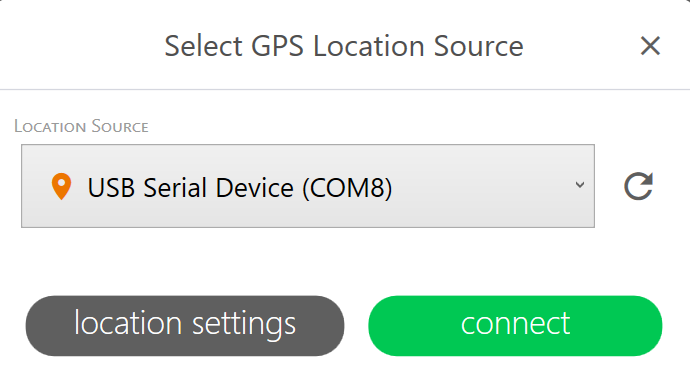
Uinta displays information about the receiver, including the accuracy, correction source, fix quality, and battery charge level.
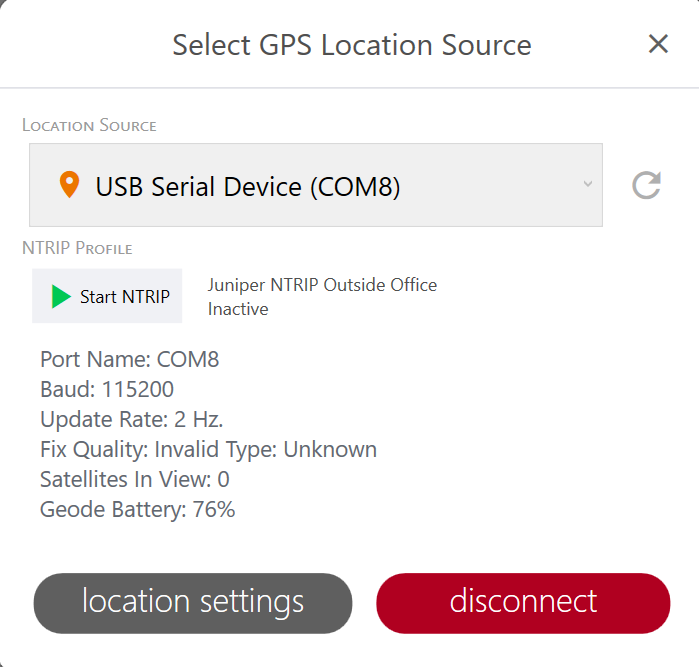
Connect via Serial Port
Some external GPS receivers, such as the Geode, have a 9-pin RS-232C serial port. This allows the GPS receiver to be mounted to a piece of equipment while maintaining a constant connection for data and power.
To connect a Windows device and a GPS receiver with a straight-through serial cable:
- Power on the receiver.
- Plug the serial cable into your Windows device and the receiver.
- Open Uinta.
- Tap the GPS button in the upper-left corner of the title bar.
Or, from the menu, select Settings > GPS Connection.
- Select the USB serial port. If the receiver isn't listed, tap Refresh . The list may take up to 15 seconds to update.
- Tap Connect.
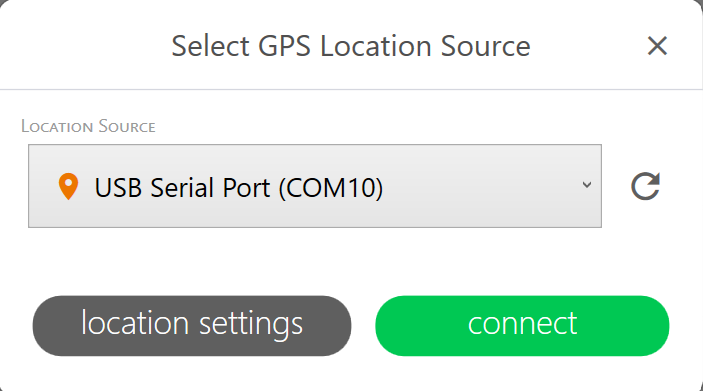
Uinta displays information about the receiver, including the accuracy, correction source, fix quality, and battery charge level.
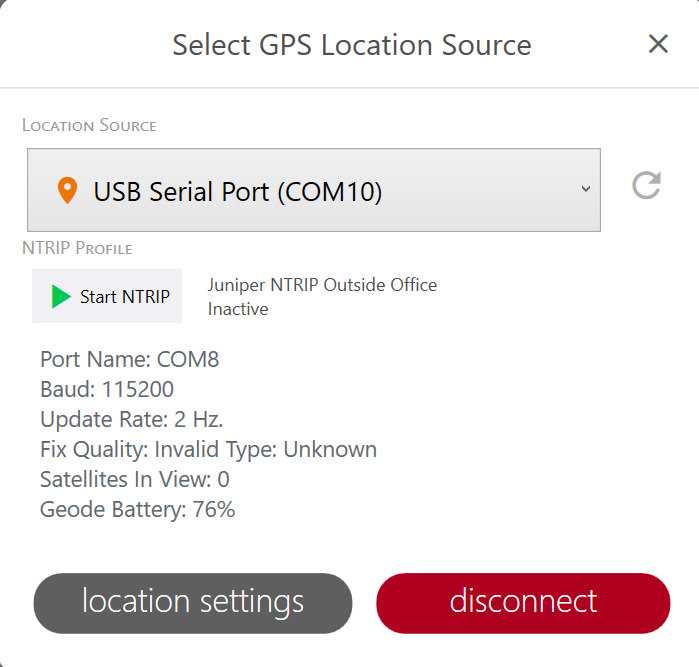
Connect GPS in Uinta for Android
The following sections describe how to connect to a GPS receiver with an Android device.
Pair to a GPS Receiver (Android)
To pair your Android device to a GPS receiver, such as Geode or Spire:
- Power on the receiver.
- Enable Bluetooth on your Android device.
For devices running Android 12 or earlier, enable Location.
- Open Uinta.
- From the menu, select Connect & Manage GPS.
- In Location Source, select the receiver. If the receiver isn't listed, tap Refresh . The list may take up to 15 seconds to update.
Note: If the GPS receiver does not appear in the list of devices, ensure it is turned on and not paired with another device.
- Tap Connect.
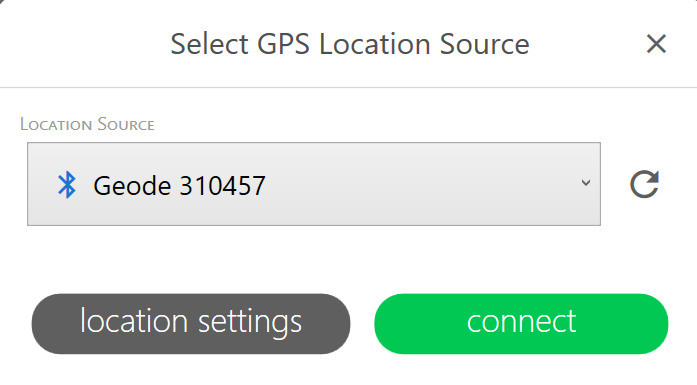
- Follow the prompts to finish pairing.
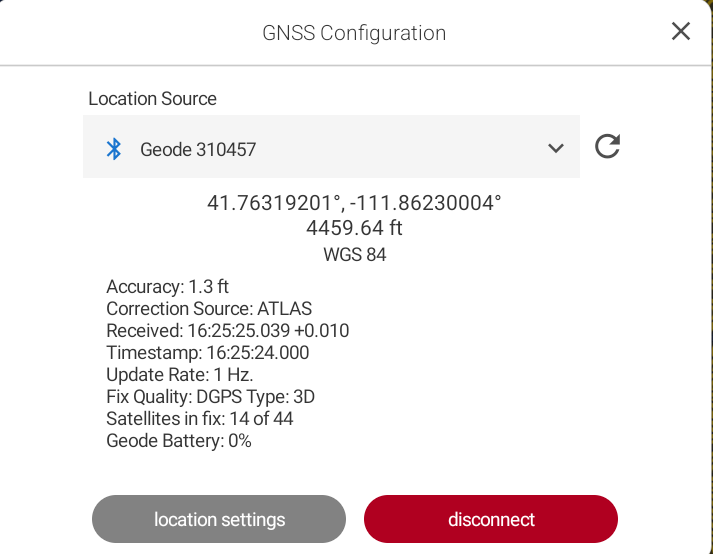
Uinta displays information about the receiver, including the accuracy, correction source, fix quality, and battery charge level.
Connect through Location Services (Android)
To connect to a GNSS receiver that is not from Juniper systems and cannot be connected directly, make the connection through the internal GPS receiver or Location Services:
- Connect to the receiver through its associated app.
- Set the recevier's app as a mock location provider.
For sample instructions based on the Trimble DA2 receiver, see Work with Trimble DA2 Receiver (Android). - Open Uinta.
- From the menu, select Connect & Manage GPS.
- Select the internal receiver or Location Services.
Note: Android Location Services uses a combination of GPS, Wi-Fi, Bluetooth, and other sources to pinpoint a location, making it a valid data collection source.- If you are using Uinta on an Archer 4 with the RTK-enabled GNSS and the receiver isn't listed, tap Refresh . The list may take up to 15 seconds to update.
Note: For more information on the RTK-enabled GNSS expansion, see "Connect to the Archer 4 GNSS Expansion" in the Juniper Connect User Manual.
- If you are using Uinta on an Archer 4 with the RTK-enabled GNSS and the receiver isn't listed, tap Refresh
- Tap Connect.
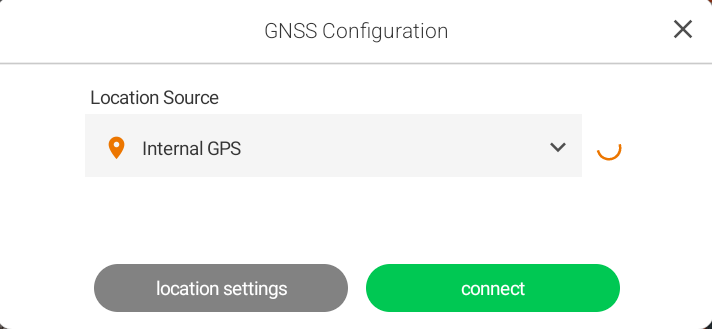
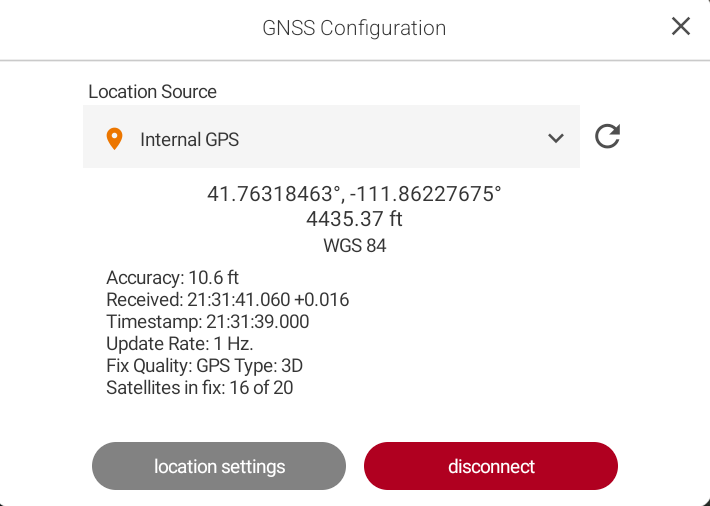
Uinta displays information about the receiver, including the accuracy, location, and fix quality.
Connect GPS in Uinta for iOS
The following sections describe how to connect to a GPS receiver with an iOS device.
Connect to a GPS Receiver (iOS)
You can pair an iOS device to an external GPS receiver, such as Geode or Spire.
- Power on the receiver.
- Enable Bluetooth on the iOS device.
- Open Uinta.
- From the menu, select Connect & Manage GPS.
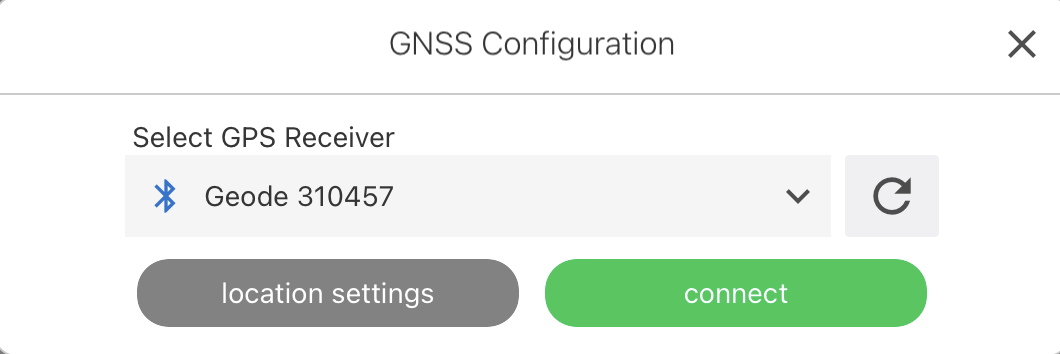
- In Location Source, select the receiver from the drop-down list.
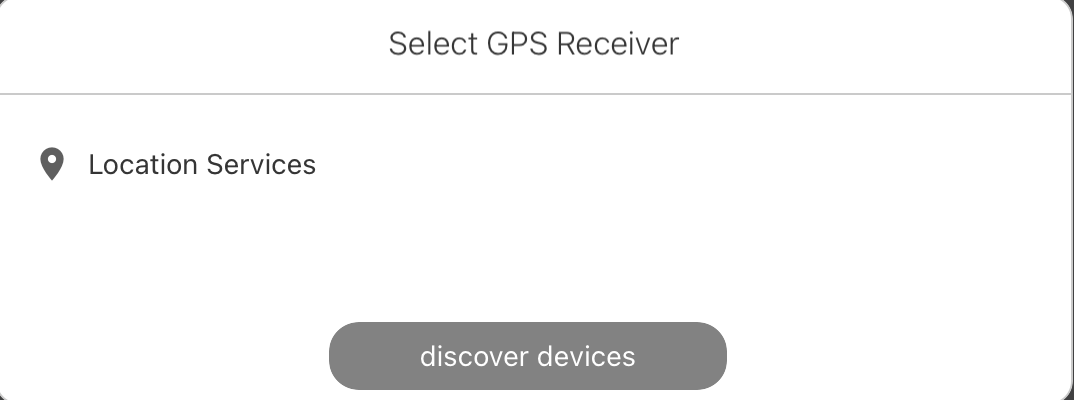
- If the receiver doesn't appear in the list, tap Discover devices. Select the GPS receiver from the list and finish the pairing process.
- If prompted, accept the pairing code.
- Tap Connect.
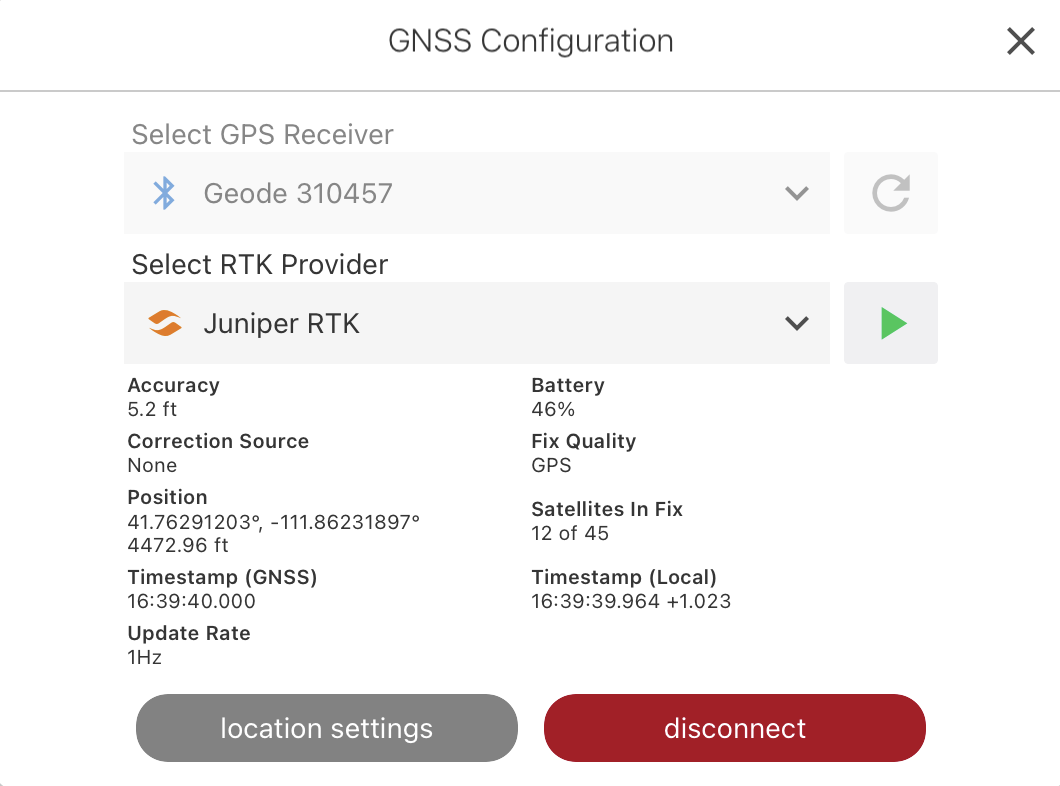
Uinta displays information about the receiver, including the accuracy, correction source, fix quality, and battery charge level.
Connect through Location Services (iOS)
To connect to a GNSS receiver that is not from Juniper systems, make the connection through the internal GPS receiver or Location Services:
- Connect to the receiver through its associated app.
- Set the receiver's app as a mock location provider.
For sample instructions based on the Trimble DA2 receiver, see Work with Trimble DA2 Receiver (iOS). - Open Uinta.
- From the menu, select Connect & Manage GPS.
- In Location Source, select the internal GPS or Location Services.
Note: Apple Location Services uses a combination of GPS, Wi-Fi, Bluetooth, and other sources to pinpoint a location, making it a valid data collection source.
- Tap Connect.
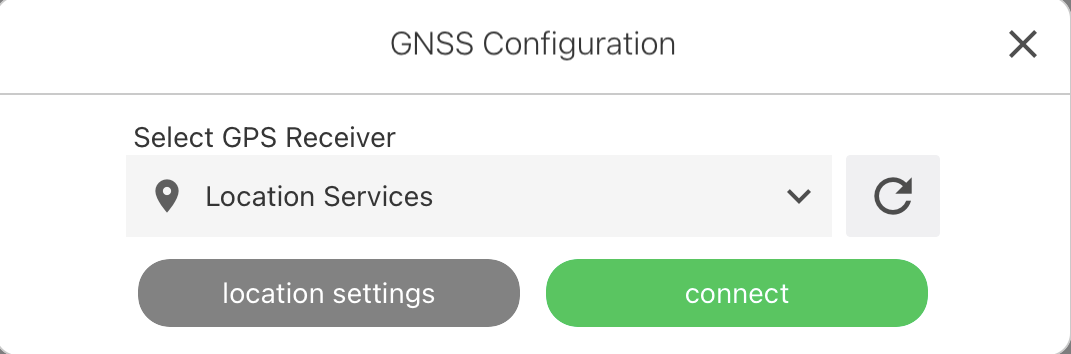
If asked, allow Uinta to use your location. Uinta displays information about the receiver, including the accuracy, satellites in fix, and fix quality.
Monitor the GPS Receiver Accuracy
The GPS button, located in the title bar in Windows or at the bottom of the screen in Android or iOS, shows the fix quality and the accuracy of the receiver.
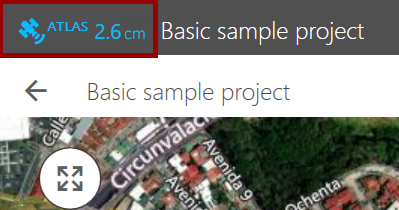
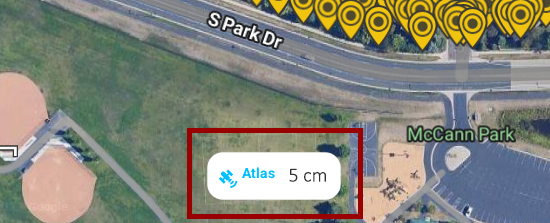
Tap the GPS button to view additional details about the GPS receiver, including the accuracy, correction source, fix quality, and battery charge level.
Understanding the GPS Button Colors
The color of the GPS button is based on the fix quality.
|
Fix Status |
Position Available |
Icon |
|---|---|---|
|
Valid Fix |
Yes |
 |
|
Invalid Fix |
No |
 |
|
No Fix |
Yes |
 |
|
Network-based position |
 |
|
Disconnect the GPS Receiver
To disconnect the GPS receiver:
- Tap the GPS button, located in the title bar in Windows or at the bottom of the screen in Android or iOS.
- Tap Disconnect.