Network RTK Profiles
Network RTK is a high-accuracy correction service that uses a network of ground-based reference stations to provide real-time corrections to mobile receivers. NTRIP is a communication protocol to deliver those corrections over the internet. Because positioning accuracy depends on the proximity to a reference station, Network RTK with NTRIP can select the nearest station or use modeling to create a virtual reference station close the user's receiver.
The GNSS receiver uses RTK corrections from ground stations (such as CORS) to calculate highly accurate positions in real time. Depending on the signal quality, RTK can produce either a fix or float solution.
Network RTK requires a stable internet connection and, in most cases, a paid subscription to access correction services.
Add a Network RTK Provider
Juniper Connect can connect directly to your Network RTK service provider.
To add a Network RTK provider:
- Ensure you have a data connection.
- Open Juniper Connect
 .
. - Select Settings
 > RTK/NTRIP profiles.
 - Tap
 .
. - Depending on your Network RTK service provider's requirements, select NTRIP or Direct IP.
- NTRIP―Requires the caster IP address, port, username, and password for your Network RTK service provider.
- Direct IP―Requires IP address for your Network RTK service provider.
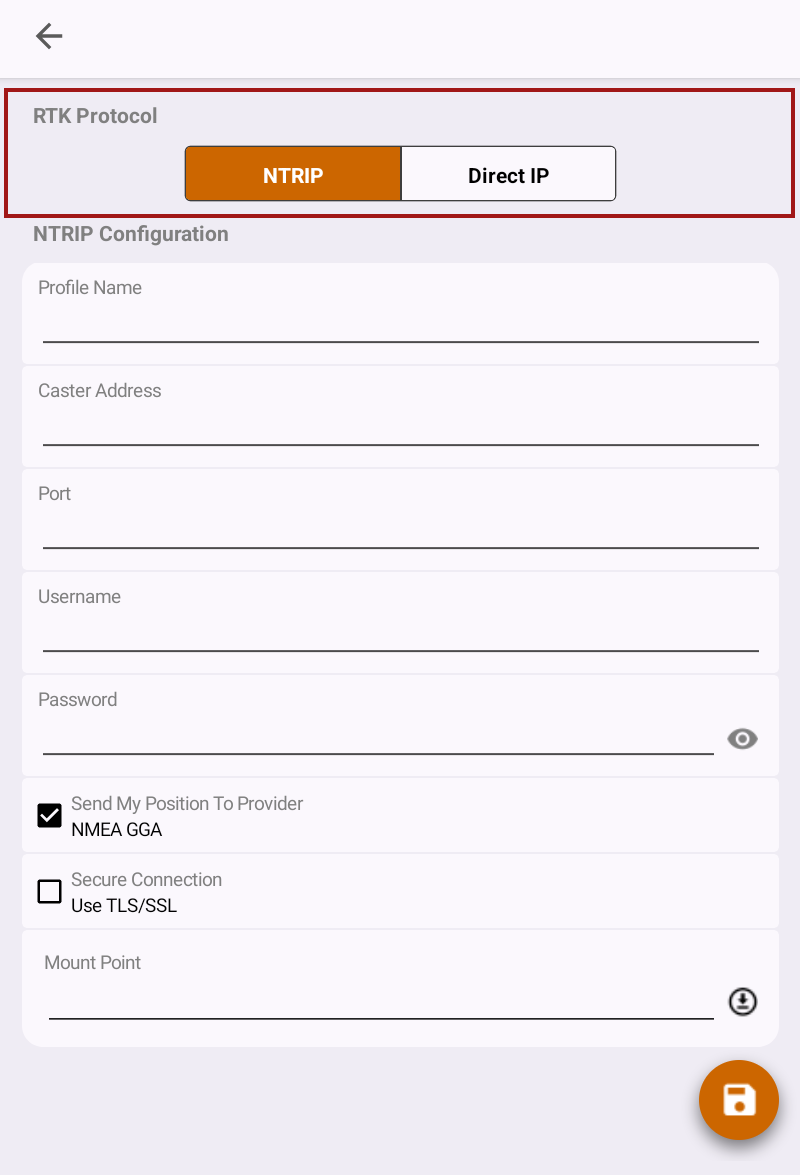
NTRIP
- Enter a profile name.
- Enter the NTRIP credentials for your Network RTK service provider, including
- Caster address
- Port
- Username
- Password
- Select Send my position to provider, NMEA GGA if you want Juniper Connect to send the receiver's position to the caster address. This allows the software to locate mount points closest to the GNSS receiver's position. Enabled by default.
- If required by your Network RTK service provider, select Secure connection, use TLS/SSL.
Note: Your NTRIP provider will let you know if this is required. - Under Mount Point, tap
 to download the mount points close to your GNSS receiver position.
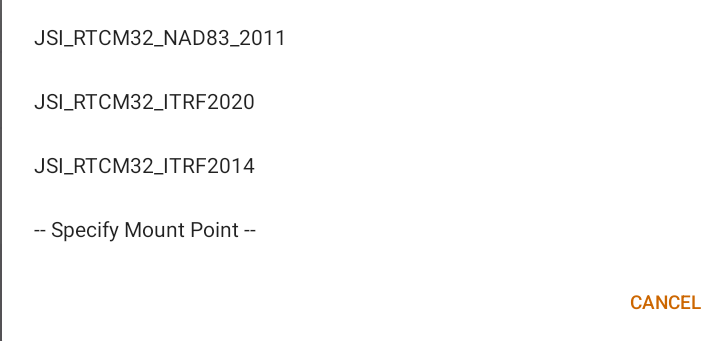
 - Tap the Mount Point tile again.
- Select the mount point closest to your location.
Note: If the desired mount point doesn't appear, enter it manually by selecting Specify mount point.
- Tap
 .
.
Direct IP
- Enter a profile name.
- Enter the host name and port provided by the Network RTK service provider.
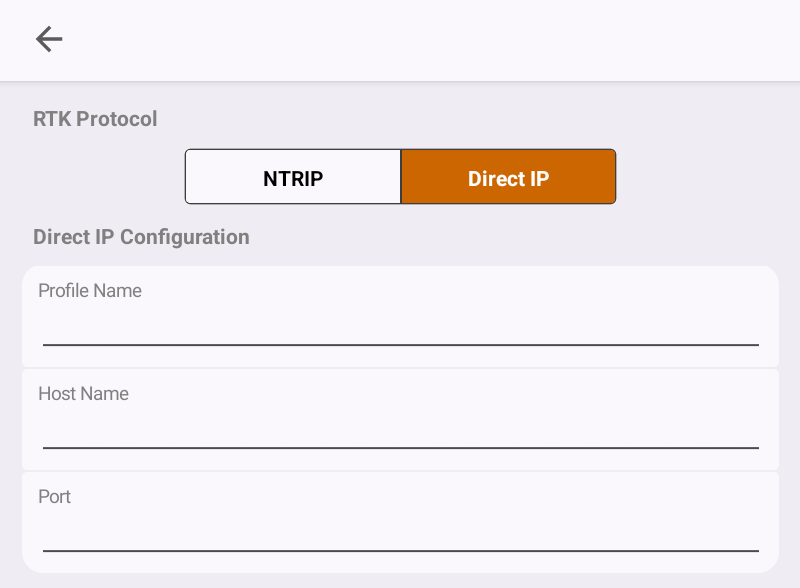
- Tap .
Import Network RTK Profile
To import a Network RTK profile:
- Select Settings > RTK/NTRIP profiles.
- Tap
 .
. - Locate and select the file. (The file type is JSON.)
- Tap Open.
The profile is added to the screen.
Connect to Network RTK
To connect to Network RTK:
- Go outdoors to an open area.
- On your mobile device, open Juniper Connect and connect to the GNSS receiver.
The receiver will begin acquiring satellite signals. - At the top of the Home or Skyplot screen, select your RTK provider.
Note: If your provider has not been set up, select Manage (or Add) NTRIP profile. (See Add a Network RTK Provider.)
- Tap
 .
.
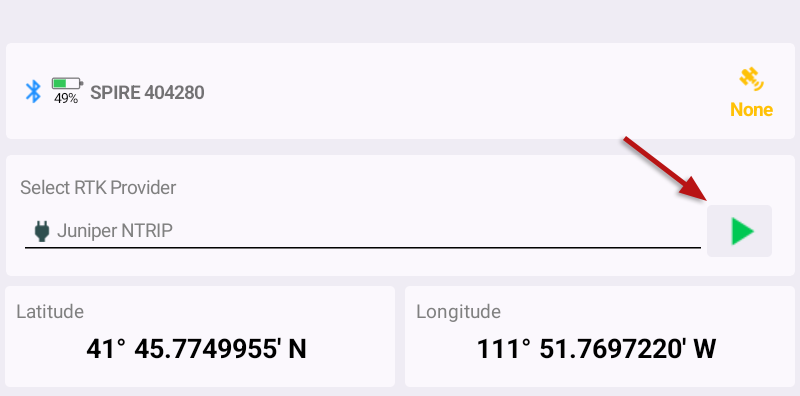
When the Network RTK is running, the button changes to  . Tap it to disconnect from the service.
Edit Network RTK Provider Credentials
To edit your Network RTK credentials:
- Select Settings > RTK/NTRIP Profiles.
- Tap
 next to the profile that you want to edit.
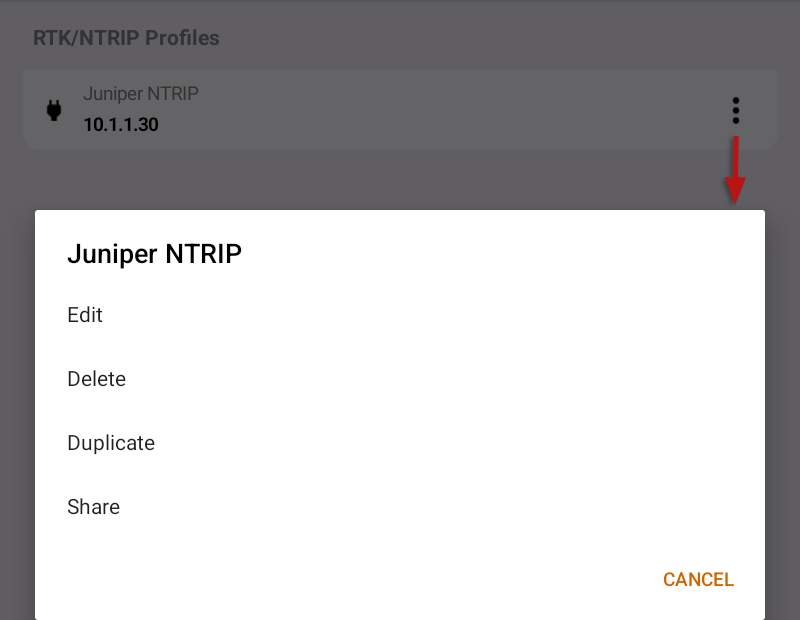
- From the menu, select
- Edit—Update the Network RTK credentials.
- Delete—Remove your Network RTK profile. This cannot be undone.
- Duplicate—Save a copy of the Network RTK profile.
- Export—Export the Network RTK profile for import on other devices. The file type is JSON.