Harvest with the GNSS Attachment
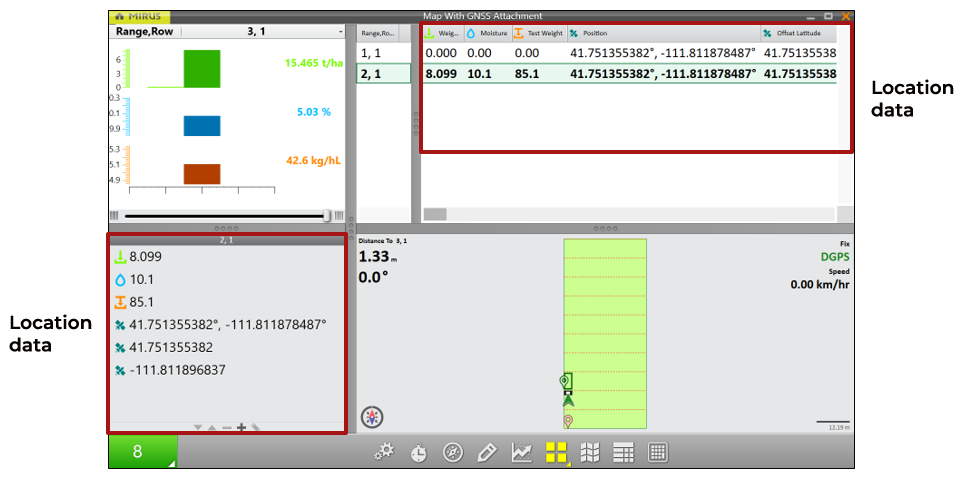
When Mirus is connected to the GNSS Plugin Attachment, the location will be displayed with the cycle data on the Harvest screen as your combine moves through the field. Data collection will begin as you harvest. For directions on using Mirus to harvest, refer to the Harvest Mode section in the appropriate Mirus user's guide.
When harvesting, ensure the GrainGage has completed cycling before you arrive at the next trip point. If you drive too fast, you will loose some GNSS data points on the trip. To approximate how fast you are driving, divide the Trip Distance by the cycle time (the time between the isolation door closing and opening) of the GrainGage.
| Speed Estimates Examples | ||
| Trip Distance | Average Cycle Time | Estimated Speed |
| 10 ft | 8 seconds | 1.25 ft/sec or 0.85 mph |
| 10 ft | 7 seconds | 1.43 ft/sec or 0.975 mph |
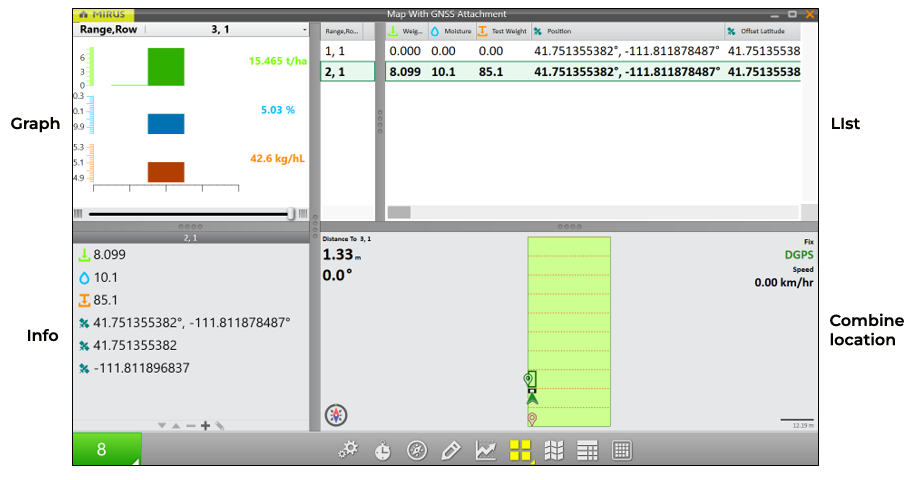
In the Quad View, you can see the combine location, GNSS speed, and distance traveled. For an explanation and instructions on configuring the Quad View, refer to the appropriate Mirus user's guide.
Countdown Timer
The distance trip feature harvests with the countdown timer. (For directions refer to theHarvest with Countdown Timer section in the appropriate Mirus user's guide.)
For positioning the harvested data correctly in the field, the countdown timer in Mirus must be synced with your combine.
To sync the countdown timer with your GrainGage,
- Harvest a short distance.
- Stop.
- Time how long it takes for all of the grain to arrive in the GrainGage.
Note: If the timer is too short, not all of the grain from the preset distance will be in the GrainGage. If the timer is too long, data from the next distance trip will be mixed in with the data collected from the previous trip.
To see the system cycles and data collection, set your Quad View to display Cycle Data, Field, Info, and Diagnostics screens.
On the Field screen,
- Tap Distance to Next Trip to see the distance to next trip.
- Tap the distance and bearing numbers to toggle between seeing the distance to the end of the plot where the flush cycle will occur and the distance to the next/previous plot.
- Use the pause button when you need to turn around or back up.
On the Diagnostics screen, select GNSS Attachment. Use the Next Trip Distance to count down to the next trip point so that you can stop at your intended trip distance.